Word count is one of the most important tools in Microsoft Word, especially for students, writers, bloggers, journalists, marketers, translators, and business users. Many assignments, articles, reports, applications, and documents have minimum or maximum word limits, so knowing the exact word count can save time and prevent formatting mistakes.
Microsoft Word includes several ways to check the word count. The quickest method is the live counter in the status bar at the bottom of the window. Word can also show detailed statistics such as characters, paragraphs, lines, and pages through the Word Count dialog box. Microsoft explains that Word automatically counts the number of words in a document while users type and displays the count in the status bar.
Why Word Count Matters in Word
Word count is useful because many documents must stay within a certain size. A school essay may require at least 1,000 words, while a job application may limit the response to 250 words. Blog posts, SEO articles, reports, and business documents also often follow word count targets.
Word count is commonly used for:
- School essays
- Research papers
- Blog posts
- SEO articles
- Reports
- Resumes
- Cover letters
- Business proposals
- Social media writing
- Translation work
- Marketing content
Microsoft Word helps track this automatically, making it easier to stay within the required limit.
How to Check Word Count in Microsoft Word
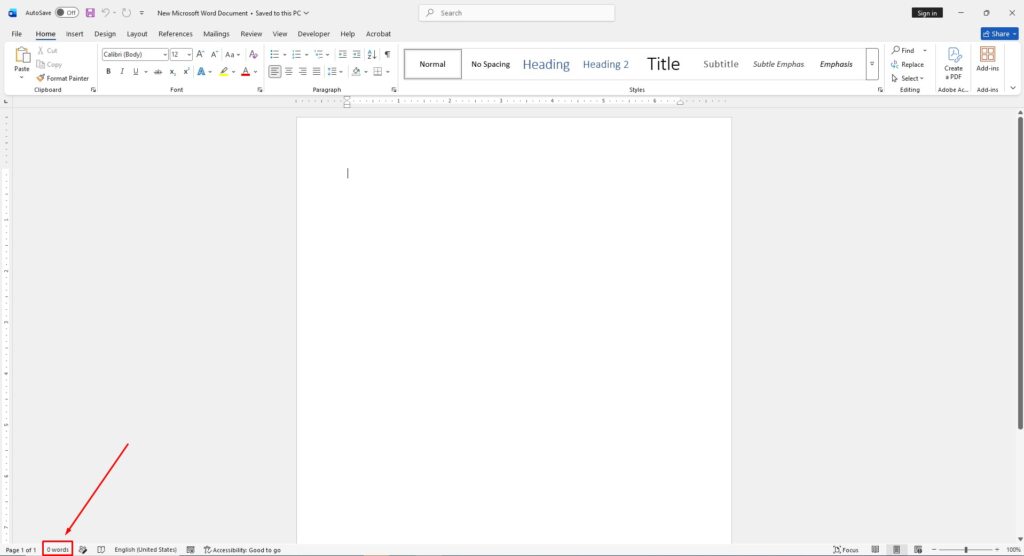
The fastest way to check word count is from the status bar at the bottom of the Word window. Word updates the count automatically while typing.
To check the word count in Word:
- Open the Microsoft Word document.
- Look at the bottom-left corner of the window.
- Find the word count in the status bar.
Microsoft states that the status bar shows the word count while users type, making it easy to monitor document length in real time.
If the word count does not appear, right-click the status bar and enable Word Count from the list of available options.
How to Open Detailed Word Count Statistics
The status bar shows only the total number of words, but Word can also display more detailed information about the document. This includes:
- Number of pages
- Character count
- Characters without spaces
- Paragraph count
- Line count
To open detailed word count statistics:
- Click the word count in the status bar.
- Or go to the Review tab.
- Click Word Count in the Proofing group.
Microsoft explains that clicking the word count opens the Word Count dialog box, where additional document statistics are displayed.
This is useful for assignments or publishing requirements that include character limits instead of word limits.
How to Check Word Count for Selected Text
Sometimes only part of the document needs to be counted. Word can calculate the word count for selected text without affecting the full document count.
To count words in a selected section:
- Highlight the text that should be counted.
- Look at the status bar.
The status bar usually displays something like:
120 of 1,450 words
This means the selected text contains 120 words out of the document’s total 1,450 words. Microsoft notes that selected text word counts appear directly in the status bar.
This feature is useful for checking summaries, abstracts, introductions, or specific sections of longer documents.
Keyboard Shortcut for Word Count
Microsoft Word also supports a keyboard shortcut for quickly opening the Word Count dialog box.
Windows Shortcut
Ctrl + Shift + G
Mac Shortcut
Command + Shift + G
Several Word guides note that this shortcut opens the Word Count statistics window directly.
This is useful for users who work with word limits often and want faster access without using menus.
How to Check Word Count in Word Online
Word Online also includes a live word count feature. Microsoft explains that Word for the web displays the word count at the bottom of the document window while typing.
To check word count in Word Online:
- Open the document in Word Online.
- Look at the bottom-left corner.
- Find the word count in the status bar.
If the count does not appear, make sure the document is in Editing view. Microsoft notes that users can click the word count to toggle it on or off in Word Online.
How to Check Word Count on Mobile
Microsoft Word mobile apps for Android and iPhone also support word count tools.
To check word count on mobile:
- Open the Word document.
- Tap the editing or menu button.
- Open the Review section.
- Select Word Count.
Mobile versions of Word can also display characters, pages, and other statistics depending on the app version.
What Counts as a Word in Microsoft Word?
Microsoft Word usually counts:
- Regular text
- Numbers
- Short symbols between spaces
- Headings
- Body text
Depending on settings, Word may also include:
- Footnotes
- Endnotes
- Text boxes
Microsoft explains that detailed word count settings can include or exclude certain elements such as footnotes and endnotes.
Word Online may show a slightly different count because some elements, such as text boxes or SmartArt graphics, may not always be counted the same way.
Common Problems With Word Count
Sometimes users notice that the word count is missing, frozen, or inaccurate. This can happen if the status bar setting was disabled or if Word is temporarily lagging.
Common fixes include:
- Right-click the status bar and enable Word Count
- Restart Microsoft Word
- Update Office
- Save and reopen the document
- Check whether text is inside text boxes or tables
Microsoft community discussions show that some users experience delayed or missing live word counts, especially in large documents.
Best Practices for Using Word Count
For better accuracy and document management:
- Check word count before submitting documents.
- Use detailed statistics for character-limited content.
- Count selected sections separately when needed.
- Avoid adding unnecessary filler text just to increase word count.
- Use Word Online carefully because counts may differ slightly.
- Double-check formatting before exporting to PDF.
For professional writing, word count should support clarity, not replace it. A shorter, clear document is usually better than a longer document filled with unnecessary text.