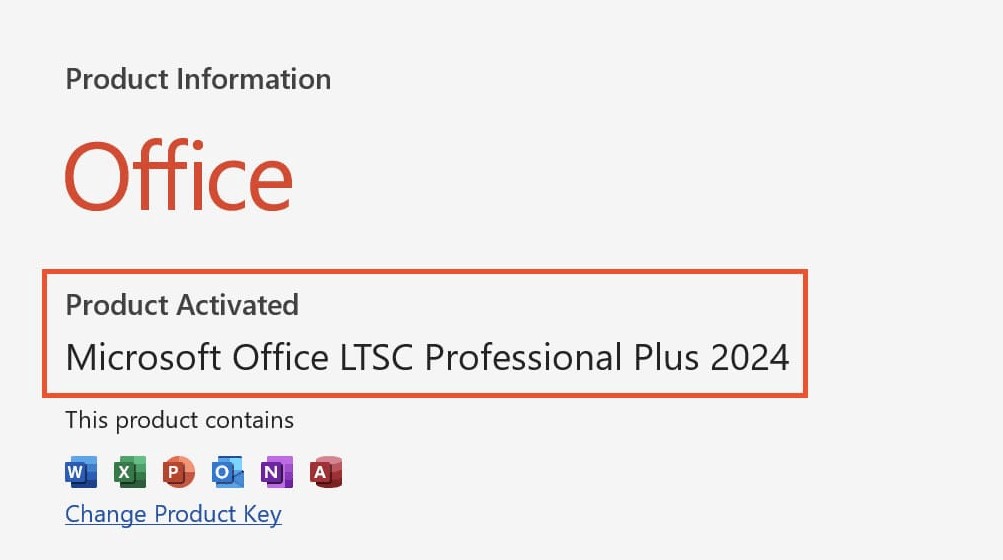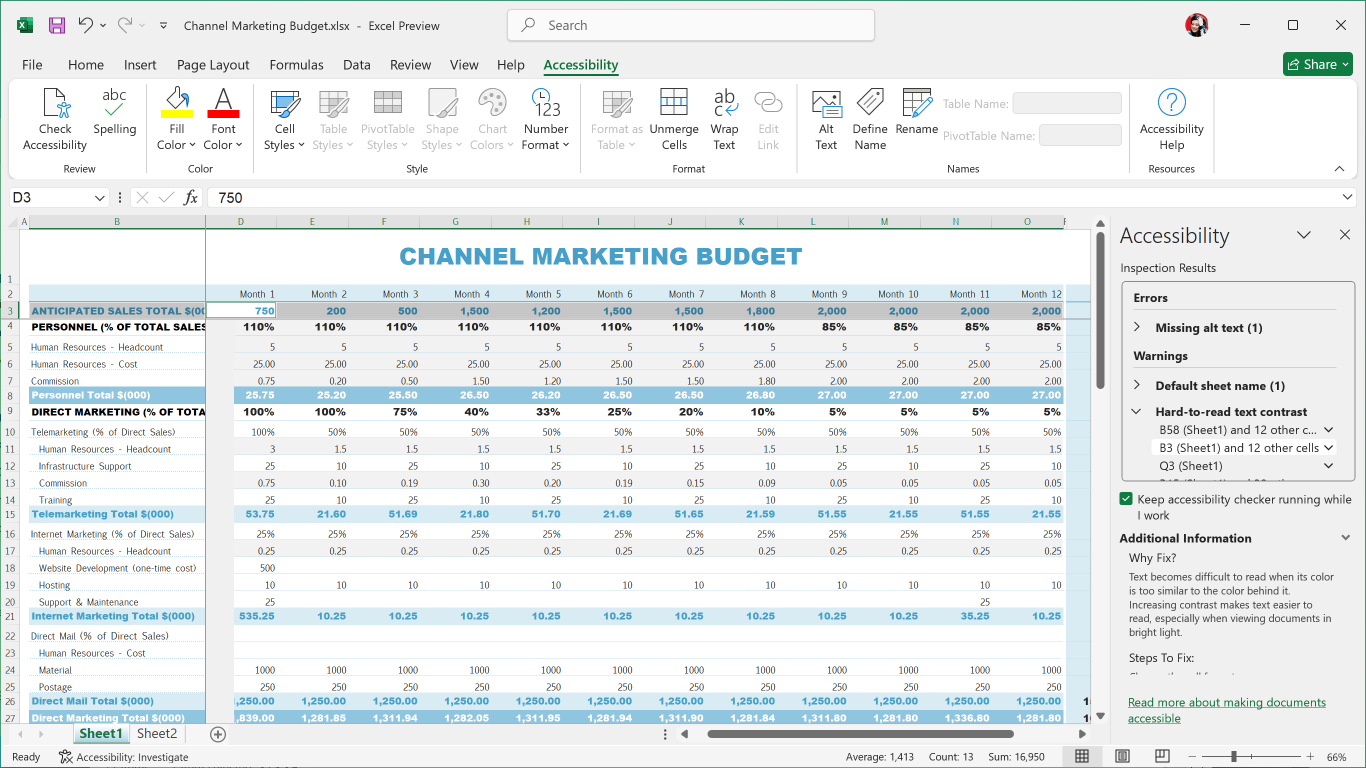
Installing Office 2024 Professional Plus LTSC correctly ensures a stable, long-term productivity environment for businesses and advanced users. This complete step-by-step guide will show you how to download, configure, install, and activate Office 2024 LTSC using the official Microsoft Office Deployment Tool and Office Customization Tool.
By following this tutorial, you’ll gain full access to Microsoft Word, Excel, PowerPoint, Outlook, and other Office applications with a secure and optimized setup.
Step 1: Create an Office 2024 Setup Folder
Before installing Office 2024 Professional Plus LTSC, you need a dedicated folder for installation files.
- Right-click on your Desktop.
- Select New → Folder.
- Name the folder:
Office 2024
This folder will store your Office Deployment Tool files and configuration XML.
Step 2: Download the Office Deployment Tool for Office 2024 LTSC
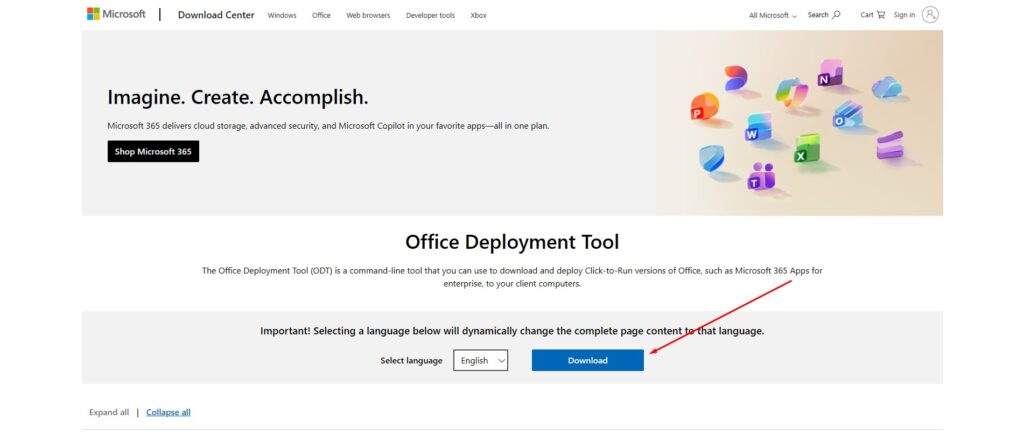
To install Office 2024 Professional Plus LTSC, Microsoft requires the Office Deployment Tool (ODT).
- Open your web browser.
- Search for: Office Deployment Tool
- Click the official Microsoft website result.
- Download the
.exefile. - Run the file after download.
- When prompted, extract the contents into your Office 2024 folder.
After extraction, your setup folder will contain the necessary deployment files.
Step 3: Configure Office 2024 Using the Office Customization Tool
To properly install Office 2024 Professional Plus LTSC Volume License, you must generate a configuration file.
Open the Office Customization Tool
- Open a new browser tab.
- Search for: Office Customization Tool
- Open the official Microsoft online configuration tool.
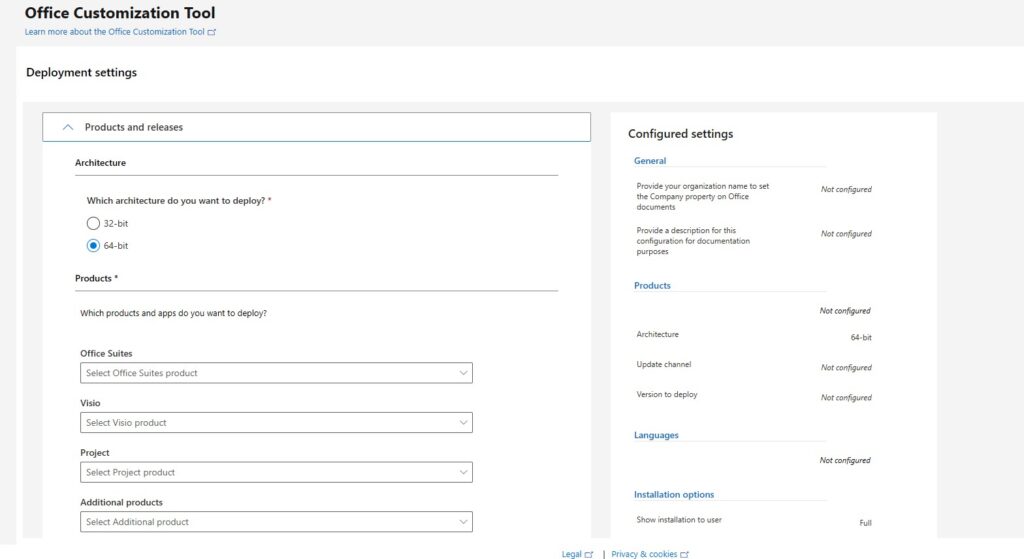
Configure Office 2024 LTSC Settings
In the Office Customization Tool, select:
- Architecture: 32-bit or 64-bit (match your Windows system)
- Product: Office LTSC Professional Plus 2024 – Volume License
- Version: Latest available (recommended)
- Applications: Choose Word, Excel, PowerPoint, Outlook, etc.
- Language: Select your preferred language
Export the Configuration XML
- Click Export.
- Choose Office Open XML format.
- Save the file as:
configuration.xml
Save it to your Downloads folder.
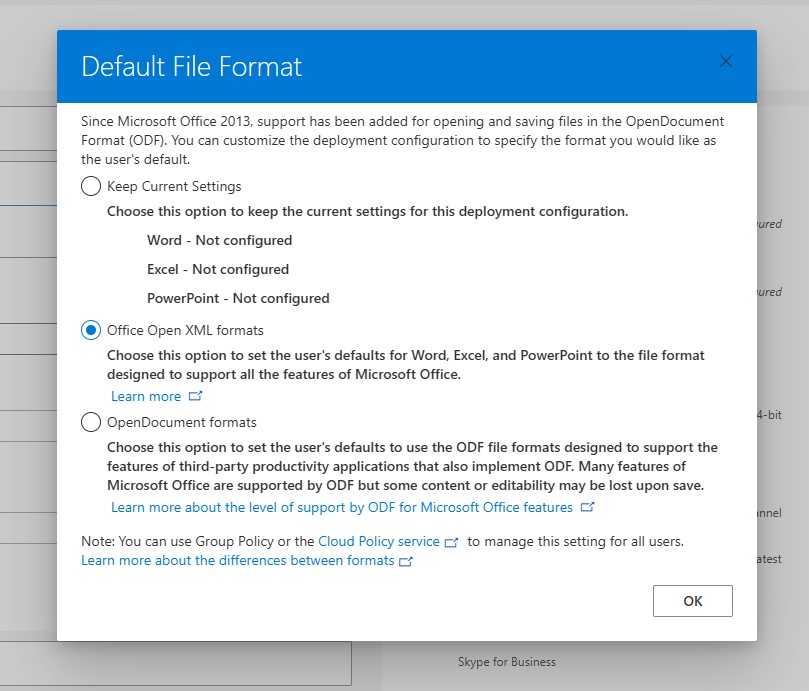
Step 4: Prepare the Office 2024 Installation Files
- Copy the
configuration.xmlfile. - Paste it into the Office 2024 folder on your Desktop.
Your folder should now contain:
- Office Deployment Tool files
setup.execonfiguration.xml
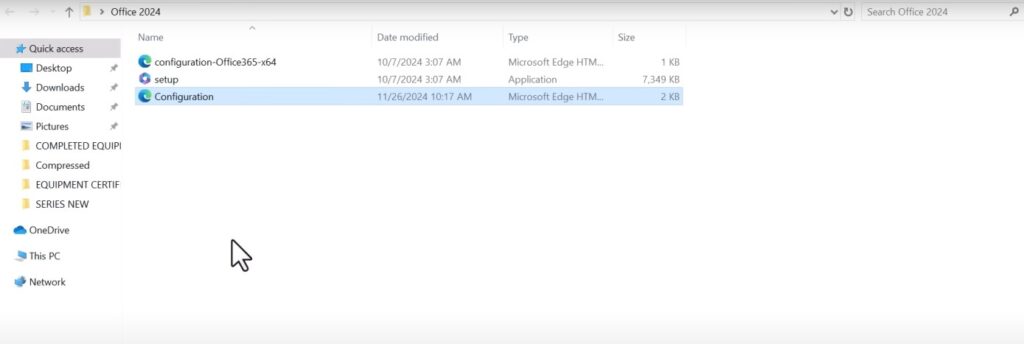
Step 5: Move Office 2024 Folder to the C: Drive
For proper execution, move the folder to the root of the C: drive.
- Cut the Office 2024 folder.
- Paste it into:
C:\Office 2024
This ensures the installation command runs without path issues.
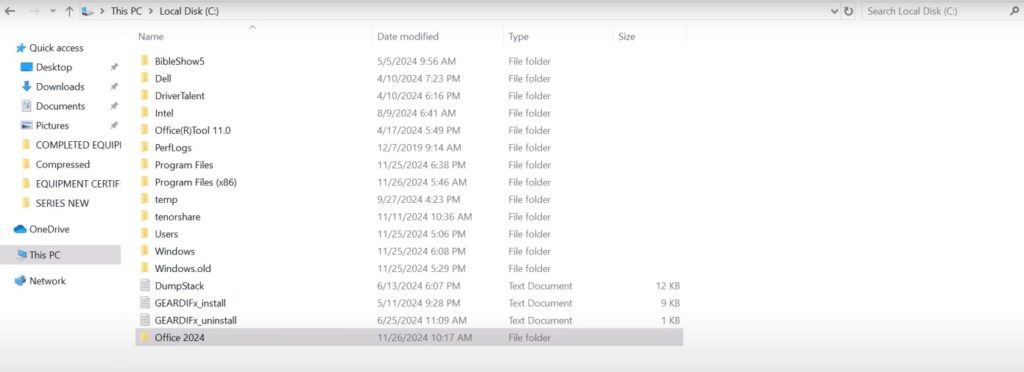
Step 6: Install Office 2024 Professional Plus LTSC via Command Prompt
Now you’re ready to install Office 2024 LTSC.
Run Command Prompt as Administrator
- Type CMD in Windows Search.
- Right-click Command Prompt.
- Select Run as administrator.
Navigate to the Office 2024 Folder
Type:
cd C:\Office 2024
Press Enter.
Start the Office 2024 Installation
Run the following command:
setup.exe /configure configuration.xml
Press Enter to begin installing Office 2024 Professional Plus LTSC.
Installation time depends on:
- Internet speed
- Selected Office applications
- System performance
Wait until the process completes.
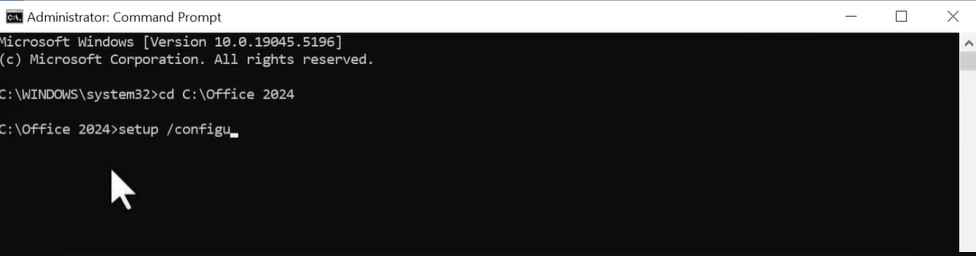
Step 7: Activate Office 2024 Professional Plus LTSC
After installation:
- Open Microsoft Word or any Office app.
- The activation window should appear automatically.
- If not, go to File → Account → Activate Office.
- Enter your valid Office 2024 product key.
- Follow the on-screen instructions to complete activation.
Once activated, your Office 2024 Professional Plus LTSC suite is ready for full use.