

Upgrading from Windows 11 Home or Windows 10 Home to Windows 11 Pro or Windows 10 Pro is simple and fast. In fact, the entire process usually takes less than 15 minutes.
Most importantly, you do not need to reinstall Windows. Instead, the system switches editions automatically after you enter a valid Pro product key. As a result, your files, installed programs, and settings remain untouched.
In this guide, you will learn exactly how to complete the upgrade safely and correctly.
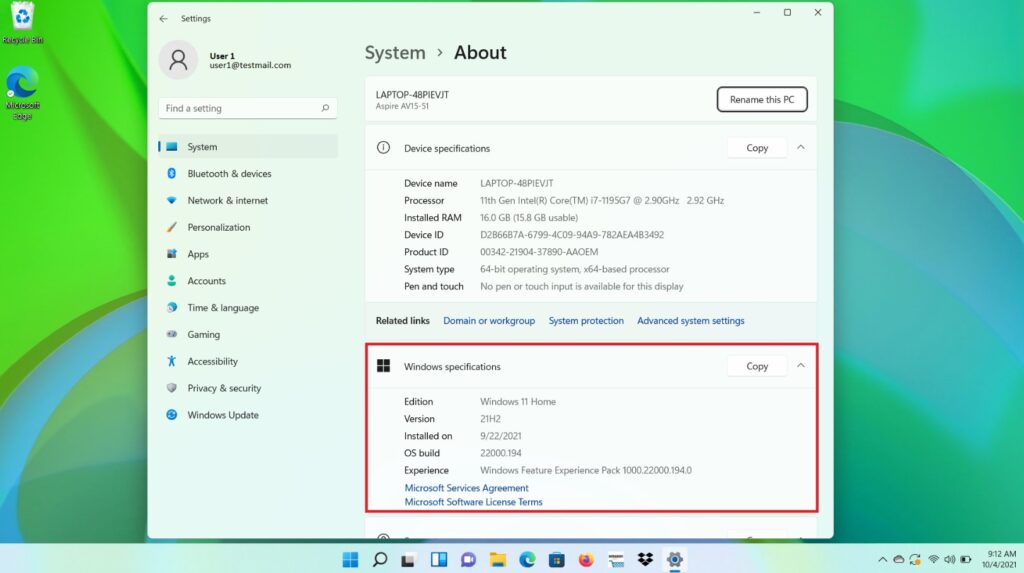
Step 1: Check Your Current Windows Edition
Before starting the upgrade, confirm your device is running Windows Home.
To do this:
- Press Windows + I
- Click System
- Select About
- Look under Windows specifications
If the edition says “Home,” then you can proceed. Otherwise, no upgrade is needed.
Step 2: Open the Activation Settings
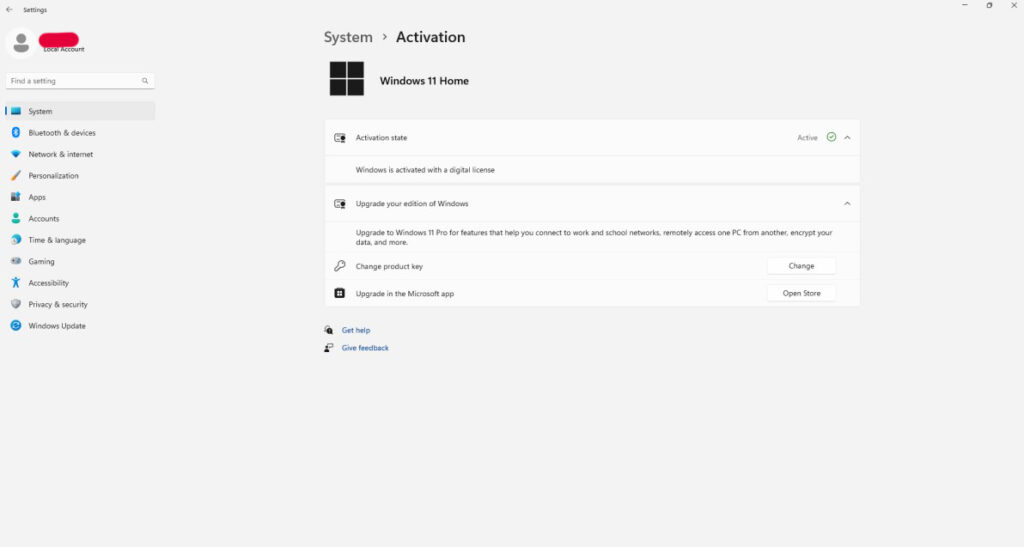
Once you confirm the edition, move to the activation section.
Follow these steps:
- Open Settings
- Go to System
- Click Activation
Here, Windows displays your current activation status. At this point, make sure the system shows as activated. If it does not, activate Windows Home first. Otherwise, the upgrade may fail.
Step 3: Change the Product Key
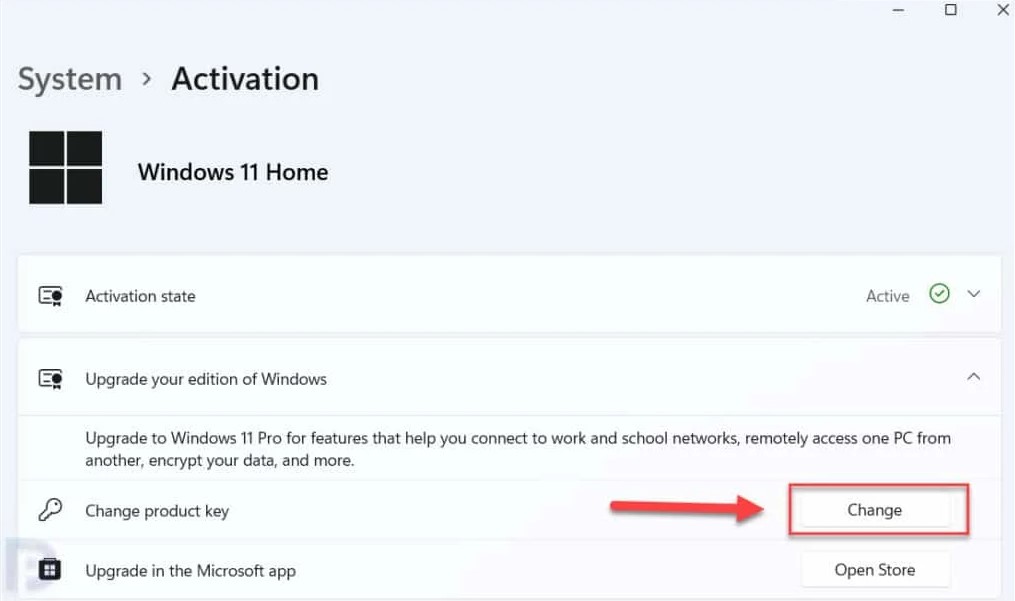
After accessing the Activation page, select Change product key.
Next, enter your Windows Pro product key carefully. Double-check for typing errors. Even a small mistake can prevent activation.
Once entered, click Next, then confirm. Immediately afterward, Windows will begin preparing the edition upgrade.
During this stage, your screen may freeze briefly. However, this is normal. Shortly after, the system will request a restart.
Step 4: Let Windows Complete the Upgrade
When your PC restarts, Windows automatically switches from Home to Pro.
Although the process runs in the background, you may see a message that Windows is configuring features. Do not turn off your computer during this time.
Typically, the upgrade finishes within 5–15 minutes. Once complete, the system loads normally.
Step 5: Verify Windows Pro Activation
After logging back in:
- Open Settings
- Navigate to System > Activation
The edition should now display Windows Pro. Additionally, the activation status should show as active.
If everything appears correct, the upgrade was successful.
Alternative Upgrade Method (If It Doesn’t Switch Editions)
Occasionally, Windows does not immediately change editions. In that case, you can force the switch.
First, disconnect your internet connection.
Then, enter the generic Pro upgrade keys:
VD4D4-NDBGX-MTQ2D-G2D9B-F9CKG

VK7JG-NPHTM-C97JM-9MPGT-3V66T
After restarting your computer, reconnect to the internet. Finally, enter your purchased Pro key again to activate.
This method forces Windows to change editions before final activation.
Common Upgrade Problems and Solutions
Although the process is usually smooth, some users experience errors. Fortunately, most issues are easy to fix.
Error 0x803fa067
In most cases, this appears when Windows Home is not activated. Therefore, activate Home first and try again.
Product Key Not Accepted
If Windows rejects your key, check for:
- Typing mistakes
- Incorrect edition key
- Extra spaces
Correcting these small issues often solves the problem.
Activation Failed After Upgrade
If activation fails, restart the PC. Then, run the Activation Troubleshooter from the same page. In many situations, this resolves the issue automatically.
Does the Upgrade Delete Files?
No. The upgrade only changes the Windows edition license. It does not remove personal files, installed applications, or system settings.
Nevertheless, backing up important data is always a good precaution. While problems are rare, it is better to stay prepared.
How Long Does the Upgrade Take?
In most cases, the upgrade takes between 5 and 15 minutes. However, slower systems may take slightly longer. Internet speed can also affect activation time.
Even so, the process is much faster than performing a clean installation.
Can You Downgrade Back to Home?
Technically, Windows does not offer a direct downgrade option. Therefore, returning to Home requires reinstalling that edition from scratch.
For that reason, make sure you intend to stay on Pro before upgrading.







