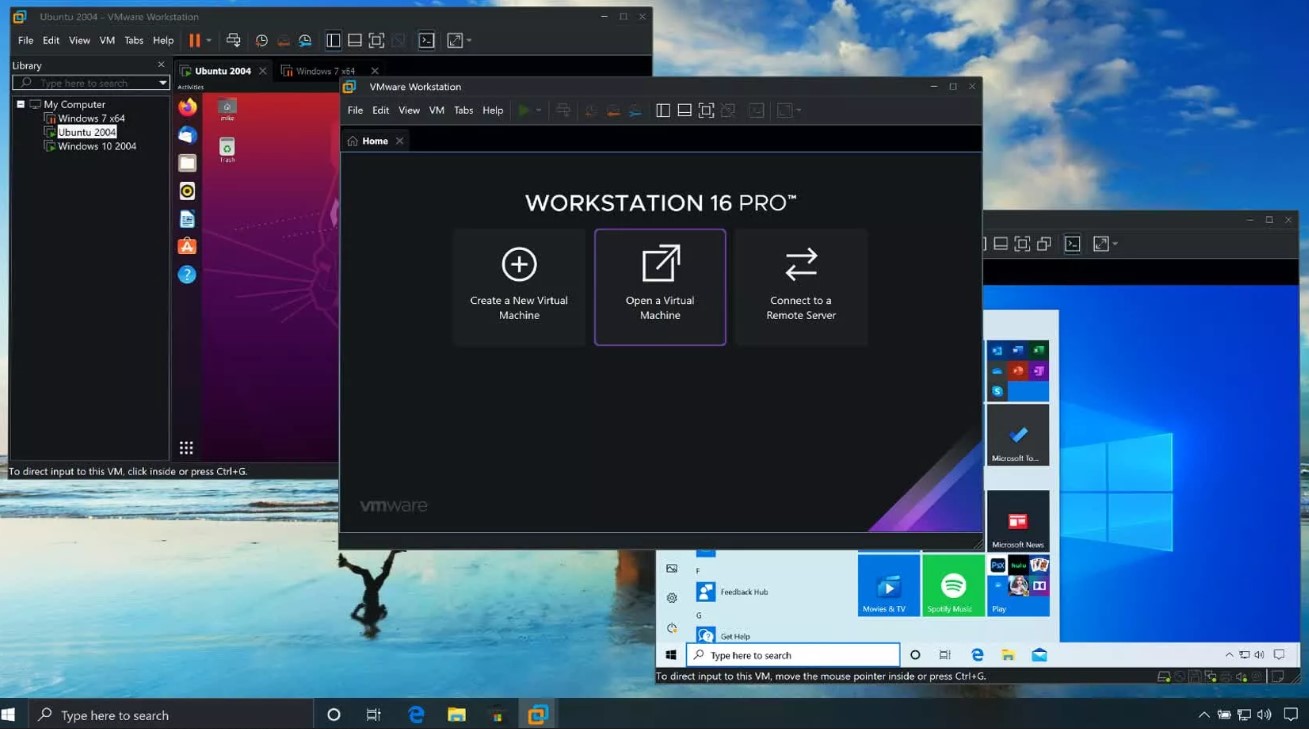
If you want to run multiple operating systems on a single PC, VMware Workstation Pro is one of the most powerful and reliable desktop virtualization solutions available. This detailed guide explains how to download, install, and activate VMware Workstation Pro properly, ensuring a smooth setup process from start to finish.
Downloading VMware Workstation Pro from Broadcom
VMware products are now distributed through the official Broadcom portal. Follow these steps carefully:
- Visit the official Broadcom website.
- Create a new account or sign in if you already have one.
- Navigate to the VMware Workstation Pro download section.
- Select the correct version for your operating system.
- Download the installer file to your computer.
Make sure you download the official version to ensure security, compatibility, and access to updates.
Installing VMware Workstation Pro
After the download is complete, proceed with the installation:
- Locate the downloaded installer file.
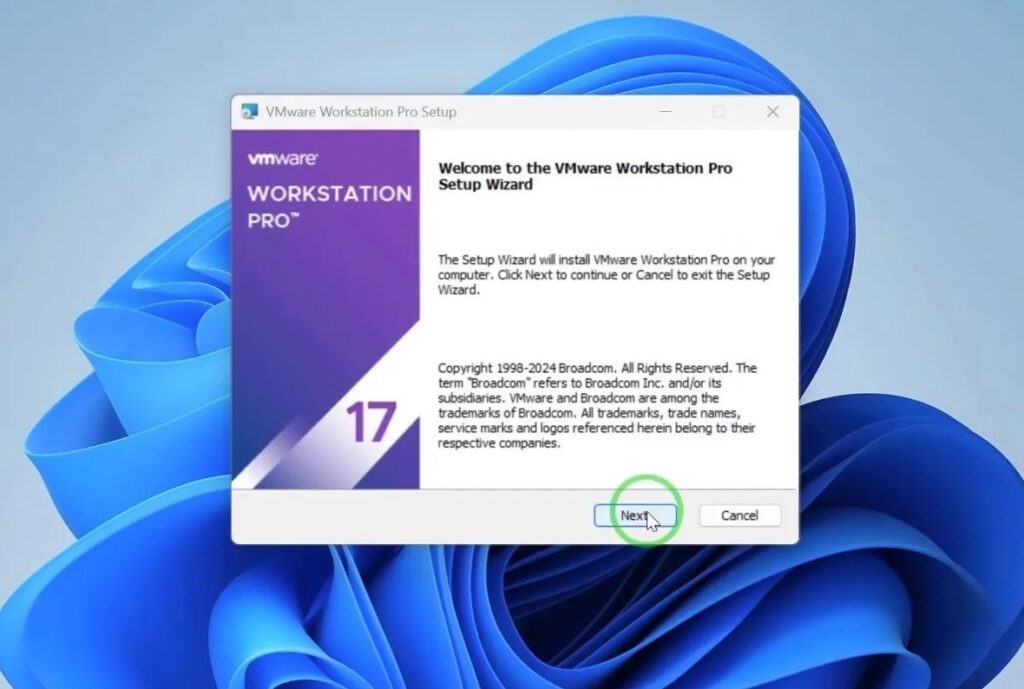
- Double-click the file to launch the setup wizard.
- If prompted by Windows User Account Control (UAC), click Yes to allow the installer to run.
- Carefully read and accept the license agreement.
- Choose your preferred installation directory (or keep the default location).
- Configure optional settings such as desktop shortcuts if desired.
- Click Install and wait for the installation process to complete.
Depending on your system configuration, you may be asked to restart your computer. If prompted, restart your PC to finalize the installation.
Activating VMware Workstation Pro
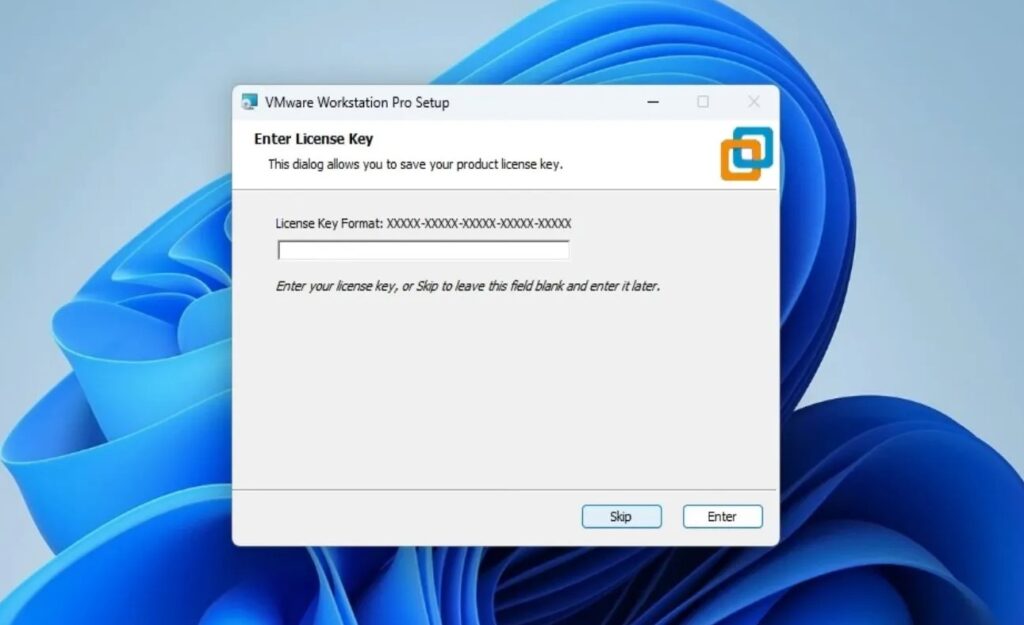
Once installation is complete, you will see two options: License or Finish.
Option 1: Activate Immediately
If you already have a valid license key, follow these steps:
- Click License.
- Enter your VMware Workstation Pro license key.
- Click Enter to complete the activation process.
If the key is valid, activation will be completed instantly.
Option 2: Activate Later
If you prefer to activate at a later time:
- Click Skip.
- Click Finish to close the setup wizard.
You can activate the software later from within the application settings.
How to Verify VMware Workstation Pro Activation
To confirm that VMware Workstation Pro has been successfully activated:
- Restart VMware Workstation Pro.
- Click on Help in the top menu.
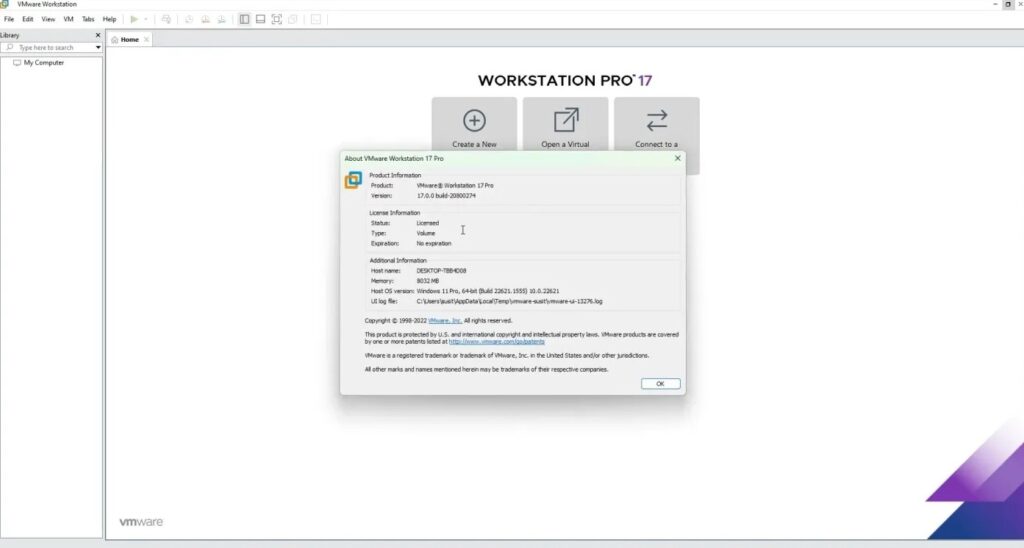
- Select About VMware Workstation.
- Check the license status to confirm activation.
If the product is activated correctly, your license information will be displayed.