
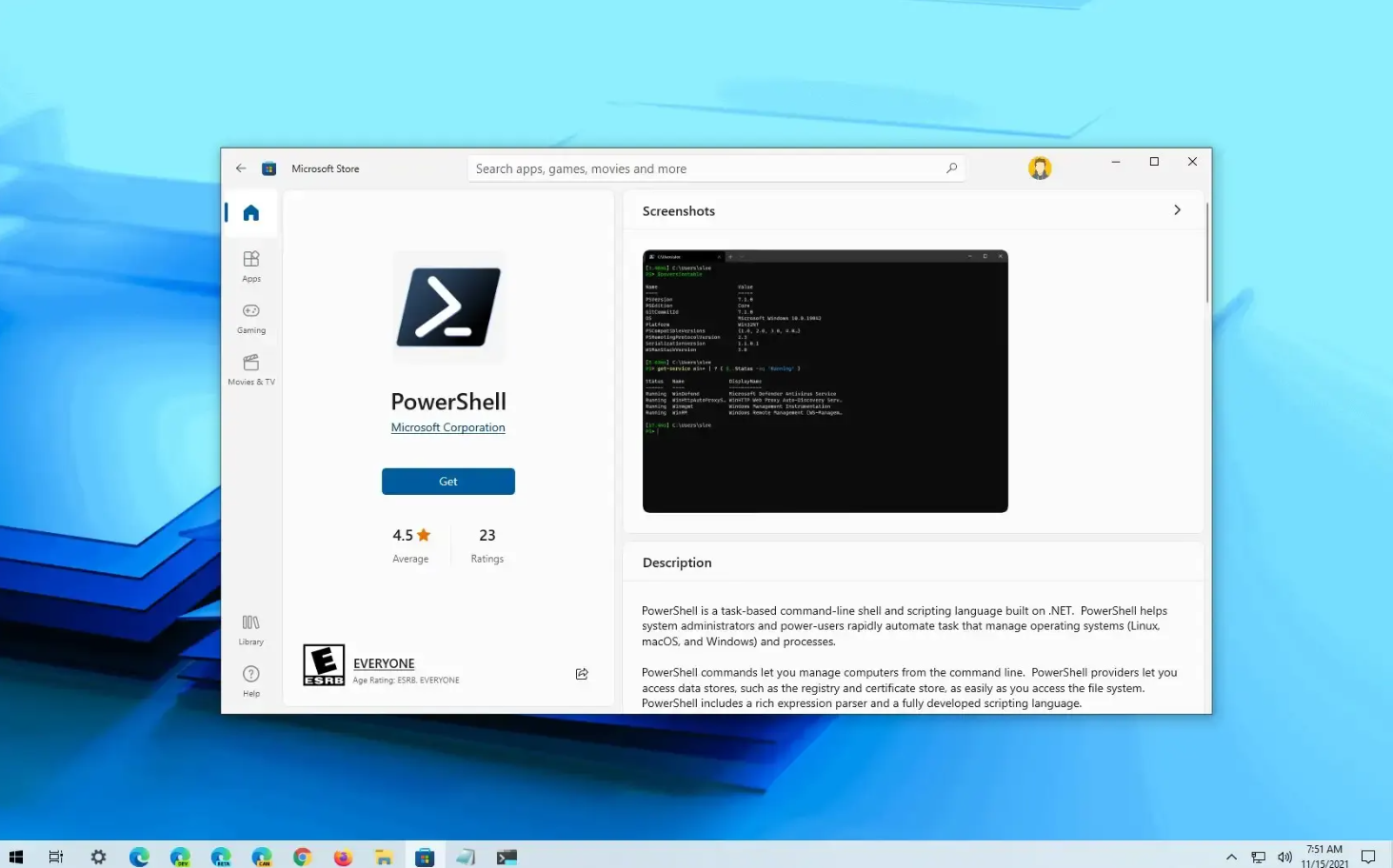
Windows includes hundreds of settings that can be adjusted through the Settings app or Control Panel, but not everything is available through the graphical interface. Some advanced options require PowerShell, Microsoft’s powerful command-line and automation tool.
While PowerShell is often associated with IT professionals and system administrators, many everyday users can benefit from learning a few simple commands. Certain Windows settings, troubleshooting tasks, and management features are only accessible—or far easier to manage—through PowerShell.
If you’ve never used PowerShell before, these examples show why it’s still an essential part of Windows.
Why PowerShell Is Still Important
Microsoft continues to improve the Windows Settings app, but not every feature has been moved from the command line.
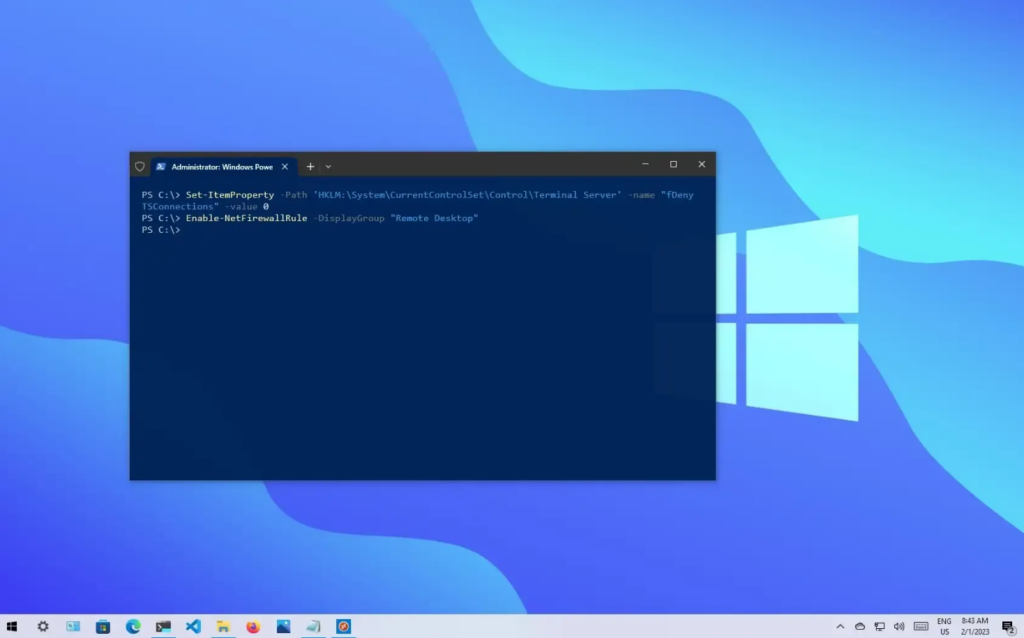
PowerShell gives users access to advanced system management tools that can:
- Manage optional Windows features
- Configure system settings
- Automate repetitive tasks
- View detailed system information
- Control user accounts
- Troubleshoot Windows components
Many of these tasks would otherwise require multiple menus or simply aren’t available in the graphical interface. Microsoft continues to support PowerShell alongside modern Windows management tools.
Manage Optional Windows Features
Windows includes many optional components that aren’t installed by default.
Although some can be enabled through Settings > Apps > Optional Features, PowerShell provides greater flexibility for viewing, installing, or removing Windows features, particularly in administrative or advanced scenarios.
This is especially useful when configuring multiple computers or troubleshooting feature installation problems.
View Detailed System Information
The Settings app displays basic hardware information, but PowerShell can reveal much more.
With the appropriate commands, you can inspect:
- Installed Windows version
- BIOS information
- Processor details
- Memory configuration
- Storage devices
- Network adapters
- Installed updates
Having quick access to detailed system information can simplify troubleshooting without opening several different utilities.
Configure Environment Variables
Environment variables control how Windows and many applications operate.
Although Windows includes a graphical interface for editing them, PowerShell provides faster management, scripting, and automation capabilities. It also supports working with variables at the process, user, and system levels.
For administrators and developers, this makes PowerShell the preferred option for managing complex environments.
Automate Repetitive Tasks
One of PowerShell’s biggest advantages is automation.
Instead of repeating the same steps manually, you can create scripts that perform routine maintenance, collect system information, or configure settings automatically.
Examples include:
- Cleaning temporary files
- Gathering hardware reports
- Managing local users
- Checking installed software
- Running maintenance tasks
Automation saves time while reducing the chance of human error.
Better Administrative Control
Many advanced Windows management tools are designed around PowerShell.
System administrators frequently use it to:
- Configure multiple devices
- Deploy software
- Generate reports
- Monitor services
- Perform remote administration
Because PowerShell supports scripting and remote management, it’s widely used in business and enterprise environments.
Is PowerShell Difficult to Learn?
Not necessarily.
Many useful commands are short and well documented, and beginners can gradually learn them as needed. You don’t need to become a scripting expert to benefit from PowerShell.
Learning a handful of basic commands can make troubleshooting and system management much easier over time.
Should Everyday Users Use PowerShell?
For most daily tasks, the Windows Settings app is enough.
However, PowerShell becomes valuable when you need advanced control, automation, or access to features that aren’t available through the graphical interface.
It’s also an excellent tool for users interested in learning more about how Windows works behind the scenes.