
Pie charts are quick and easy to make, and they look polished at first glance. But they often make your data harder to understand. When you move past three or four slices, pie charts become cluttered, with messy legends and labels that confuse your audience. Even sorting the underlying data rarely fixes the problem.
A dynamic bar chart solves these issues. It updates automatically when your data changes, clearly shows hierarchy, and eliminates the need for confusing legends or manual labels. Here’s how to replace your pie charts with dynamic, professional-looking bar charts in Excel.
Step 1: Create a Dynamic Data Bridge
Before creating your chart, build a bridge between your raw data and your visual. This keeps your source data clean and lets the chart update automatically.
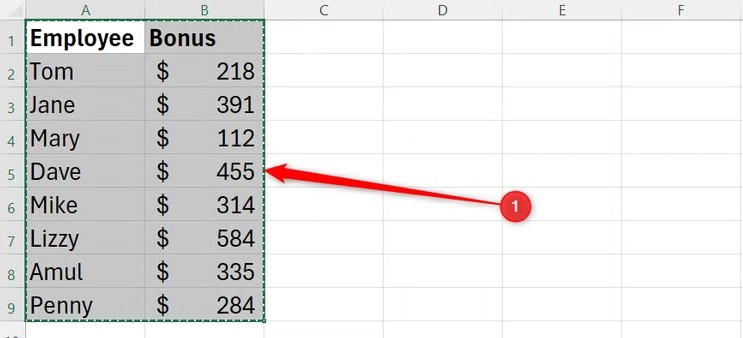
- Select your original dataset (Set A) and press Ctrl+C to copy.
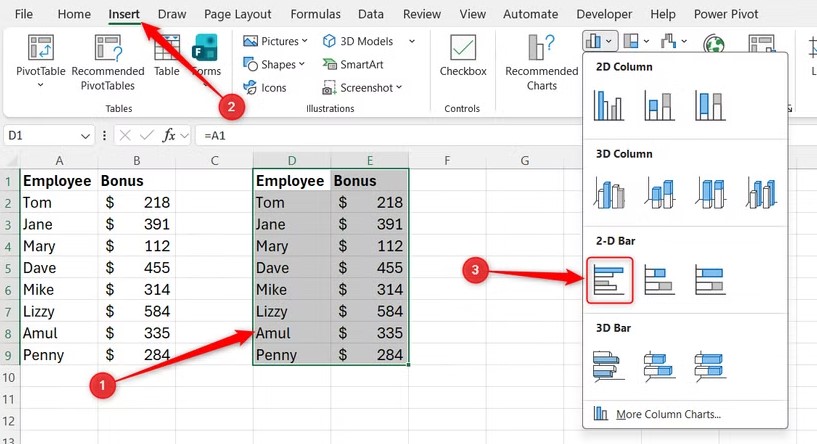
- Move to a new area in your spreadsheet, right-click, and select Paste Link to create a duplicate (Set B).
- Use Format Painter from the Home tab to copy formatting from Set A to Set B.
Any updates in Set A will now flow automatically into Set B, keeping your chart dynamic and accurate.
Step 2: Insert and Style the Bar Chart
With Set B ready, insert a bar chart and remove unnecessary Excel defaults:
- Select Set B, go to the Insert tab, and choose a Clustered Bar Chart.
- Remove gridlines, chart title, and horizontal axis to reduce clutter.
- Right-click a bar, select Format Data Series, and set Gap Width to about 50% for thicker bars.
- Right-click a bar again, choose Add Data Labels, select the labels, press Ctrl+1, and set Inside Base.
- Format the labels for readability using the Home tab’s Font options.
This gives your chart a clean, modern look while keeping all key values visible.
Step 2: Insert and Style the Bar Chart
With Set B ready, insert a bar chart and remove unnecessary Excel defaults:
- Select Set B, go to the Insert tab, and choose a Clustered Bar Chart.
- Remove gridlines, chart title, and horizontal axis to reduce clutter.
- Right-click a bar, select Format Data Series, and set Gap Width to about 50% for thicker bars.
- Right-click a bar again, choose Add Data Labels, select the labels, press Ctrl+1, and set Inside Base.
- Format the labels for readability using the Home tab’s Font options.
This gives your chart a clean, modern look while keeping all key values visible.
Step 3: Add Percentages Using a Ghost Series
To show contribution percentages similar to a pie chart:
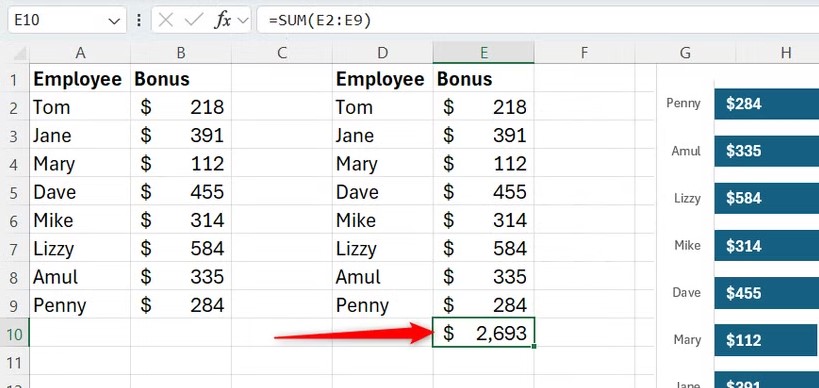
- Create a total of your values using Alt+= in the cell below your data.
- In a new column, calculate the percentage for each value using:
=E2:E9/E10
or, if your Excel version does not support spilled ranges:
=E2/E$10
Drag the formula down to cover all rows. Format the results as percentages.
- Right-click your chart, select Select Data, then Add Series, name it “Percent,” and link it to the percentage values.
- Edit the Horizontal Labels to match Set B.
- Add Data Labels to this series, select Value From Cells, and link to the percentage values. Uncheck Value to only show percentages.
- Set Series Overlap to 100% and apply No Fill / No Line to hide the ghost bars.
- Format the percentage labels to match your existing data label style.
Now your chart shows both actual values and percentages without extra clutter.
Step 4: Automate Sorting by Value
To keep the highest values at the top dynamically:
- Clear the data in Set B temporarily.
- Use the SORT function to reorder automatically:
=SORT(A2:B9, 2)
Here, A2:B9 is your original range, and 2 indicates sorting by the second column (values).
- The chart will now update whenever values in Set A change. For example, if a bonus value increases, that bar will move to the top automatically.
This keeps your bar chart readable and instantly reflects any data changes.