

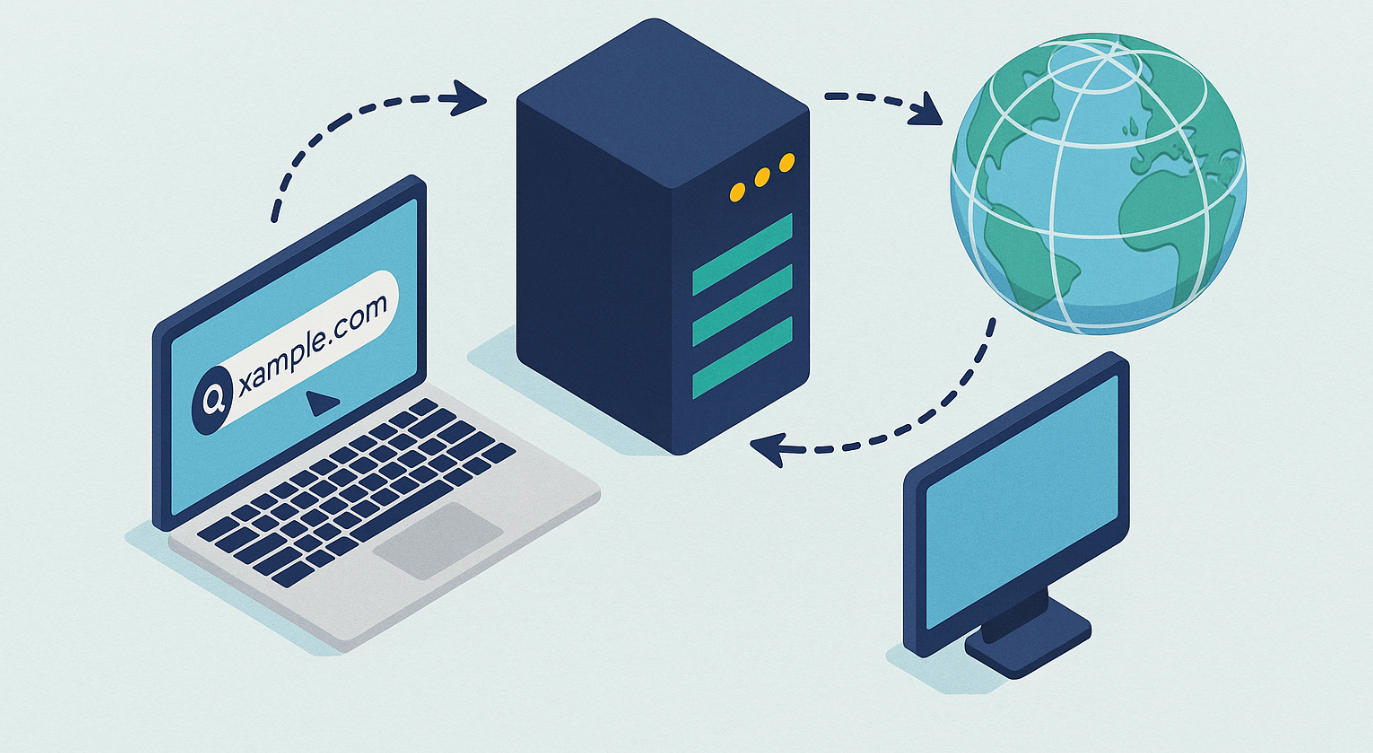
When websites randomly fail to load or your internet connection behaves unpredictably, the issue may not be your ISP or Wi-Fi signal. Instead, your Windows PC, router, and smartphone could be using different DNS servers, causing conflicts that lead to slow browsing, failed connections, and inconsistent performance.
As modern devices increasingly support encrypted DNS and custom network settings, it has become easier for DNS configurations to become misaligned without users realizing it.
What Is DNS?
DNS (Domain Name System) translates website names such as google.com into IP addresses that computers use to locate websites and online services. Without DNS, browsing the internet would be nearly impossible.
Most home networks rely on the router to provide DNS information to connected devices. However, phones, computers, browsers, VPNs, and security applications can override these settings and use their own DNS servers.
Why Conflicting DNS Settings Cause Problems
When multiple devices or applications use different DNS servers, you may experience:
- Some websites loading while others fail.
- Random “DNS server not responding” errors.
- Streaming services buffering unexpectedly.
- Smart home devices disconnecting.
- Inconsistent browsing speeds.
- Difficulty troubleshooting network issues.
These symptoms often appear because different devices are trying to resolve internet addresses through separate DNS services.
Common Sources of DNS Conflicts
Several factors can cause DNS settings to become inconsistent:
Router Settings
By default, routers use the DNS servers supplied by your internet provider. However, manually configured DNS addresses may override those defaults.
Windows Settings
Windows allows users to configure custom DNS servers that may differ from those provided by the router.
Smartphones
Android and iPhone devices support Private DNS and encrypted DNS services, which can bypass router settings.
Web Browsers
Modern browsers such as Chrome and Edge support DNS-over-HTTPS (DoH), allowing them to use their own DNS servers independent of the operating system.
VPN Applications
VPN software frequently routes DNS requests through its own servers, creating another layer of DNS management.
How to Check for DNS Issues
You may have DNS conflicts if:
- Some websites work while others do not.
- Devices on the same network behave differently.
- Switching between Wi-Fi and mobile data fixes the problem.
- Internet issues appear randomly and disappear without explanation.
How to Fix DNS Conflicts
Use Consistent DNS Servers
Configure your router and devices to use the same DNS provider whenever possible.
Popular choices include:
- Google DNS: 8.8.8.8 and 8.8.4.4
- Cloudflare DNS: 1.1.1.1 and 1.0.0.1
Flush the DNS Cache
On Windows, open Command Prompt and run:
ipconfig /flushdnsThis clears cached DNS entries that may be causing problems.
Disable Conflicting VPN or Security Software
Some VPNs and antivirus applications override DNS settings. Temporarily disabling them can help determine whether they are causing the issue.
Restart Your Router
Restarting the router refreshes network settings and may resolve temporary DNS inconsistencies.
Update Router Firmware
Outdated firmware can contribute to networking problems. Installing the latest firmware helps improve stability and security.







