Windows is a powerful operating system, but some default features—especially new AI additions—can clutter the interface and slow down the user experience. Many of these features are enabled by default, and while some may be useful for certain users, they can be distracting or unnecessary. Fortunately, most unwanted features can be disabled either through the Settings menu, the Registry Editor, or using third-party tools. This guide explains how to turn off five of the most annoying Windows features to streamline your system.
1. Disable the Widgets Panel
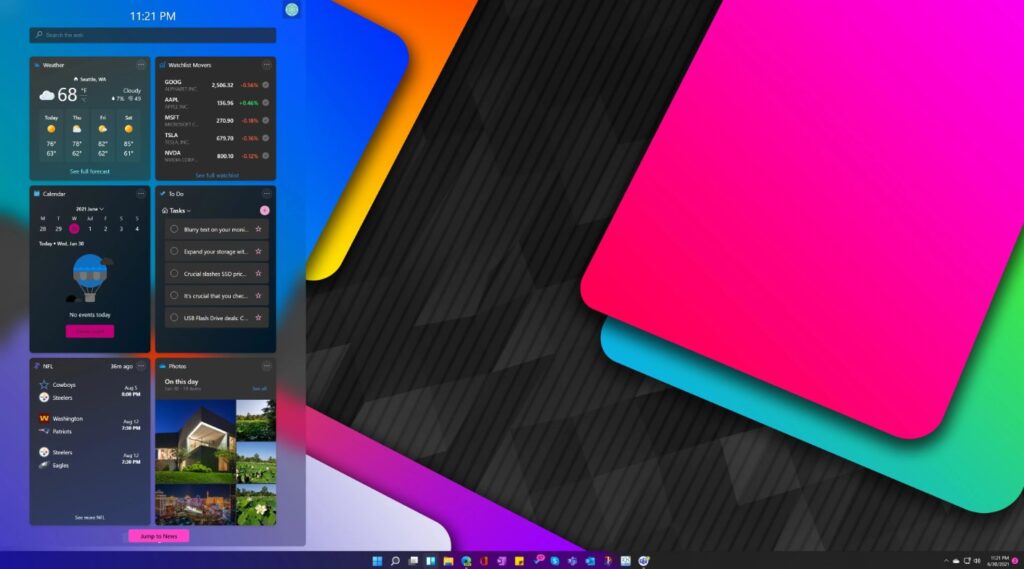
The Windows 11 widgets panel displays news, weather, and other information. While some widgets can be useful, many users rarely use them. To disable the panel:
- Open Settings and navigate to Personalization.
- Locate the Widgets toggle and switch it off.
This removes the panel from the taskbar, but related services continue running in the background. For a complete removal of widgets and all associated services, see our full guide on removing Windows 11 widgets. Disabling widgets can reduce visual clutter and make the desktop feel cleaner and faster.
2. Manage Notifications
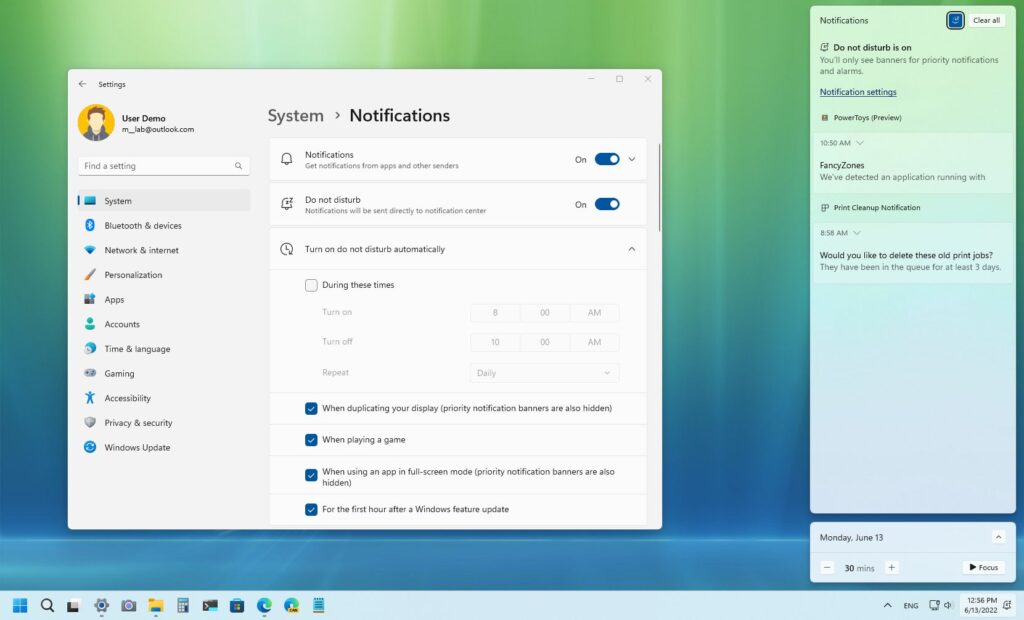
Notifications can be distracting, especially during work or gaming sessions. Windows offers both temporary and permanent ways to control them:
- Click the date and time in the bottom-right corner or press Windows key + N.
- Enable Do Not Disturb to block notifications temporarily.
- To disable notifications permanently, go to Settings > System > Notifications and toggle them off.
Users can also fine-tune notifications by app, disable sound alerts, or schedule Do Not Disturb during specific activities. Check our Windows notifications guide for full customization options.
3. Remove Copilot
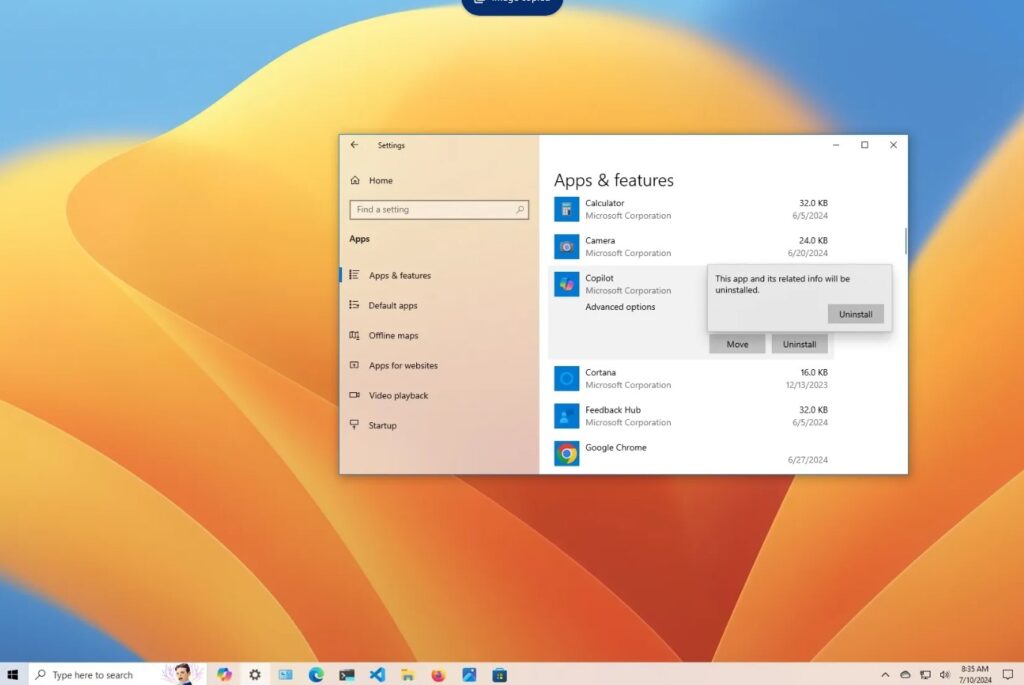
Copilot is an AI-powered assistant that can consume system resources and may not be needed by all users. Unlike other features, Copilot cannot be disabled with a simple toggle. Instead, it requires steps in the Registry Editor or third-party tools like Chris Titus’ Windows Utility. For full instructions, see our step-by-step guide to remove Copilot. Removing Copilot can improve system performance and declutter the interface.
4. Disable Ads and Suggested Apps
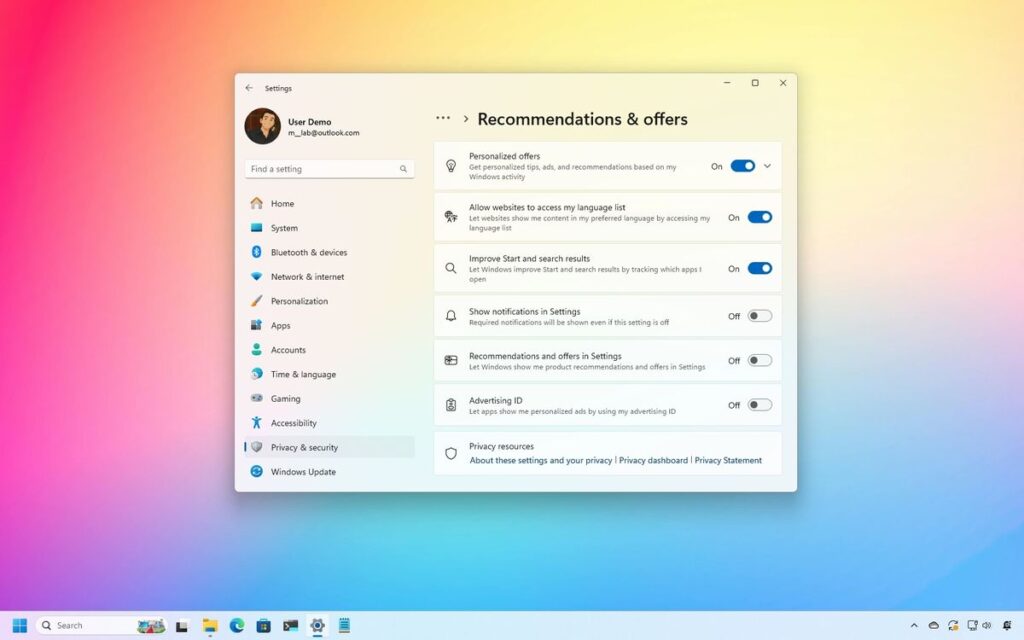
Windows often shows ads and suggests apps in the Start menu. To remove them:
- Delete any suggested apps from the Start menu, such as WhatsApp, Instagram, or Messenger.
- Follow the complete guide to disable Windows ads to prevent ads from appearing elsewhere in the OS.
Disabling these features creates a cleaner and more professional Windows experience.
5. Remove OneDrive
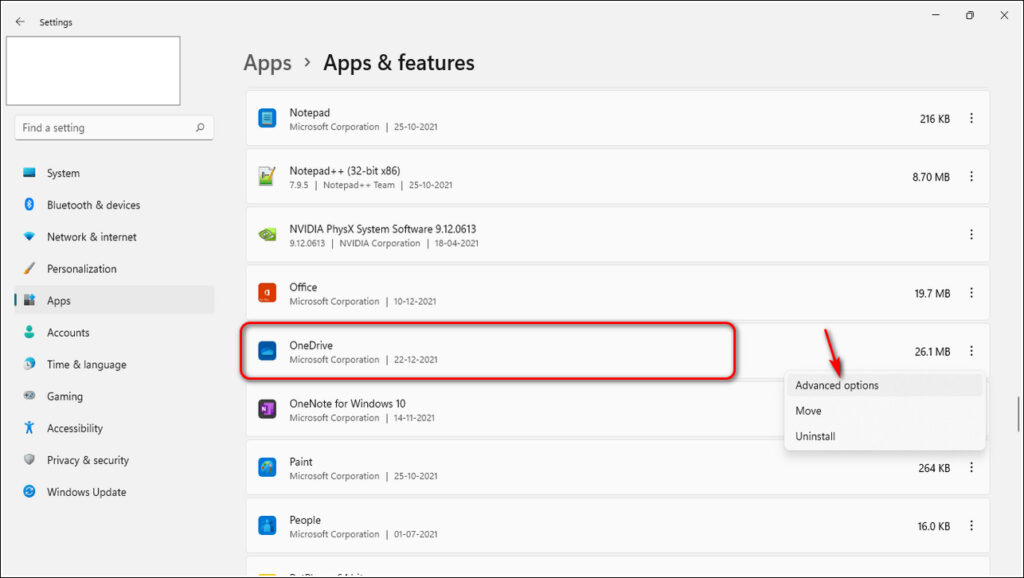
OneDrive syncs files automatically, which can be unnecessary for some users. Before uninstalling:
- Back up all important files from OneDrive.
- Open OneDrive > My Files, select files to download, and make sure Personal Vault is unchecked.
- Open Settings > Apps > Installed apps, locate OneDrive, click the three-dot menu, and select Uninstall.
Removing OneDrive prevents unnecessary cloud syncs while keeping local files intact.