


Microsoft Word makes it possible to use different page numbers in different parts of the same document. This is useful for academic papers, books, reports, and manuals where the introduction, main body, and ending sections need different numbering styles.
For example, the introduction can use capital Roman numerals like I, II, III, the main body can use standard numbers like 1, 2, 3, and the conclusion or appendix can use lowercase Roman numerals like i, ii, iii. Word’s Section Breaks feature makes this possible.
Before starting, turn on non-printing characters so the document structure is easier to see. Press Ctrl + Shift + 8 or click the ¶ symbol in the Home tab.
Step 1: Insert Section Breaks
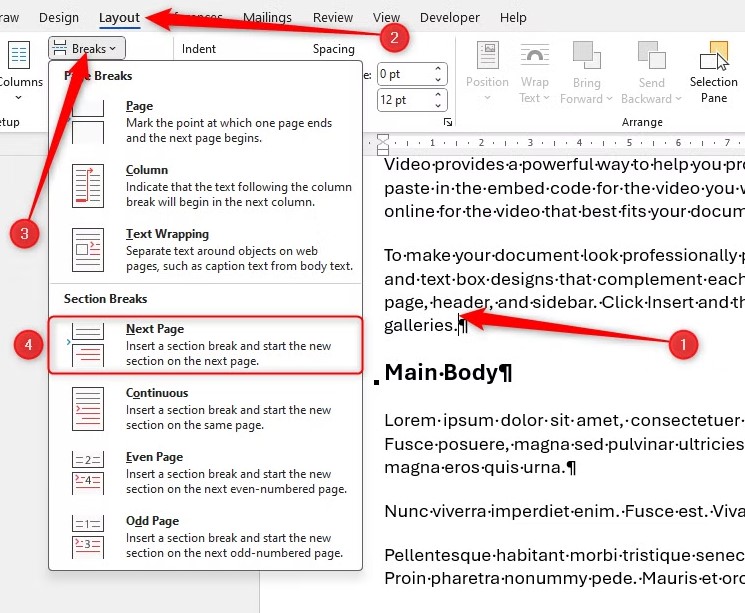
The first step is to separate each part of the document with section breaks. Place the cursor at the end of the first section, then go to the Layout tab, click Breaks, and choose Next Page. This creates a new section and moves the next part of the document onto a new page.
Repeat the same process at the end of the next section. Once finished, each part of the document will be divided properly, allowing Word to apply different page numbering styles.
Step 2: Unlink the Sections
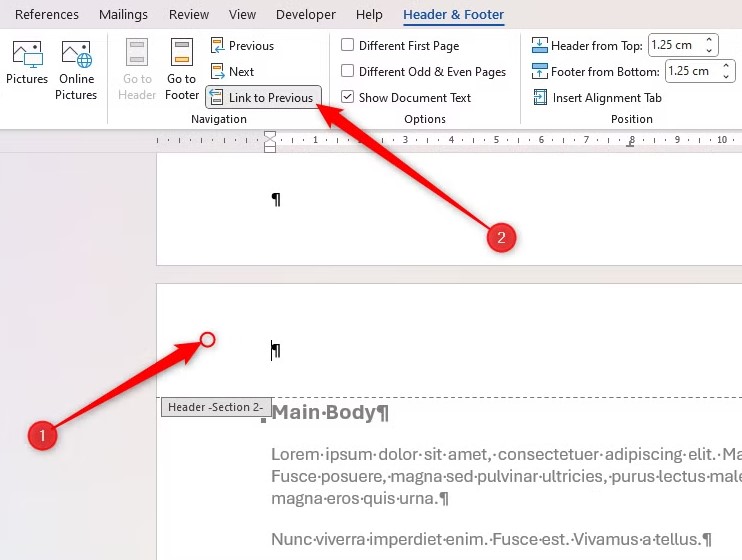
Even after adding section breaks, the headers and footers may still remain connected. If they stay linked, page numbers will continue from one section to the next instead of starting over.
Double-click the header area of the first page in the second section. In the Header & Footer tab, click Link to Previous to turn it off. Then repeat the same step for the first page of the third section.
This breaks the connection between sections so each one can have its own numbering style.
Step 3: Add Page Numbers to the First Section
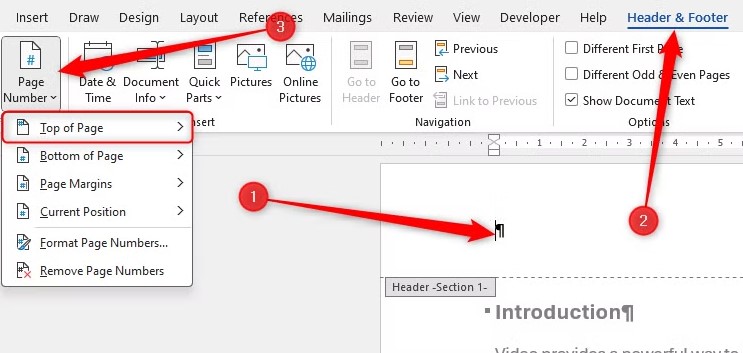
Go to the first page of the document and double-click the header or footer area, depending on where the page numbers should appear. In the Header & Footer tab, click Page Number, choose Top of Page or Bottom of Page, and select a style.
To change the format, go back to Page Number and click Format Page Numbers. In the dialog box, choose I, II, III for capital Roman numerals, then click OK.
Step 4: Format the Second Section
Move to the first page of the second section and insert page numbers the same way. Word usually uses Arabic numbers by default, which works for the main part of the document.
Then open Format Page Numbers again and select Start at 1. This restarts the numbering in that section.
Step 5: Format the Third Section
Repeat the process for the final section. Insert page numbers, then open Format Page Numbers and choose i, ii, iii for lowercase Roman numerals. Select Start at 1 to restart numbering once more.
Why Use Different Page Numbers in Word
Using different page numbers in Word helps create a more professional document layout. It is especially useful for dissertations, research papers, novels, textbooks, and business reports where each section follows its own structure.
Once section breaks are in place and headers are unlinked, Word gives full control over how each part of the document is numbered. This makes it easy to separate introductions, chapters, appendices, and conclusions without affecting the rest of the file.







