


Managing your schedule efficiently is crucial in both personal and professional life. One of the most effective ways to streamline communication and coordination is by sharing your calendar with colleagues, clients, or family members. Outlook.com provides a simple and secure way to publish and share your calendar so others can see your availability without having full access to your mailbox. In this guide, we will explain how to publish and share your Outlook.com calendar step by step, including tips to maintain privacy and maximize productivity.
Why You Should Publish Your Outlook.com Calendar
Publishing your calendar comes with several key advantages:
- Improved Scheduling – Sharing your calendar makes it easier for others to see when you are free, reducing meeting conflicts and unnecessary back-and-forth emails.
- Accessibility Across Devices – Once published, your calendar can be accessed on any device with a web browser or compatible calendar app.
- Professional Collaboration – Teams, clients, and external partners can stay aligned with your schedule, enhancing efficiency and planning.
- Privacy Control – Outlook.com allows you to control exactly what others see, whether it’s full event details, limited information, or just free/busy times.
- Time Management – Publishing your calendar encourages better planning for yourself and your team, helping avoid double-bookings.
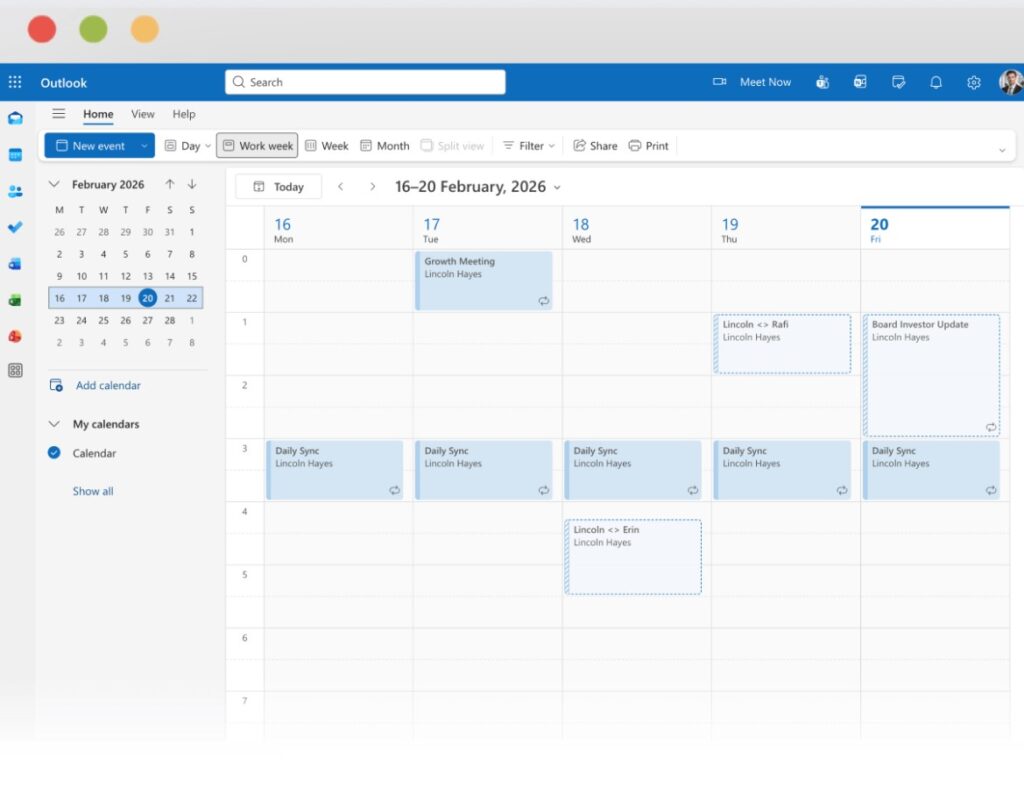
Step 1: Sign in to Outlook.com
Start by opening your preferred web browser and signing in to your Microsoft account at Outlook.com. Make sure you use the account that contains the calendar you want to share.
Step 2: Open Your Calendar
Click the Calendar icon in the lower-left corner of the screen. This opens your calendar view, showing all your scheduled events.
Step 3: Choose the Calendar to Share
If you have multiple calendars, select the specific calendar you want to publish. Outlook.com allows you to manage and share multiple calendars independently.
Step 4: Click “Share” or “Publish”
- Share internally: Click Share, enter the email addresses of the recipients, and choose the permission level (view or edit).
- Publish publicly: Click Publish Calendar, then select the level of detail you want to share (full details, limited details, or free/busy only). Outlook.com generates two links: an HTML link for viewing online and an ICS link for subscribing in other calendar apps.
Step 5: Copy and Share the Link
Once the links are generated, copy them and send them to the people who need access. The HTML link allows recipients to view your calendar in a browser, while the ICS link allows them to subscribe and see your calendar updates automatically.
Best Practices for Sharing Your Outlook.com Calendar
- Choose the Appropriate Detail Level – Be mindful of privacy. Share full details only with trusted colleagues or clients. Use “free/busy” for public sharing.
- Regular Updates – Changes in your calendar are automatically reflected for recipients who subscribe via the ICS link.
- Cross-Platform Use – The ICS link works with Google Calendar, Apple Calendar, and other third-party calendar apps, making it easy for everyone to stay synchronized.
- Revoke Access When Necessary – You can stop sharing or unpublish your calendar at any time to protect sensitive information.
- Use Descriptive Event Titles – When sharing your calendar with colleagues, clear titles help them understand your availability without needing extra explanations.
Common Scenarios for Publishing Your Calendar
- Team Collaboration – Share your calendar with teammates to coordinate meetings or project deadlines.
- Client Scheduling – Give clients access to your availability, allowing them to book appointments without back-and-forth emails.
- Family Planning – Share your calendar with family members to coordinate personal events, vacations, or appointments.
- Event Planning – Publicly share a calendar for events, classes, or workshops so participants can stay updated.







