


Adding paragraph numbers in Microsoft Word is one of the easiest ways to organize long documents, contracts, reports, legal files, manuals, and academic papers. Numbered paragraphs improve readability, make referencing sections easier, and help keep documents professionally structured.
Microsoft Word includes built-in numbering tools that allow paragraphs to be numbered automatically without typing each number manually. Once enabled, Word continues the sequence automatically as new paragraphs are added, removed, or moved around the document.
Why Use Paragraph Numbering in Word?
Paragraph numbering is useful for:
- Legal and business documents
- Policies and procedures
- Research papers
- Technical manuals
- Contracts and agreements
- Multi-section reports
Instead of manually updating every paragraph number, Word handles the numbering automatically, saving time and reducing formatting mistakes.
How to Add Paragraph Numbers in Microsoft Word
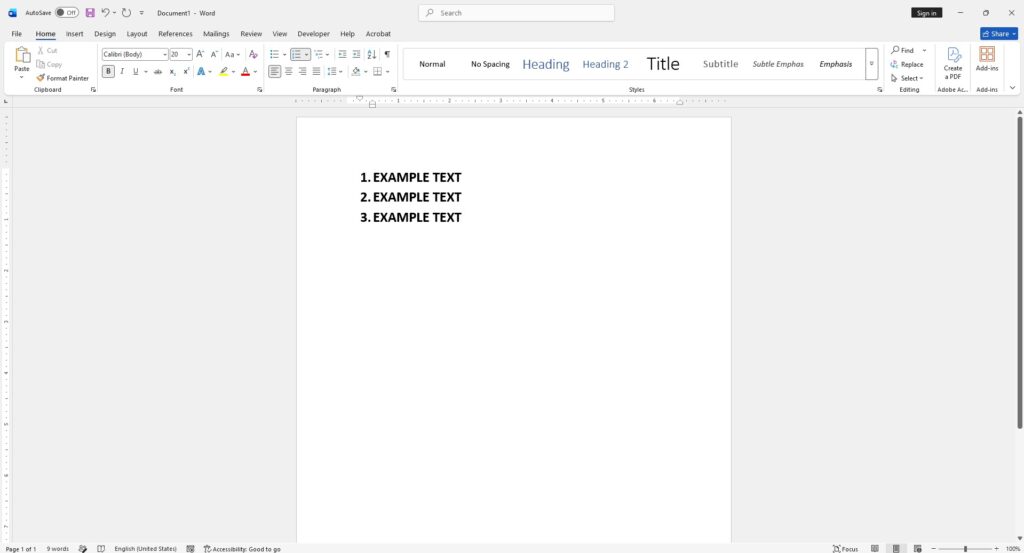
Follow these steps to quickly number paragraphs in Word:
- Open the Microsoft Word document.
- Select the paragraphs that need numbering.
- Go to the Home tab.
- In the Paragraph section, click the Numbering button.
- Word instantly applies numbered formatting to the selected paragraphs.
The default numbering format uses simple numbers like:
1.
2.
3.
This is the fastest method for creating numbered paragraphs in Word.
How to Change Paragraph Number Styles
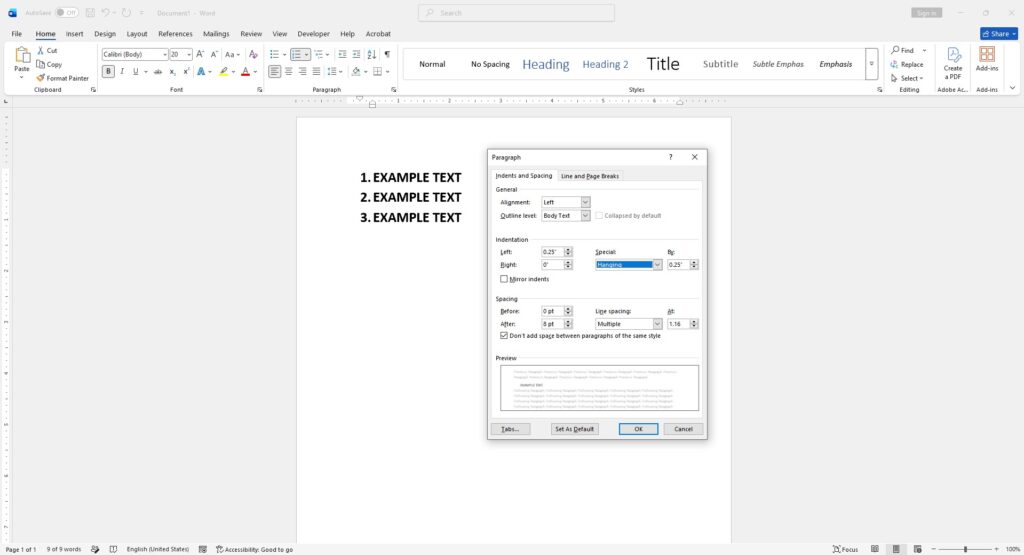
Microsoft Word allows different numbering styles depending on the document format.
To change the numbering style:
- Click the small arrow next to the Numbering button.
- Choose a different style from the list.
Available styles may include:
- 1, 2, 3
- I, II, III
- A, B, C
- a, b, c
Word applies the selected style instantly to all highlighted paragraphs.
How to Create Multi-Level Paragraph Numbering
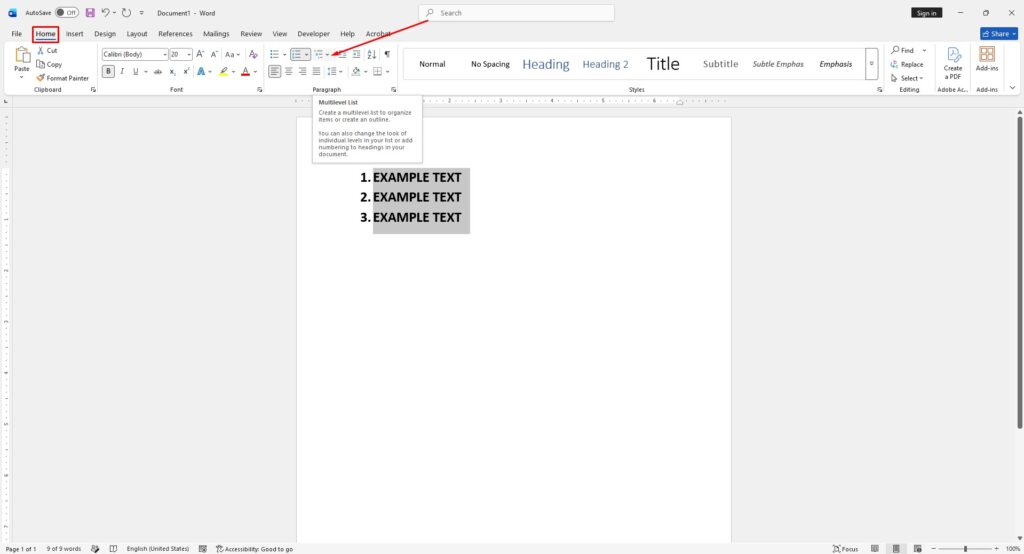
For complex documents with sections and subsections, Word supports multi-level numbering.
Example:
1.
1.1
1.1.1
To create multi-level paragraph numbering:
- Select the text.
- Open the Home tab.
- Click Multilevel List in the Paragraph section.
- Choose a predefined numbering format.
This feature is commonly used for:
- Books
- Thesis documents
- Legal paperwork
- Structured reports
- Technical documentation
How to Continue Numbering in Word
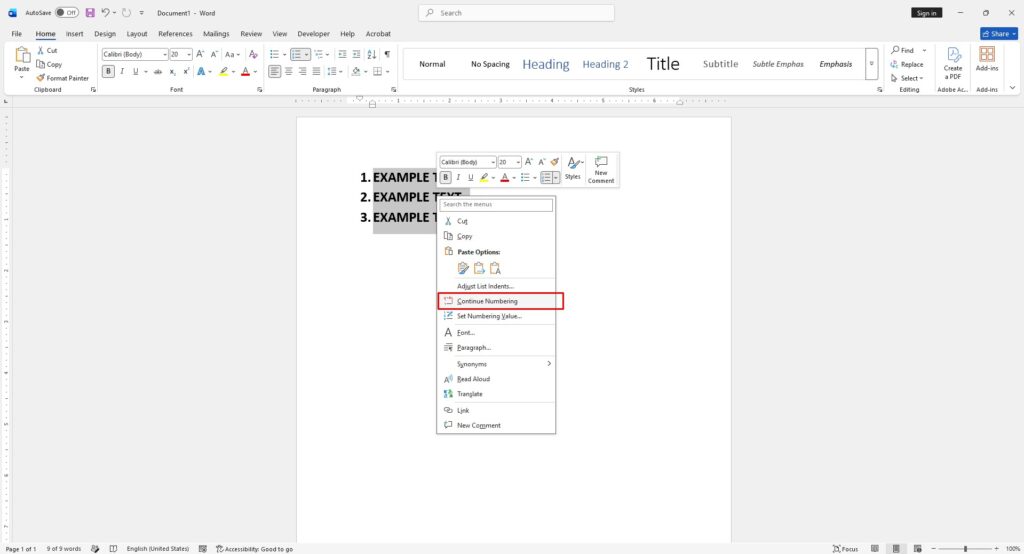
Sometimes numbering resets back to “1” after editing or copying content.
To continue numbering:
- Right-click the paragraph number.
- Select Continue Numbering.
If needed:
- Right-click the number again.
- Choose Set Numbering Value.
- Enter the correct starting number.
This quickly fixes broken numbering sequences.
How to Adjust Paragraph Number Indentation
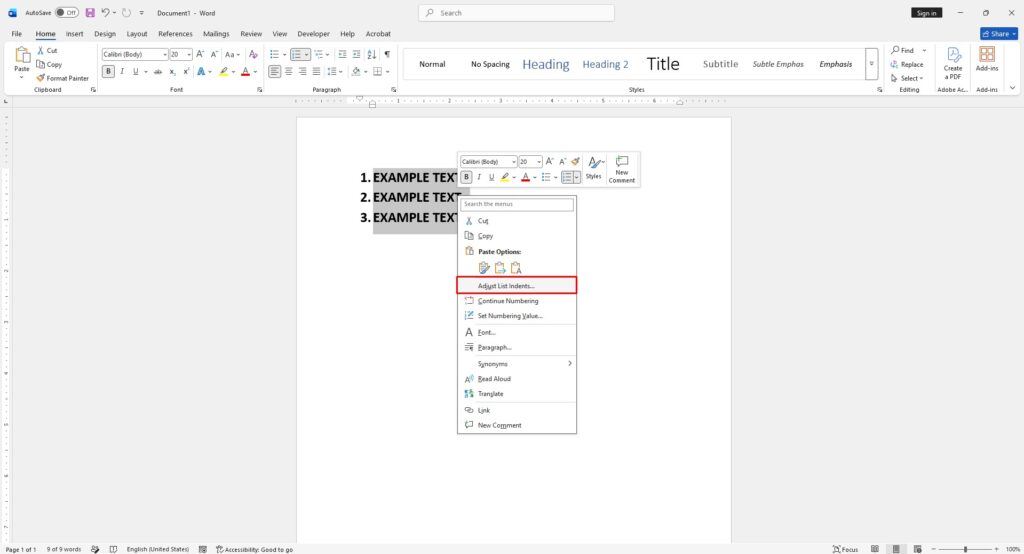
By default, Word may place paragraph numbers too far from the text.
To adjust spacing:
- Right-click a paragraph number.
- Select Adjust List Indents.
- Modify:
- Number position
- Text indent
- Alignment
This helps create cleaner and more professional document formatting.
How to Turn Off Automatic Numbering
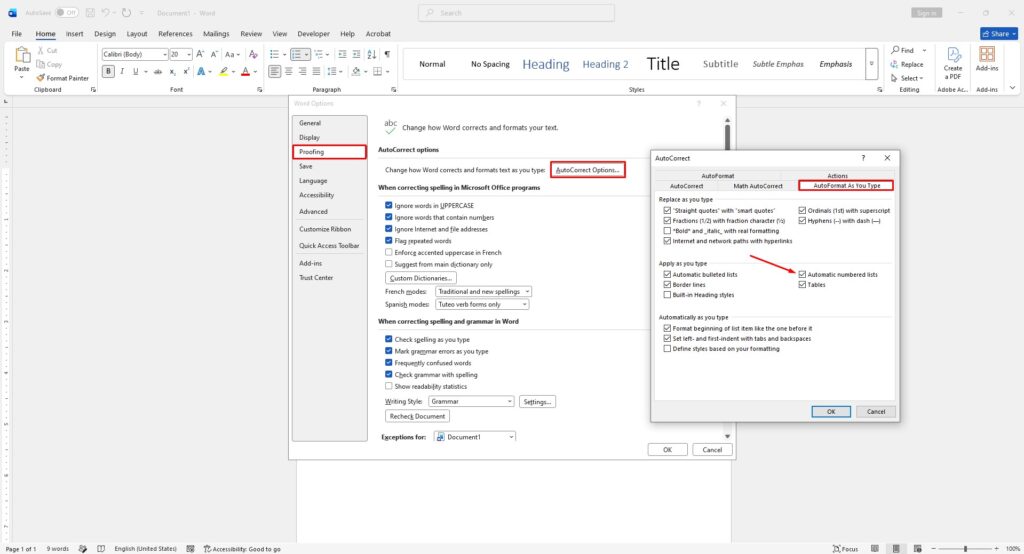
Word may automatically create numbered lists while typing.
To disable automatic numbering:
- Go to File > Options.
- Select Proofing.
- Click AutoCorrect Options.
- Open the AutoFormat As You Type tab.
- Uncheck Automatic numbered lists.
This prevents Word from automatically inserting numbers when typing.
Best Tips for Paragraph Numbering in Word
For the best results:
- Use multi-level numbering for large documents
- Avoid manually typing numbers
- Use Word heading styles for structured documents
- Keep formatting consistent throughout the document
- Use “Continue Numbering” instead of restarting lists manually
Proper numbering improves navigation, editing, and document organization.







