


Microsoft Word includes many built-in fonts, but sometimes the default selection is not enough. Whether creating a resume, business document, school project, flyer, logo draft, invitation, or marketing material, a custom font can help a document look more unique and professional. The good news is that new fonts are not added directly into Word itself. Instead, fonts are installed into the operating system, and Word automatically detects them. Microsoft explains that custom fonts must be installed in Windows or macOS before they become available in Microsoft Office applications like Word.
Most downloaded fonts use either the TrueType (.ttf) or OpenType (.otf) format. Once installed correctly, they become available not only in Word but also in Excel, PowerPoint, and other programs that use system fonts. Microsoft notes that after a font is installed through the operating system, Office apps should automatically detect and use it.
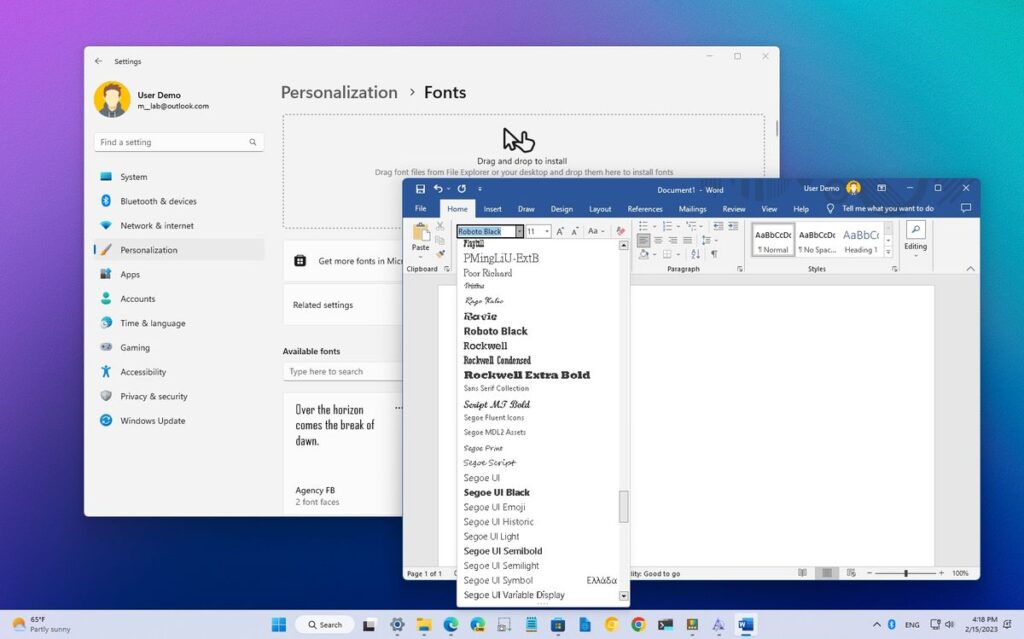
Why Add Custom Fonts to Word?
Custom fonts help documents stand out. Different fonts can change the tone, readability, and style of a document. While standard fonts like Calibri, Arial, and Times New Roman work well for most situations, custom fonts may be useful for:
- Resumes
- Flyers
- Posters
- Invitations
- School projects
- Business branding
- Marketing materials
- Newsletters
- Certificates
- Creative writing projects
Adding fonts also helps when working with documents that require a specific typeface that is not already installed.
How to Add Fonts in Microsoft Word on Windows
The easiest way to add a font is to install it in Windows. Once Windows recognizes the font, Microsoft Word can use it automatically. Microsoft explains that users can download a font file, open it, and select Install to add it to Windows.
To add fonts in Word on Windows:
- Download the font file.
- If the file is in a ZIP folder, extract it first.
- Locate the .ttf or .otf font file.
- Double-click the font file.
- Click Install.
- Wait for Windows to install the font.
- Open Microsoft Word.
- Open the font list and find the new font.
Microsoft also notes that users can right-click a font file and choose Install or Install for all users.
Another Way to Install Fonts in Windows
Windows also includes a Fonts settings page where fonts can be added manually. Microsoft explains that fonts can be installed by dragging font files into the Fonts area in Windows Settings.
To install fonts through Windows Settings:
- Open Settings.
- Go to Personalization.
- Select Fonts.
- Drag the font file into the installation area.
- Wait for Windows to finish installing the font.
After installation, restart Word if the font does not appear immediately.
How to Add Fonts in Microsoft Word on Mac
Mac users install fonts through Font Book, which is Apple’s built-in font management tool. Microsoft explains that Word on Mac uses fonts installed through macOS, and Font Book is the recommended installation method.
To add fonts in Word on Mac:
- Download the font file.
- Open the ZIP file if needed.
- Locate the .ttf or .otf file.
- Double-click the font file.
- Font Book will open automatically.
- Click Install Font.
- Close Font Book.
- Restart Microsoft Word if necessary.
Apple’s Font Book guide also explains that fonts can be installed by dragging font files directly into Font Book.
How to Find the New Font in Word
After installation, open Microsoft Word and:
- Create or open a document.
- Select text.
- Open the font dropdown menu.
- Search for the font name.
- Select the font.
The new font should appear alongside other installed system fonts.
If Word was already open during installation, restart Word first. Microsoft support notes that newly installed fonts may not appear until Office applications are restarted.
What Font File Types Work in Word?
Microsoft recommends using:
- TrueType (.ttf)
- OpenType (.otf)
These are the most compatible formats for Microsoft Office. Microsoft specifically states that both TrueType and OpenType fonts work with Office applications.
How to Fix Fonts That Do Not Appear in Word
Sometimes a font installs correctly but still does not show up inside Word.
Common fixes include:
- Restart Word
- Restart the computer
- Reinstall the font
- Remove duplicate fonts
- Update Microsoft Office
- Validate the font file
- Check Font Book on Mac
Microsoft notes that some third-party fonts may not appear correctly because of compatibility problems, damaged files, duplicate fonts, or font cache issues.
Mac users may also need to check Font Book for duplicate fonts or validate the font if it appears corrupted. Apple explains that Font Book includes tools for validating fonts and resolving duplicates.
How to Share Documents With Custom Fonts
A common problem occurs when a document uses a font that another person does not have installed. Word may replace the missing font with a different one, changing the document layout.
Microsoft explains that supported fonts can sometimes be embedded inside Office documents so the document keeps the correct appearance when shared. However, not every font allows embedding because some fonts include licensing restrictions.
To improve compatibility:
- Use common fonts when possible.
- Save documents as PDF before sharing.
- Enable font embedding when supported.
- Avoid rare or unlicensed fonts for business documents.
Best Practices for Using Fonts in Word
Adding fonts is easy, but using too many fonts can make documents harder to read.
For cleaner documents:
- Use one or two fonts per document.
- Choose readable fonts for long text.
- Use decorative fonts only for headings.
- Keep font sizes consistent.
- Test the document before printing.
- Save important documents as PDF if custom fonts are used.
A good font improves readability without distracting from the content.







