Accidentally deleted important content from a Microsoft Word document? Overwrote a file with the wrong version? Don’t panic. Microsoft Word includes several built-in tools that can help you recover previous versions of your documents and restore lost work in just a few clicks.
Whether you’re using Microsoft 365, OneDrive, SharePoint, or a locally saved file, there are multiple ways to recover earlier versions of a Word document. This feature is especially useful when collaborating with others, making major edits, or recovering content that was accidentally removed.
In this guide, you’ll learn how to view version history, restore previous versions, recover unsaved documents, and use Windows backup tools to retrieve older copies of Word files.
Why Previous Versions Matter
Many users only realize the importance of version history after making a mistake.
Common situations include:
- Accidentally deleting content
- Overwriting a document
- Saving incorrect changes
- Editing the wrong file
- Collaboration conflicts
- Corrupted files
- Missing paragraphs or pages
- Recovering earlier drafts
Fortunately, Word offers several recovery methods that can save hours of work.
Ways to Restore Previous Versions
| Recovery Method | Best For |
|---|---|
| Version History | Microsoft 365 & OneDrive files |
| AutoRecover | Unsaved Word documents |
| OneDrive Restore | Cloud-stored files |
| File History | Windows backups |
| Previous Versions | Local document recovery |
| Backup Copies | Older saved files |
The method available depends on where your document is stored.
Method 1: Use Word Version History
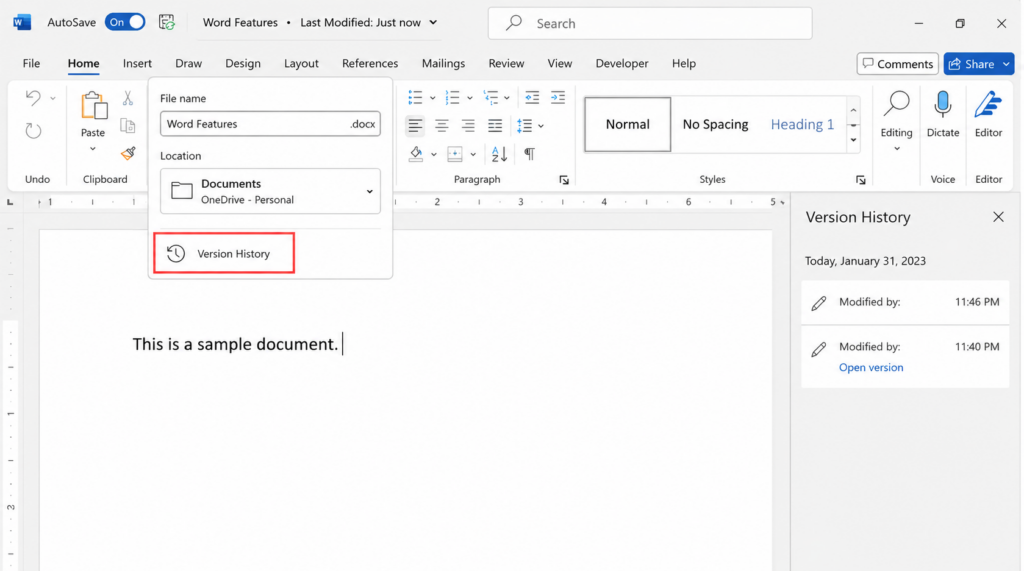
If your document is saved to OneDrive or SharePoint, Microsoft automatically tracks version history.
Steps:
- Open the document.
- Click the document name at the top of Word.
- Select Version History.
- Browse available versions.
- Open a previous version.
- Compare changes.
- Click Restore if needed.
Benefits
| Feature | Advantage |
| Automatic Saving | No manual backups required |
| Multiple Versions | Access older drafts |
| Compare Changes | Review edits before restoring |
| Restore Option | Recover previous work instantly |
Version History is often the fastest and easiest recovery option.
Method 2: Restore an Earlier Version Using OneDrive
OneDrive automatically stores file versions whenever changes are made.
To Restore a Previous Version:
- Open OneDrive in your browser.
- Locate the Word document.
- Right-click the file.
- Select Version History.
- Review available versions.
- Choose the version you want.
- Click Restore.
This method works even if your current document has already been saved.
Method 3: Recover Unsaved Word Documents
Forgot to save before Word crashed?
Microsoft Word includes AutoRecover.
Recover Unsaved Files
- Open Word.
- Click File.
- Select Info.
- Click Manage Document.
- Choose Recover Unsaved Documents.
- Open the desired file.
- Save it immediately.
Many users are surprised to find Word automatically saved a temporary version of their work.
Method 4: Restore Previous Versions in Windows
Windows can also help recover older file versions.
Steps
- Locate the document in File Explorer.
- Right-click the file.
- Select Properties.
- Open the Previous Versions tab.
- Browse available versions.
- Click Restore.
This feature works best when File History or System Protection is enabled.
Method 5: Use File History
File History automatically backs up personal files.
Enable File History
- Open Settings.
- Go to Update & Security.
- Select Backup.
- Turn on File History.
Once enabled, Windows regularly creates backups of your documents.
Restore a Backup
- Search for Restore your files with File History.
- Open the backup browser.
- Locate the document.
- Select the version you want.
- Click Restore.
Word Recovery Methods Comparison
| Method | Difficulty | Success Rate |
| Version History | Easy | Excellent |
| OneDrive Recovery | Easy | Excellent |
| AutoRecover | Easy | Good |
| Previous Versions | Medium | Good |
| File History | Medium | Excellent |
| Manual Backups | Easy | Depends on backups |
Using multiple backup methods provides the highest chance of recovery.
Common Reasons Documents Get Overwritten
Many Word recovery cases occur because of:
- Saving changes accidentally
- Editing shared files
- Sync issues
- Cloud conflicts
- Human error
- File corruption
- Incorrect copy-and-paste actions
- Unwanted formatting changes
Version history exists specifically to help recover from these situations.
How to Prevent Losing Work
Best Practices
| Tip | Benefit |
| Save files to OneDrive | Automatic version history |
| Enable AutoSave | Continuous protection |
| Turn on File History | Windows backups |
| Create backup copies | Extra safety |
| Save major revisions separately | Easier recovery |
| Review changes before saving | Prevent mistakes |
These simple habits can prevent most document loss situations.
What If Version History Is Missing?
Some users may not see version history.
Possible reasons include:
- Document saved locally
- OneDrive not enabled
- Older Office version
- File stored on external media
- AutoSave disabled
If version history is unavailable, try AutoRecover or Windows Previous Versions instead.
Frequently Asked Questions
Can I recover a Word document after saving over it?
Yes. If Version History, OneDrive, File History, or Previous Versions are available, you may be able to restore an earlier copy.
How long does Word keep version history?
Microsoft 365 typically retains version history until files are deleted or retention settings change.
Can I restore deleted paragraphs?
Yes. Earlier versions often contain deleted content that can be copied back into the current document.
Does AutoRecover save everything?
Not always. AutoRecover saves documents periodically, so the most recent edits may not always be available.