Microsoft Word includes a built-in text prediction feature that helps users write faster and more efficiently. As you type, Word attempts to predict the next word or phrase based on the context of your document. These suggestions appear in light gray text and can be accepted instantly, reducing typing time and helping improve productivity. Microsoft explains that Word’s Editor feature anticipates the next words and phrases as you write, providing suggestions directly within the document.
Whether you’re creating reports, school assignments, business documents, articles, or emails, text predictions can help speed up writing while reducing spelling and grammar mistakes.
What Are Text Predictions?
Text predictions are intelligent suggestions that appear while typing. Instead of entering every word manually, Word predicts what you may want to write next.
The feature can help:
- Write faster
- Reduce repetitive typing
- Improve spelling accuracy
- Minimize typing errors
- Increase productivity
- Create documents more efficiently
Microsoft notes that text predictions learn from language patterns and document context to provide more accurate suggestions over time.
How Text Predictions Work
When text predictions are enabled, Word displays suggested words or phrases in a lighter color after your cursor.
For example:
If you type:
“Thank you for your”
Word might suggest:
“help”
or
“support”
The suggestion appears automatically as you type.
If the prediction is correct, you can accept it instantly instead of typing the remaining characters. Microsoft states that users can accept predictions by pressing the Tab key or the Right Arrow key.
How to Enable Text Predictions in Word
Text predictions are enabled by default in many Microsoft 365 installations, but they can also be turned on manually.
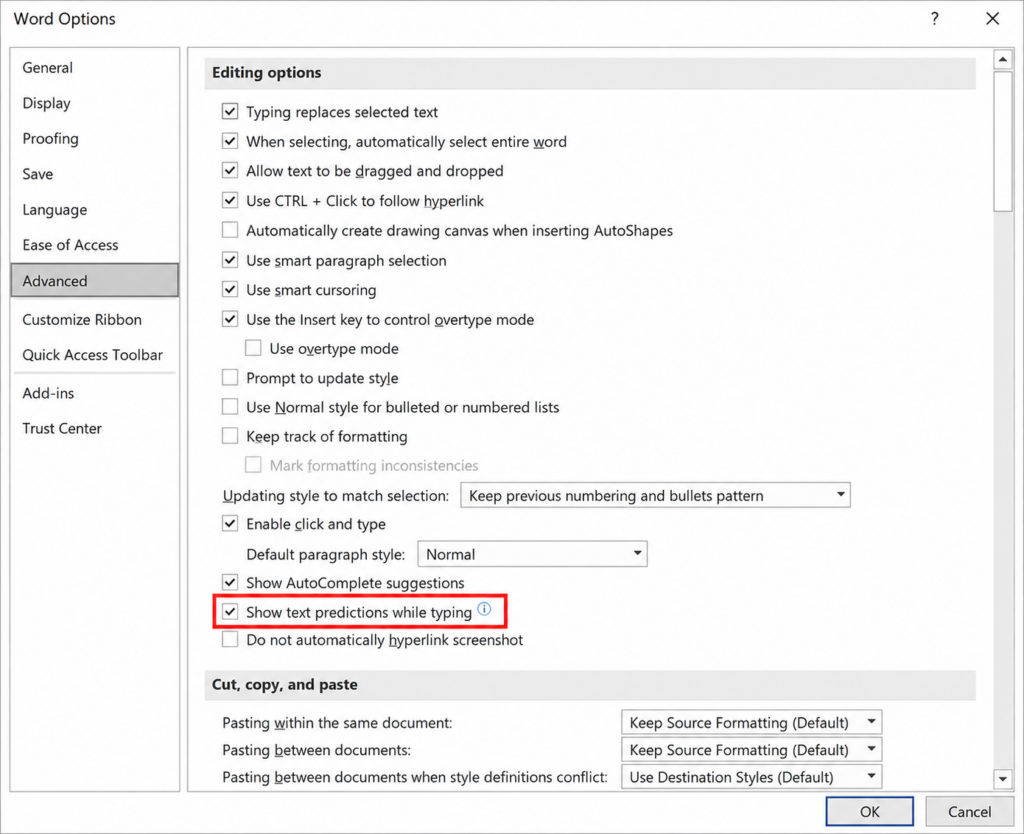
To enable text predictions:
- Open Microsoft Word.
- Click File.
- Select Options.
- Open Advanced.
- Under Editing Options, locate:
Show text predictions while typing - Enable the checkbox.
- Click OK.
Microsoft documentation notes that this option controls whether predictive text suggestions appear while writing.
How to Use Text Predictions
Once enabled, using the feature is simple.
As you type:
- Suggested text appears automatically.
- Press Tab to accept the suggestion.
- Press the Right Arrow key to accept it.
- Continue typing if the suggestion is incorrect.
Microsoft explains that ignored suggestions disappear automatically as you continue typing.
How to Turn Off Text Predictions
Some users find predictive text distracting and prefer to disable it.
To turn it off:
- Open File.
- Select Options.
- Open Advanced.
- Uncheck:
Show text predictions while typing - Click OK.
Word immediately stops displaying predictive suggestions.
Use the Status Bar Shortcut
Many versions of Word provide a faster method.
At the bottom of the Word window, look for:
Text Predictions: ON
or
Text Predictions: OFF
Clicking this option opens the prediction settings directly. Several Word guides note that this is the fastest way to manage predictive text settings.
Why Text Predictions Are Useful
Text predictions are particularly useful for users who write large amounts of content.
Examples include:
- Students
- Bloggers
- Writers
- Business professionals
- Customer support agents
- Researchers
- Office workers
Because suggestions appear in real time, users often spend less time typing repetitive phrases and common expressions.
Microsoft says the feature helps users write more efficiently while reducing spelling and grammar mistakes.
Common Problems With Text Predictions
Predictions Are Missing
Possible causes:
- Feature disabled in settings
- Unsupported Office version
- Missing Microsoft 365 updates
- Language not supported
Microsoft community discussions show that some users may not see the option if their Office version or update channel does not support the feature.
Suggestions Feel Inaccurate
Predictions improve as Word gathers more context from the current document.
Longer documents often produce more accurate suggestions because Word has additional context to analyze.
Best Practices for Using Text Predictions
For better results:
- Keep Microsoft 365 updated.
- Use supported languages.
- Review suggestions before accepting them.
- Don’t rely entirely on predictions.
- Proofread completed documents.
- Use Editor tools alongside predictions.
Predictive text can speed up writing, but it should still be reviewed to ensure accuracy and clarity.