Extra blank lines can make a Microsoft Word document look messy, unprofessional, and difficult to read. Whether you’re editing a report, school assignment, business proposal, or imported text file, unnecessary empty lines often appear after copying content from websites, PDFs, emails, or other documents.
Fortunately, Microsoft Word includes several tools that make it easy to remove empty lines from a Word document without manually deleting each one. Using Find and Replace, formatting options, and proper paragraph spacing, you can clean up your document in just a few minutes.
Why Empty Lines Appear in Word Documents
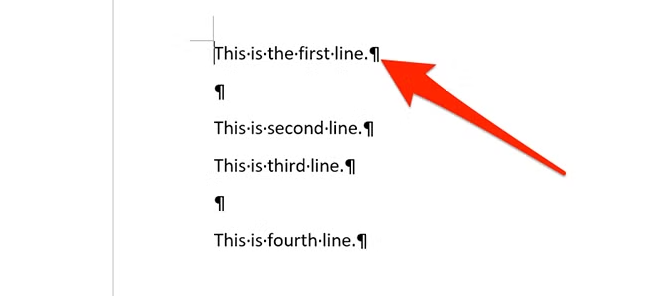
Blank lines are usually created when users press the Enter key multiple times. Every time Enter is pressed, Word inserts a hidden paragraph mark. These paragraph marks create the appearance of empty lines throughout the document. Word’s Find and Replace feature can identify these paragraph marks and remove them automatically.
Common causes include:
- Copying text from websites
- Pasting content from PDFs
- Importing email messages
- Manual formatting
- Multiple paragraph breaks
- Incorrect spacing settings
How to Remove Empty Lines From a Word Document Using Find and Replace
The fastest method is using Word’s built-in Find and Replace tool.
Steps
- Open your Word document.
- Press Ctrl + H.
- In the Find what box, type:
^p^p
- In the Replace with box, type:
^p
- Click Replace All.
This replaces two consecutive paragraph marks with one paragraph mark, effectively removing extra blank lines. If multiple empty lines remain, repeat the process until all unnecessary spaces are gone.
Why This Method Works
Word uses hidden paragraph tags whenever a new paragraph is created.
| Code | Meaning |
|---|---|
| ^p | Paragraph mark |
| ^p^p | Two paragraph marks |
| Replace with ^p | Removes one empty line |
By replacing double paragraph marks with a single paragraph mark, Word automatically cleans up the document structure.
Remove Empty Lines From a Word Document Manually
For shorter documents, manual cleanup may be sufficient.
Steps
- Enable formatting marks by clicking the ¶ symbol on the Home tab.
- Locate empty paragraph marks.
- Select them.
- Press Delete or Backspace.
This allows you to see exactly where blank lines exist.
Use Paragraph Spacing Instead of Empty Lines
Many users create spacing by pressing Enter several times. This isn’t recommended because it can create formatting issues.
Instead, use paragraph spacing.
Steps
- Select your text.
- Click Layout.
- Adjust Before and After spacing.
Using paragraph spacing creates cleaner documents and reduces the need for manual formatting.
Benefits of Removing Empty Lines
| Benefit | Result |
|---|---|
| Cleaner Layout | Improved readability |
| Professional Appearance | Better presentation |
| Consistent Formatting | Uniform spacing |
| Easier Editing | Less clutter |
| Better Printing | Reduced page count |
Large documents often become significantly easier to manage after removing unnecessary blank lines.
Common Problems
Blank Lines Keep Returning
This often happens when content is copied from external sources.
Solution:
- Use Paste Special
- Remove formatting
- Run Find and Replace again
Large Gaps Between Paragraphs
The issue may be paragraph spacing rather than empty lines.
Solution:
- Check paragraph settings
- Reduce Before and After spacing
Blank Pages Appear
Sometimes extra paragraph marks create entire blank pages.
Solution:
- Enable formatting marks
- Delete unnecessary paragraph symbols
Best Practices
To avoid future formatting issues:
- Use paragraph spacing instead of multiple Enter presses.
- Enable formatting marks when editing.
- Clean imported content before publishing.
- Use Word styles consistently.
- Review spacing before printing.
These simple habits can help keep documents clean and professional.