Adding multimedia content to a Microsoft Word document can make it more interactive, engaging, and informative. One of the most useful features available in Word is the ability to insert online videos directly into your documents. Whether you’re creating a training manual, school project, presentation, or tutorial, embedding YouTube videos allows readers to access additional information without leaving the document.
Microsoft Word includes a built-in Online Video feature that makes it easy to insert a YouTube video into a Word document. Instead of simply adding a link, you can display a video preview that users can click to watch.
In this guide, you’ll learn several methods to add YouTube videos to Word documents and discover the benefits of using multimedia in your files.
Why Insert Videos Into Word Documents?
Videos can improve the overall experience for readers by providing visual explanations and additional context.
Common uses include:
- Training materials
- Educational documents
- User manuals
- Product guides
- Business presentations
- School assignments
- Tutorials and walkthroughs
- Interactive reports
Adding videos can help readers understand complex topics more easily.
Method 1: Use Word’s Online Video Feature
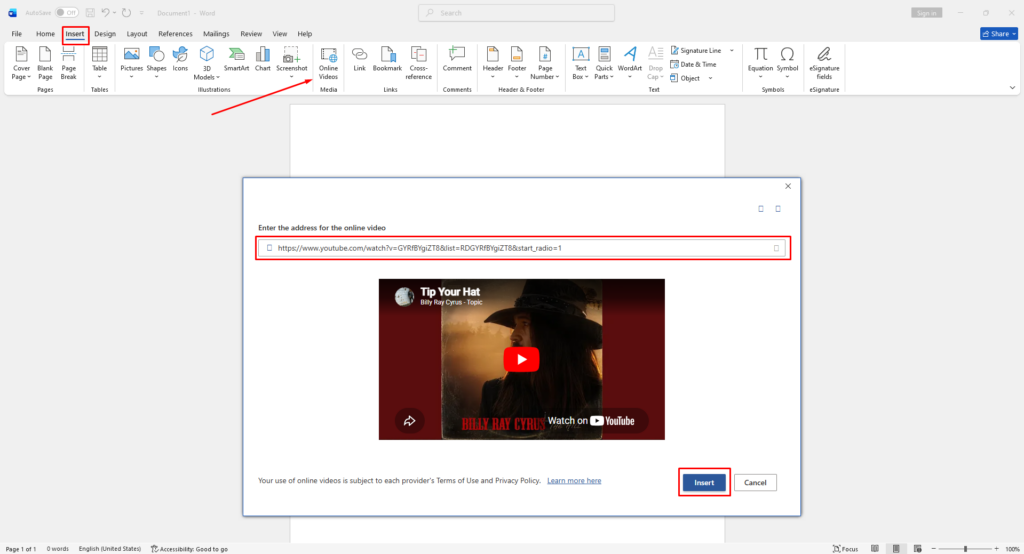
Microsoft Word includes an Online Video tool that allows you to embed YouTube videos directly into your document.
Steps
- Open Microsoft Word.
- Place the cursor where you want the video.
- Click the Insert tab.
- Select Online Videos.
- Paste the YouTube video URL.
- Click Insert.
Word will add a video preview inside the document.
This method is available in modern versions of Microsoft Word and offers the easiest way to insert videos.
Benefits of Embedded Videos
| Benefit | Description |
|---|---|
| Interactive Content | Readers can access videos directly |
| Better Learning | Visual explanations improve understanding |
| Professional Appearance | Makes documents more engaging |
| Easy Sharing | No need to send separate links |
| Improved Collaboration | Helpful for tutorials and guides |
Embedded videos are especially useful in training documents and educational materials.
Method 2: Add a Hyperlink Instead
If the Online Video feature isn’t available, you can insert a regular hyperlink.
Steps
- Copy the YouTube video URL.
- Select text inside the document.
- Press Ctrl + K.
- Paste the video address.
- Click OK.
Readers can simply click the link to open the video in their web browser.
Method 3: Insert a Thumbnail Image
Some users prefer adding a screenshot or thumbnail image that links to the video.
Advantages
- More visually appealing.
- Works in all Word versions.
- Easier to customize.
- Better compatibility when sharing documents.
This method combines images and hyperlinks for a professional-looking result.
Which Versions of Word Support Online Videos?
| Word Version | Online Video Support |
|---|---|
| Word 365 | Yes |
| Word 2024 | Yes |
| Word 2021 | Yes |
| Word 2019 | Yes |
| Word 2016 | Yes |
| Word 2013 | Yes |
| Older Versions | Limited |
Most modern versions of Word support embedded online videos.
Common Problems When Inserting Videos
The Online Video Option Is Missing
Possible causes include:
- Older version of Word.
- Offline mode.
- Feature restrictions.
- Disabled Office components.
Updating Microsoft Office often resolves the issue.
Videos Don’t Play
Embedded videos require an active internet connection.
Make sure:
- The device is online.
- YouTube is accessible.
- Firewall settings aren’t blocking content.
Video Preview Doesn’t Appear
Try:
- Restarting Word.
- Reopening the document.
- Updating Office.
- Re-inserting the video.
Tips for Better Results
To create professional documents:
- Use high-quality videos.
- Choose educational or informative content.
- Avoid embedding too many videos.
- Organize videos near relevant text.
- Test the document before sharing.
- Include a hyperlink as a backup.
These practices help improve the user experience.
Why Use YouTube Videos in Word?
Video content can make documents far more engaging than plain text alone. Instead of explaining every concept in writing, readers can watch demonstrations, tutorials, or presentations directly from the document.
This approach is commonly used by:
- Teachers
- Students
- Technical writers
- Businesses
- Trainers
- Content creators
Interactive documents are becoming increasingly popular because they provide a better learning experience.