Windows updates are important, but many users do not realize that their PC may also be helping other computers download those same updates. This happens through a built-in Windows feature called Delivery Optimization. The feature is designed to make updates faster and reduce pressure on Microsoft’s servers by allowing Windows devices to share update files with other PCs. Microsoft describes Delivery Optimization as a peer-to-peer distribution method used in Windows 10 and Windows 11, and it can work with Windows Update, Microsoft Store apps, Microsoft 365 apps, Microsoft Edge updates, Defender updates, and other supported Microsoft content.
For some users, this feature can be useful. If there are multiple Windows computers in the same home, office, or school, one device can download update files and share parts of them with other devices on the same network. This can reduce repeated downloads and save internet bandwidth. Microsoft also notes that Windows devices can share updates and apps with devices on the local network, or with devices on the internet if that option is selected. By default, Windows is generally set to use Delivery Optimization for devices on the local network, but users can change how the feature works from Windows Settings.
The problem is that Delivery Optimization can use upload bandwidth in the background. Upload speed is often much lower than download speed, so even a small background upload can affect online gaming, video calls, cloud backups, streaming, or file transfers. If the PC is on a limited data plan, mobile hotspot, slow connection, or shared family network, it may be better to disable the feature completely or limit it to local devices only.
What Is Delivery Optimization in Windows?
Delivery Optimization is a Windows feature that helps download updates and Microsoft app content from more than one source. Instead of downloading everything only from Microsoft’s servers, Windows may download parts of update files from other PCs and may also upload parts of already downloaded files to other devices. Microsoft explains that peer-to-peer sharing is optional and can be configured through Windows settings, Group Policy, Microsoft Intune, or other management tools.
This does not mean that strangers can access personal files, documents, photos, passwords, or private data. Delivery Optimization is designed to share update-related content, not personal folders. Microsoft’s privacy information says Delivery Optimization gets updates and Microsoft Store apps from sources in addition to Microsoft, while still using security checks to make sure the downloaded content is valid.
Still, the bandwidth usage can be annoying. A PC may quietly upload update files while other internet activities are running. If the connection already feels slow, this background sharing can make the issue worse.
How to Turn Off Delivery Optimization in Windows 11
To stop Windows from sharing update files with other PCs, follow these steps:
- Open Settings.
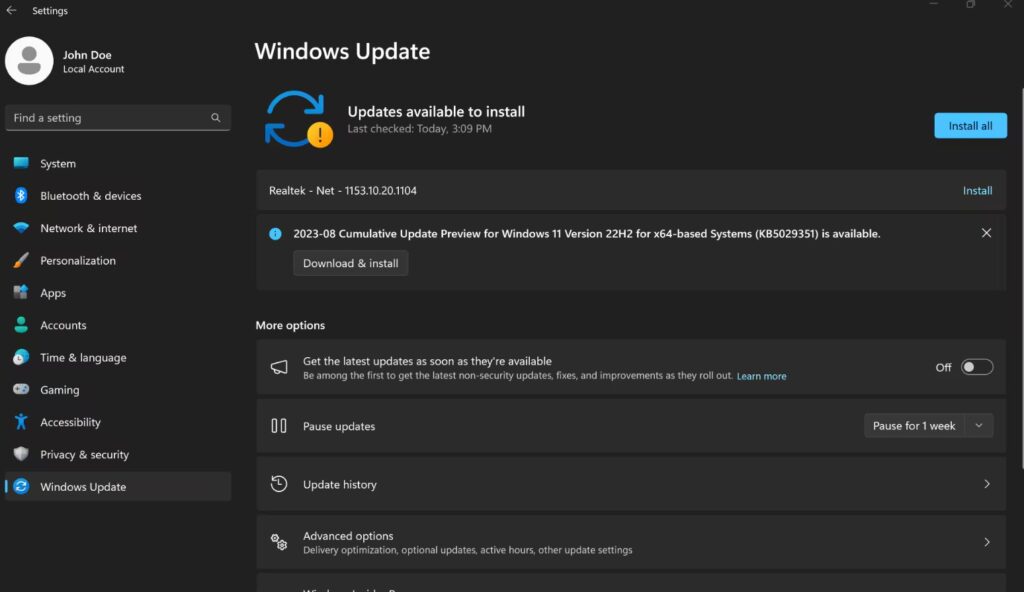
- Go to Windows Update.
- Select Advanced options.
- Open Delivery Optimization.
- Turn off Allow downloads from other PCs.
After this option is disabled, the PC will download updates directly from Microsoft instead of using peer-to-peer sharing. Microsoft’s support page also explains that if the toggle is unavailable, the device may be managed by an organization, meaning an administrator controls the setting.
How to Limit Sharing to Your Local Network
If there are multiple Windows PCs at home or in the office, turning Delivery Optimization off completely may not be necessary. A better option may be to allow sharing only between devices on the same local network.
To do this:
- Open Settings.
- Go to Windows Update.
- Click Advanced options.
- Open Delivery Optimization.
- Keep Allow downloads from other PCs turned on.
- Choose Devices on my local network.
This keeps the benefit of faster updates between your own devices while preventing Windows from sharing update files with PCs over the internet.
How to Limit Upload Bandwidth
Windows also allows users to control how much bandwidth Delivery Optimization can use. This is useful if the feature should remain enabled but should not affect gaming, video calls, or daily browsing.
To limit bandwidth:
- Open Settings.
- Go to Windows Update.
- Select Advanced options.
- Open Delivery Optimization.
- Click Advanced options.
- Adjust the upload and download bandwidth limits.
Microsoft says users can limit the percentage of bandwidth used for uploading updates and can also set a monthly upload limit. These settings help control how much data Delivery Optimization can use in the background.
Should Delivery Optimization Be Disabled?
Delivery Optimization should be disabled if the internet connection is slow, the upload speed is limited, the PC is using a mobile hotspot, or the network has a strict data cap. It is also worth disabling if online games, video meetings, or cloud uploads become unstable while Windows updates are active.
However, users with several Windows PCs on the same network may benefit from keeping Delivery Optimization enabled for local network devices only. This allows computers in the same home or office to share update files without uploading them to devices on the wider internet.
For most home users, the best setting is simple: either turn off Allow downloads from other PCs completely or set it to Devices on my local network only. This gives better control over bandwidth while still keeping Windows updates working normally.