Underlining text in Microsoft Word is one of the easiest ways to highlight important words, titles, headings, names, dates, or form fields inside a document. Whether a document is being created for school, work, business, or printing, underline formatting can make specific text stand out clearly.
Microsoft Word includes several underline options. A simple underline can be added with one click or with a keyboard shortcut. There are also advanced underline styles, double underline, colored underline, underline for words only, and methods for creating blank underlined spaces in forms.
This guide explains how to underline text in Microsoft Word step by step, including the best methods for regular text, blank spaces, and professional document formatting.
What Does Underline Do in Microsoft Word?
Underline formatting adds a line below selected text. It is commonly used to emphasize important information, mark headings, create fill-in-the-blank lines, or format specific words in a document.
In Microsoft Word, underlining can be applied to:
- A single word
- A full sentence
- A paragraph
- Headings and titles
- Blank spaces
- Form fields
- Signature lines
- Words only, without spaces
- Text with custom underline styles
The fastest method is to select the text and press Ctrl + U. Microsoft also lists Ctrl + U as the shortcut for applying underline formatting in Word.
How to Underline Text in Microsoft Word
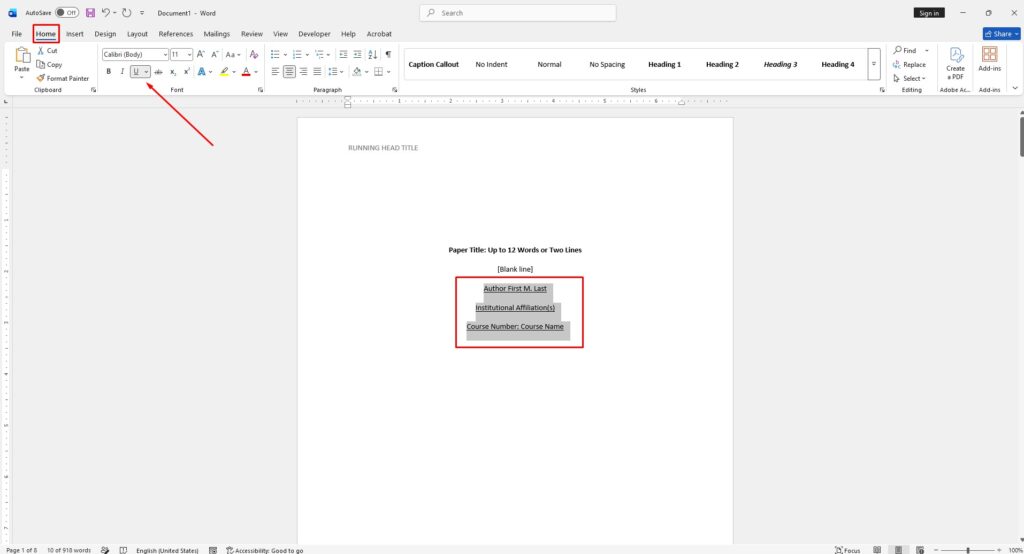
The quickest way to underline text is from the Home tab.
Follow these steps:
- Open the document in Microsoft Word.
- Select the word, sentence, or paragraph that needs to be underlined.
- Go to the Home tab.
- In the Font section, click the Underline button.
- The selected text will now have a line under it.
The Underline button usually appears as a letter U with a line below it. If text is already underlined, clicking the same button again removes the underline.
How to Underline Text Using a Keyboard Shortcut
For faster editing, use the keyboard shortcut instead of opening the ribbon menu.
To underline text with the keyboard:
- Select the text.
- Press Ctrl + U.
- The selected text will be underlined.
To stop underlining new text, press Ctrl + U again before continuing to type.
This shortcut is useful when editing long documents because it saves time and keeps formatting simple.
How to Underline Words Only, Not Spaces
Sometimes a document looks cleaner when only the words are underlined, not the spaces between them. Microsoft Word includes a special underline option for this.
To underline words only:
- Select the text.
- Go to the Home tab.
- Open the Font dialog box by clicking the small arrow in the Font section.
- Find the Underline style dropdown menu.
- Choose Words only.
- Click OK.
This applies underlining to the words but leaves the spaces between words without a line. Microsoft’s support guide also confirms that the Words only option is available from the Underline style dropdown in the Font dialog box.
How to Change the Underline Style
Microsoft Word does not limit users to a basic underline. Different underline styles can be used depending on the document design.
To change the underline style:
- Select the text.
- Go to the Home tab.
- Click the small arrow in the Font section.
- Open the Underline style dropdown menu.
- Choose the underline style you want.
- Click OK.
Common underline styles may include:
- Single underline
- Double underline
- Dotted underline
- Dashed underline
- Thick underline
- Wavy underline
- Words-only underline
These options are useful when creating professional documents, worksheets, contracts, notices, or forms.
How to Change the Underline Color
The underline color can also be changed separately from the text color. This is useful when the underline needs to stand out without changing the text itself.
To change underline color:
- Select the underlined text.
- Open the Font dialog box from the Home tab.
- Find the Underline color dropdown menu.
- Choose a color.
- Click OK.
For professional documents, black, dark blue, or gray underline colors usually look clean. Bright colors should be used carefully because they can make a document look less formal.
How to Use Double Underline in Word
Double underline adds two lines below selected text. It is often used in financial documents, totals, final amounts, or important labels.
To apply double underline:
- Select the text.
- Open the Font dialog box.
- Go to Underline style.
- Select the double underline option.
- Click OK.
There is also a keyboard shortcut for double underline. Microsoft lists Ctrl + Shift + D as the shortcut for applying double underline formatting in Word.
How to Underline Blank Spaces in Microsoft Word
Underlining blank spaces is useful when creating printable forms, worksheets, applications, or signature areas. However, using repeated underscore characters is not always the best method because the line can move or become uneven.
A cleaner method is to use tabs and apply underline formatting to the tab space.
Method 1: Underline Blank Spaces with the Tab Key
Follow these steps:
- Place the cursor where the blank underline should appear.
- Press the Tab key.
- Select the tab space.
- Press Ctrl + U.
- The blank space will now appear as an underline.
Microsoft recommends using tab characters with underline formatting for printed documents because it creates a cleaner blank underline than typing multiple underscore characters.
Method 2: Use a Table for Online Forms
If the document will be filled out digitally, a table can work better than blank underlined spaces. A table cell with only a bottom border keeps the line in place while someone types inside it.
To create an underline for an online form:
- Go to Insert > Table.
- Insert a small table cell where the answer should be typed.
- Remove unnecessary borders.
- Keep only the bottom border.
- Adjust the width of the cell as needed.
This method is better for forms because the line stays fixed when text is entered.
How to Remove Underline in Microsoft Word
Removing underline is just as simple as adding it.
To remove underline:
- Select the underlined text.
- Click the Underline button on the Home tab.
Or use the shortcut:
- Select the underlined text.
- Press Ctrl + U.
If the text has other formatting that should also be removed, use Clear All Formatting from the Home tab. This removes font styling and returns the text to plain formatting.
Why Is My Text Underlined Automatically?
Sometimes Word may show underlines that were not added manually. These are usually spelling, grammar, or style marks.
For example:
- A red wavy underline usually means a possible spelling issue.
- A blue underline can indicate grammar or writing suggestions.
- A manually added underline is a straight line directly under the text.
Microsoft explains that Word marks possible spelling issues with a red squiggly underline and grammar issues with a blue double underline. These marks are editing suggestions, not normal underline formatting.
If the underline is from spelling or grammar checking, right-click the word and choose a correction, ignore the suggestion, or adjust proofing settings.
Best Practices for Underlining Text in Word
Underline formatting is useful, but it should be used carefully. Too much underlined text can make a document harder to read.
Use underline formatting for:
- Important words
- Form fields
- Signature lines
- Section labels
- Short headings
- Key dates or names
Avoid underlining too much text in long paragraphs. For emphasis, bold formatting is often easier to read. Underline is best when used for short and specific parts of a document.
Underline vs Bold vs Italic: Which Should Be Used?
Each formatting style has a different purpose.
Underline is best for form fields, important labels, links, and short emphasis.
Bold is better for headings, warnings, and important instructions.
Italic is useful for titles, foreign words, notes, or softer emphasis.
For clean document formatting, avoid using all three styles at the same time unless there is a specific reason.