


Adding a circle around text in Microsoft Word is a simple way to highlight important words, numbers, labels, headings, or callouts inside a document. Whether the goal is to mark a key answer, create a badge-style design, or make part of a document stand out, Word includes built-in tools that make the process easy without needing extra software.
There are two common ways to do it. The first method places a circle shape around normal text. This is best when the text should stay flat and readable. The second method uses WordArt to create curved or circular text, which is better for logos, stamps, certificates, invitations, labels, and decorative document designs.
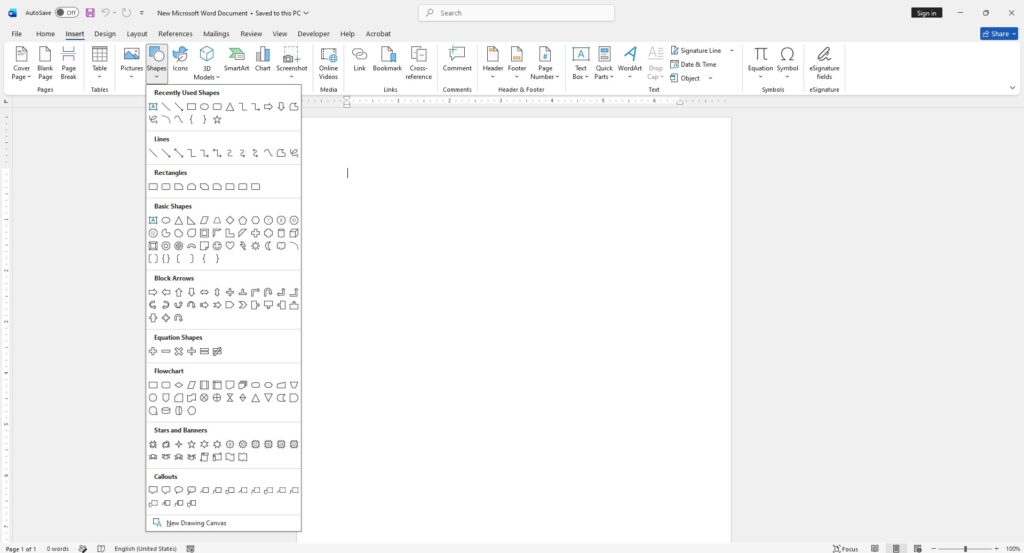
Why Circle Text in Microsoft Word?
Circling text can make a document easier to read and more visually organized. It is useful for drawing attention to a specific word, marking a correct answer, highlighting a number, or creating a simple design element. Instead of using bold or underline only, a circle gives the selected text a stronger visual focus.
This feature is helpful for:
- School worksheets
- Business documents
- Printable forms
- Certificates
- Posters and flyers
- Labels and badges
- Instructional guides
- Highlighted answers or notes
Microsoft Word does not have a single “circle text” button, but the same result can be created quickly with Shapes or WordArt.
Method 1: Add a Circle Around Text Using Shapes
The easiest way to circle text in Microsoft Word is by inserting an oval shape and placing it over or around the text. This method works well when the text is already typed in the document and only needs a simple circle around it.
Step 1: Open the Word Document
Open the document in Microsoft Word and go to the page where the text is located. If the text is not added yet, type it first so the circle can be placed accurately around it.
Step 2: Insert an Oval Shape
Click the Insert tab at the top of Word. Then select Shapes and choose the Oval shape from the list.
To draw a perfect circle instead of an oval, hold the Shift key while dragging the shape onto the page. This keeps the height and width equal.
Step 3: Place the Circle Around the Text
Drag the circle over the word, number, or phrase that needs to be highlighted. Resize the shape by pulling the corner handles until it fits neatly around the text.
If the circle covers the text, right-click the shape, choose Wrap Text, and select Behind Text. Another option is to use Send Behind Text from the shape formatting options.
Step 4: Remove the Fill Color
By default, Word may insert the shape with a solid fill color. To make the text visible inside the circle, click the shape, go to Shape Format, select Shape Fill, and choose No Fill.
This leaves only the outline of the circle visible.
Step 5: Customize the Circle Outline
To change the circle’s appearance, use Shape Outline under the Shape Format tab. The outline color, thickness, and style can be adjusted.
For example:
- Use a red outline for corrections or warnings
- Use a black outline for clean document formatting
- Use a thicker line for stronger emphasis
- Use a dashed outline for notes or draft markings
This method is the fastest option when the goal is simply to circle existing text.
Method 2: Create Circular Text with WordArt
If the goal is to make the text itself appear in a circle or curved shape, WordArt is the better option. WordArt allows text to be transformed into curved, arched, or circular styles. Microsoft explains that WordArt can be used with Transform text effects to curve or bend text around a shape.
Step 1: Insert WordArt
Go to the Insert tab and select WordArt. Choose a simple WordArt style from the gallery. A text box will appear in the document.
Type the text that should appear in a circular or curved style.
Step 2: Apply a Transform Effect
Click the WordArt text to select it. Then go to the Shape Format tab.
Select:
Text Effects > Transform
From the Transform menu, choose a curved or circular effect. Depending on the version of Word, options may include arch, circle, curve, or other text-warping styles.
Step 3: Resize the WordArt
After applying the circular effect, resize the WordArt box by dragging its handles. The size of the box affects how tightly the text curves.
If the text does not look circular enough, make the WordArt box taller or wider until the shape looks right.
Step 4: Adjust the Font and Style
The WordArt text can still be customized like regular text. Use the Home tab to change the font, size, bold style, or alignment. Use the Shape Format tab to change the text fill, outline, shadow, or other effects.
For a clean result, avoid using too many effects at once. A simple font with a clear outline usually looks more professional.
How to Make a Perfect Circle Around Text
For the cleanest result, use the Shift key when drawing the oval shape. This creates a perfect circle instead of an uneven oval.
Follow these quick steps:
- Go to Insert > Shapes.
- Select Oval.
- Hold Shift while drawing the shape.
- Set Shape Fill to No Fill.
- Place the circle around the text.
- Adjust the outline color and thickness.
This method is ideal for circling single words, numbers, letters, or short phrases.
How to Move the Circle and Text Together
If the circle and text need to stay together, group them. This is useful when creating labels, badges, or designs that may be moved around the page.
To group the circle and text:
- Click the circle.
- Hold Ctrl and click the text box or WordArt.
- Right-click one of the selected items.
- Choose Group > Group.
After grouping, both items move as one object. This prevents the circle from shifting away from the text when editing the document.
Best Tips for Circling Text in Word
A few small adjustments can make the final result look much better:
- Use No Fill so the circle does not cover the text.
- Use Behind Text if the shape overlaps existing text.
- Hold Shift to draw a perfect circle.
- Use a thicker outline for better visibility.
- Keep the circle slightly larger than the text.
- Group the text and circle if they need to move together.
- Use WordArt only when a decorative curved text effect is needed.
Common Problems and Fixes
The Circle Covers the Text
If the circle hides the text, select the shape and choose Shape Fill > No Fill. If it still blocks the text, right-click the shape and choose Send Behind Text.
The Shape Looks Like an Oval Instead of a Circle
Hold the Shift key while drawing the shape. This keeps the shape perfectly round.
The Circle Moves Away From the Text
Group the circle and text together. This keeps both elements locked as one object.
The Curved Text Does Not Look Right
Resize the WordArt box. The curve depends on the size and shape of the WordArt area. A wider or taller box can change the curve dramatically.
Shape vs WordArt: Which Method Should Be Used?
Use Shapes when the goal is to circle normal text that already exists in the document. This is the best option for worksheets, forms, notes, and simple highlights.
Use WordArt when the goal is to create decorative circular or curved text. This is better for logos, labels, stamps, posters, invitations, and creative layouts.
Both methods are built into Microsoft Word, so there is no need to install extra tools.







