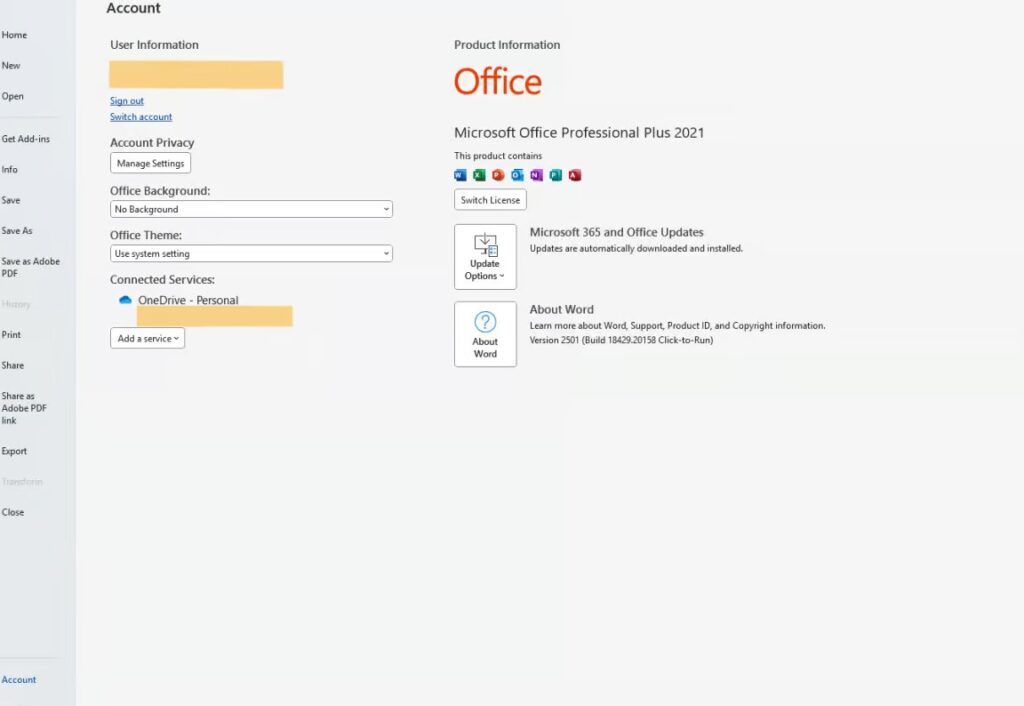
This guide explains how to install and activate Office 2021 Professional Plus on your Windows PC. The process is simple, safe, and does not require advanced technical skills. Follow each step carefully to ensure the installation and activation go smoothly.
What You Need Before You Start
Before beginning, make sure you have:
- A valid Office 2021 Professional Plus product key
- A stable internet connection
- A Microsoft account
- A Windows PC that meets the minimum system requirements
If you don’t have a Microsoft account, you can create one for free during setup. A Microsoft account is required to activate Office and access cloud features like OneDrive.
Step 1: Start the Office Setup
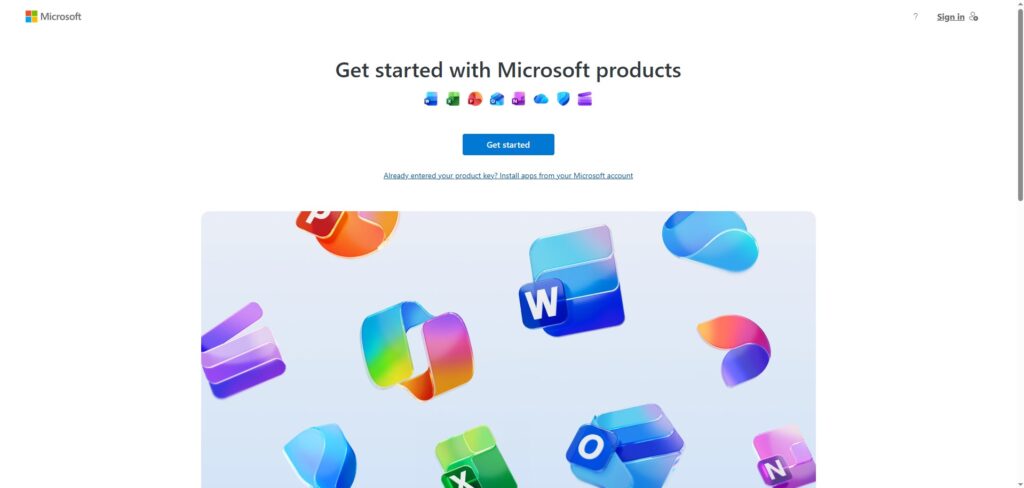
- Open your browser and go to setup.office.com.
- Click Get Started to begin the installation process.
Next, follow these steps:
- Sign in with your Microsoft account
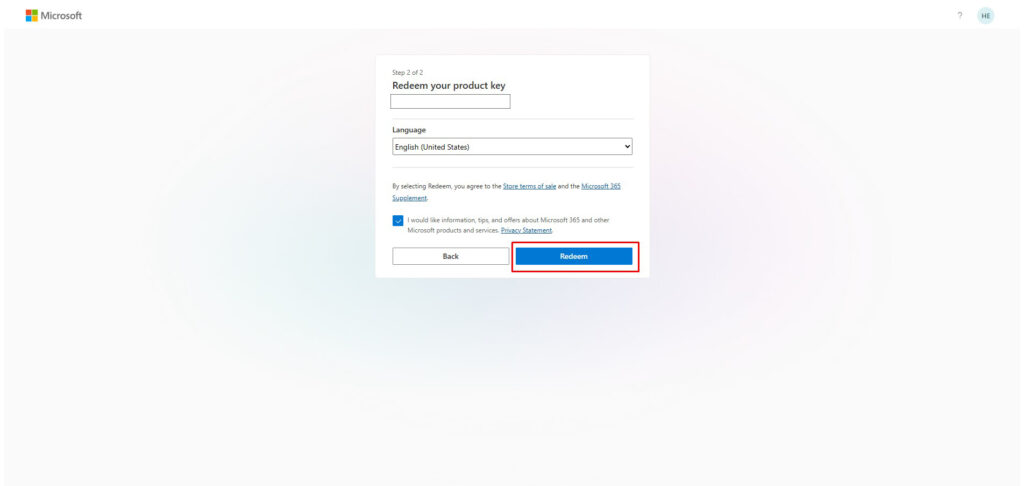
- Enter your Office product key
- Confirm the key and continue
- Choose your preferred language
- Click Download to start the Office installer
If you prefer an offline installation, choose the “Download ISO” option instead of the standard online setup. This allows you to install Office without an internet connection.
Step 2: Install Office 2021
After downloading the installer:
- Open the setup file you downloaded.
- Allow the installation process to start.
- Wait until the installation completes—this may take several minutes.
- Do not turn off your computer during installation.
If you downloaded the ISO file, mount the ISO and run the setup file inside it. This method is useful for offline installations or multiple computers.
Step 3: Activate Office
Once installation is complete, Office must be activated:
- Open any Office app, such as Word, Excel, or PowerPoint.
- The activation window will appear automatically.
- Select Activate over the Internet.
- Click Next and wait a few seconds.
Once activation is finished, all Office apps will be fully unlocked and ready to use.