Installing and activating Microsoft SQL Server correctly is essential for performance, security, and long-term stability. Whether you’re setting it up for development, production, or enterprise use, a proper installation ensures smooth database operations and compliance with licensing requirements.
This step-by-step guide walks you through SQL Server installation, configuration, and activation, helping you avoid common mistakes and get your server running efficiently.
Step 1: Download SQL Server
Download the official SQL Server installer from Microsoft.
Step 2: Start the Installation
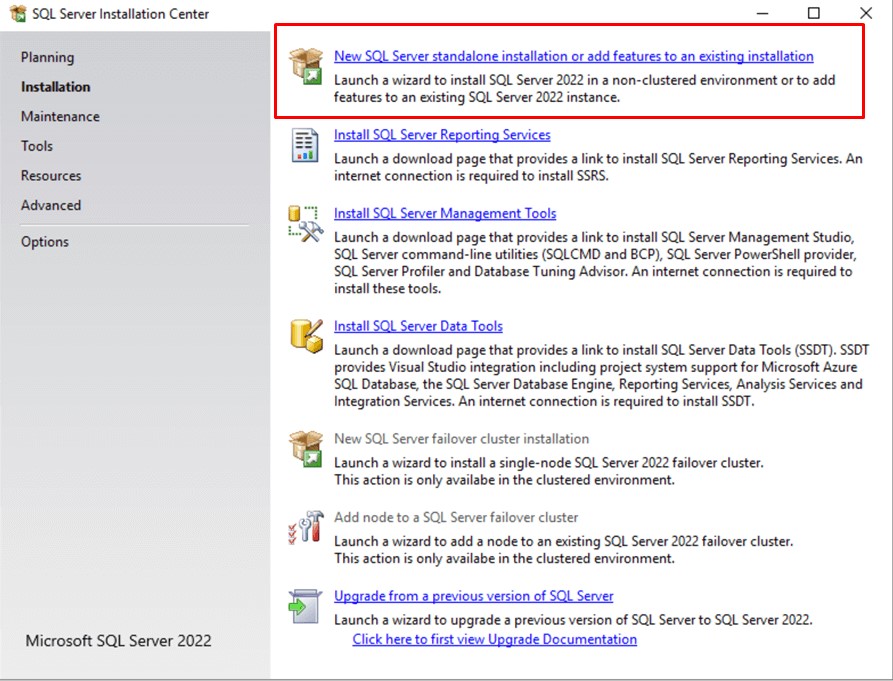
- Run the SQL Server setup file as Administrator
- Select New stand-alone installation
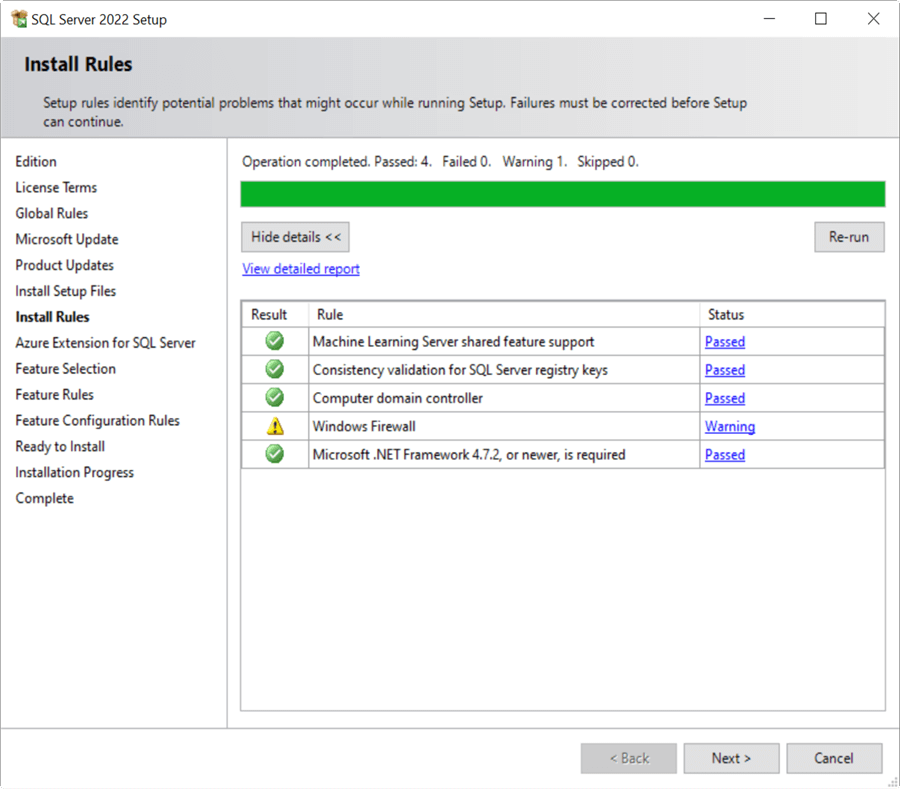
- Allow the setup to perform system checks
- Install required setup files when prompted
If any warnings appear, resolve them before continuing.
Step 3: Feature Selection
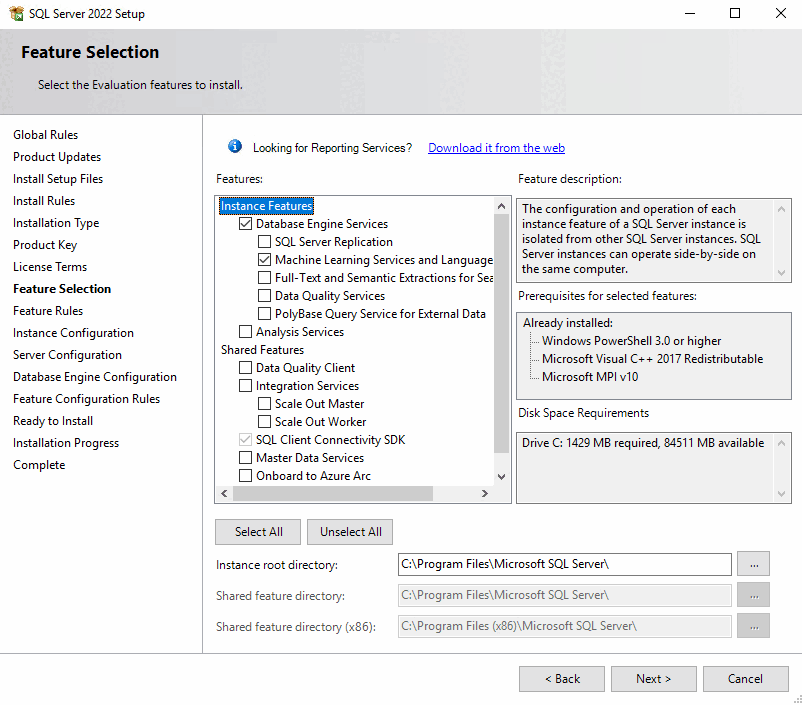
Choose the components you need:
- Database Engine Services
- SQL Server Management Tools (optional)
- Full-Text and Semantic Search (optional)
For most users, Database Engine Services is essential.
Step 4: Server Configuration
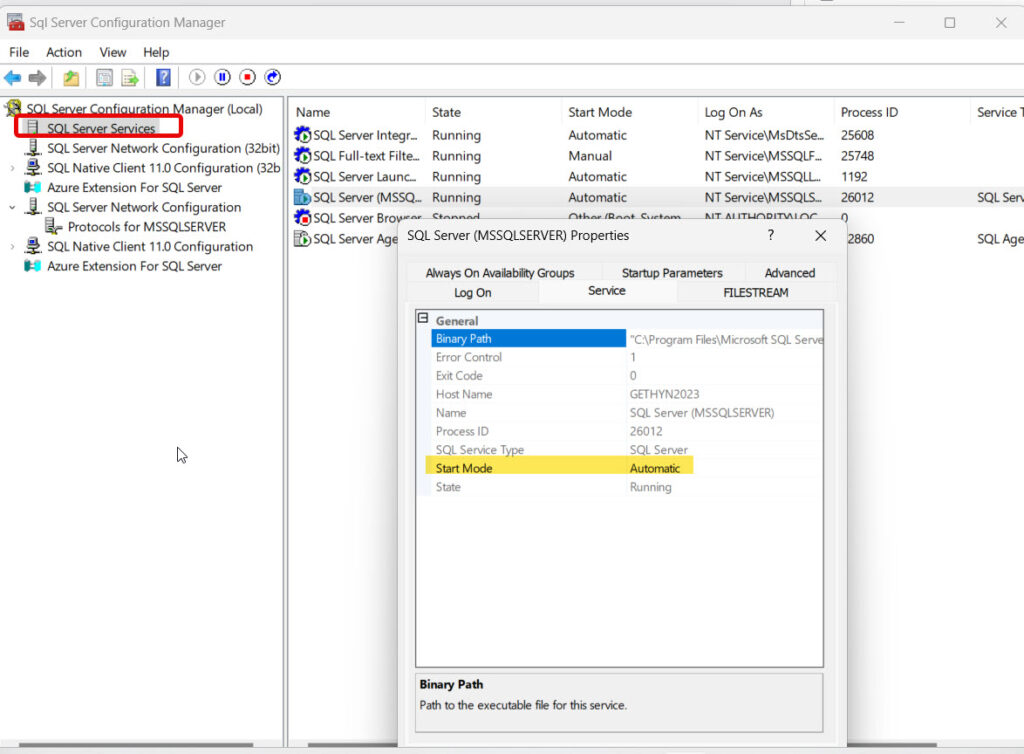
Configure SQL Server services:
- Set SQL Server Database Engine to start automatically
- Use recommended service accounts for security
- Keep default collation unless your application requires a specific one
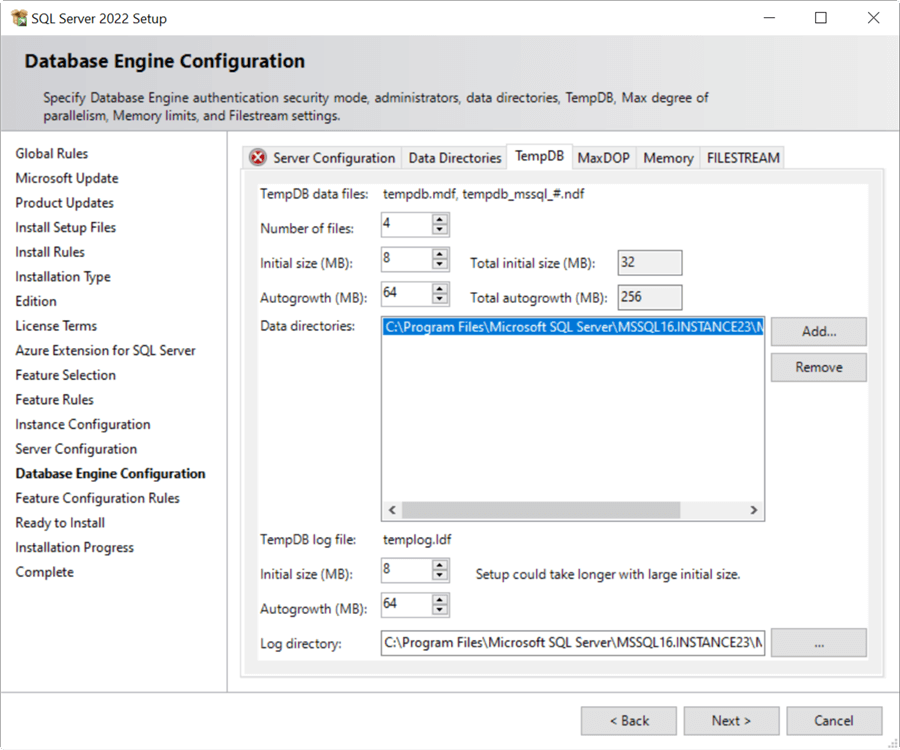
Step 5: Database Engine Configuration
Select the authentication mode:
- Windows Authentication (recommended for security)
- Mixed Mode (requires setting a strong SA password)
Add at least one SQL Server administrator account before proceeding.
Step 6: Complete Installation
Click Install and wait for the process to finish. Once completed, review the installation summary to ensure all components installed successfully.