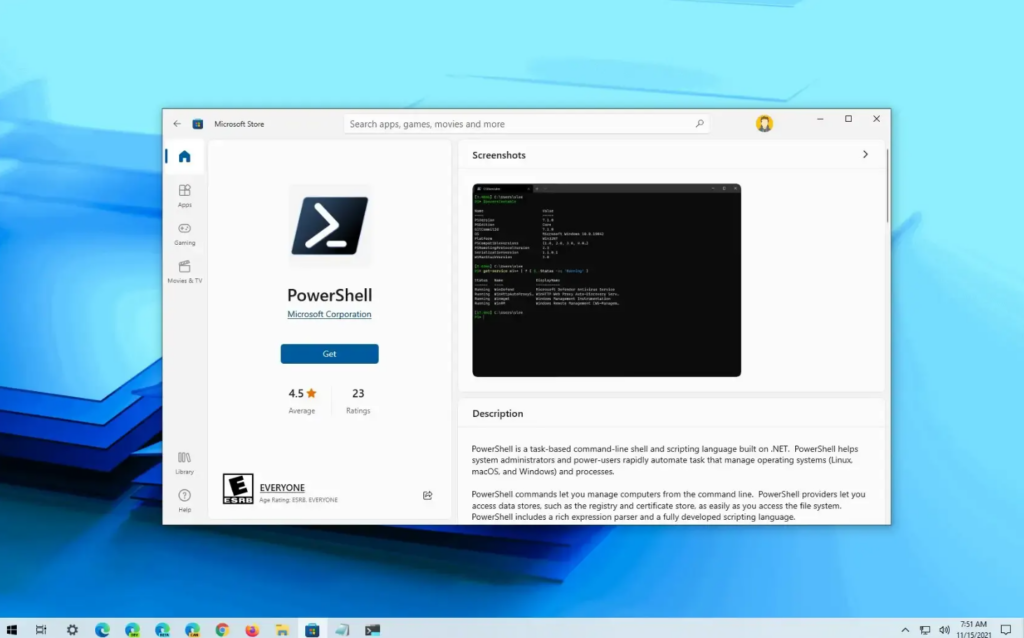
Microsoft Project is a powerful project management tool designed to help professionals plan, schedule, track, and manage projects efficiently. Whether you are a business owner, project manager, or team leader, installing and activating Microsoft Project correctly ensures you can access all its advanced features without interruptions.
This detailed step-by-step guide explains how to redeem your product key, download Microsoft Project, install it properly, and complete activation successfully.
System Requirements Before Installation
Before installing Microsoft Project, make sure your device meets the basic requirements:
- Windows 10 or Windows 11
- Stable internet connection for activation
- Microsoft account
- Valid Microsoft Project product key
- At least 4GB RAM (8GB recommended for better performance)
- Sufficient storage space for installation
Ensuring your system meets these requirements will prevent installation errors and activation issues.
Step 1: Redeem Your Microsoft Project Product Key
To begin the installation process, you must first redeem your product key.
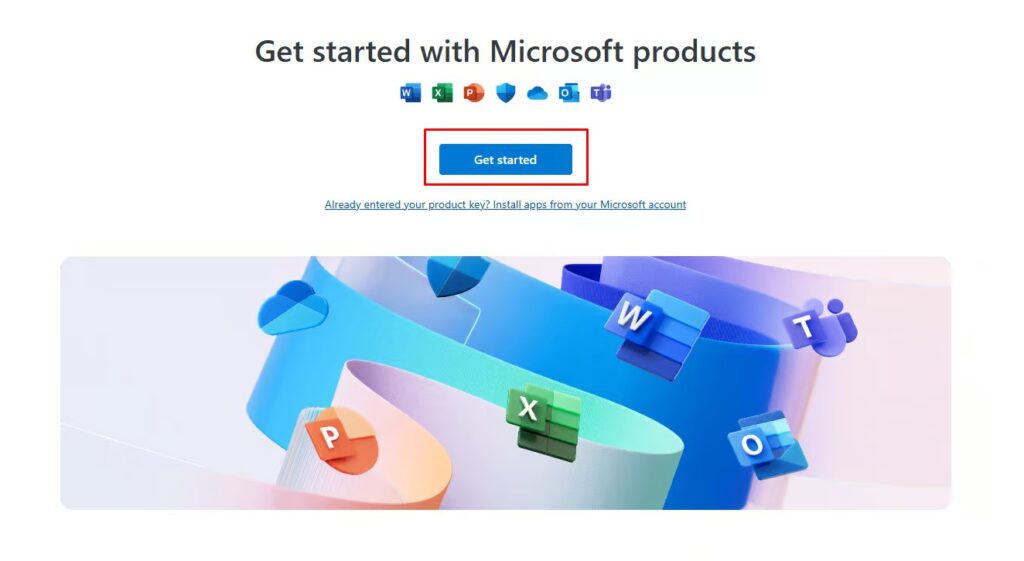
- Visit https://setup.office.com
- Click “Get Started.”
- Sign in with your Microsoft account (or create one if needed).
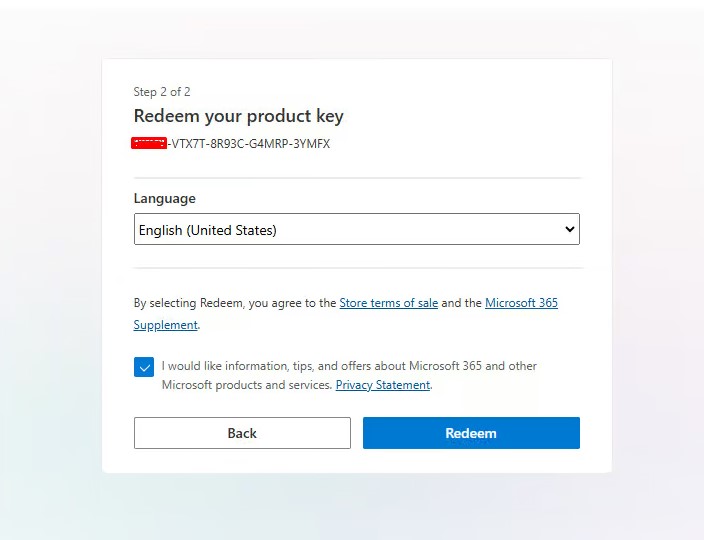
- Enter your Microsoft Project product key.
- Click “Next.”
- Select your preferred language and region.
- Click “Redeem.”
Once redeemed successfully, the system will link the license to your Microsoft account.
Important: Always make sure you are logged into the correct Microsoft account. Your license will be permanently connected to that account.
Step 2: Download Microsoft Project
After redeeming your key:
- The download will start automatically.
- If it does not begin, you can manually select the download option from your Microsoft account dashboard.
- Save the setup file to your computer.
For advanced users, downloading the Microsoft Project Professional ISO file may be preferred for offline installation or enterprise deployment.
Step 3: Install Microsoft Project
Once the download is complete:
- Open the setup file.
- Allow the installer to make changes if prompted by Windows.
- Follow the on-screen installation instructions.
- Wait for the installation process to complete.
Installation time depends on your internet speed and system performance. Avoid closing the installer during the process.
After completion, Microsoft Project will appear in your installed programs list.
Step 4: Activate Microsoft Project
After installing the software:
- Open Microsoft Project.
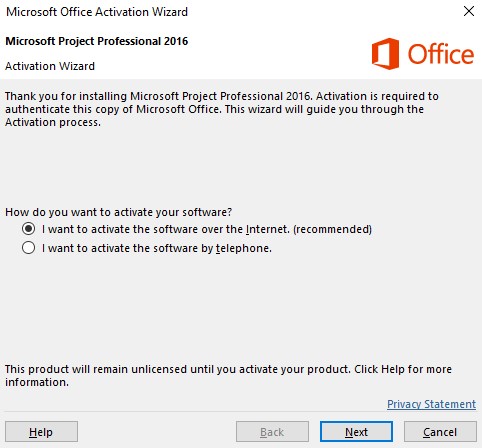
- The Activation Wizard will appear automatically.
- Select “I want to activate the software over the Internet.”
- Click “Next.”
- Follow the prompts to complete activation.
If you are signed in with the Microsoft account used during redemption, activation will usually complete automatically.