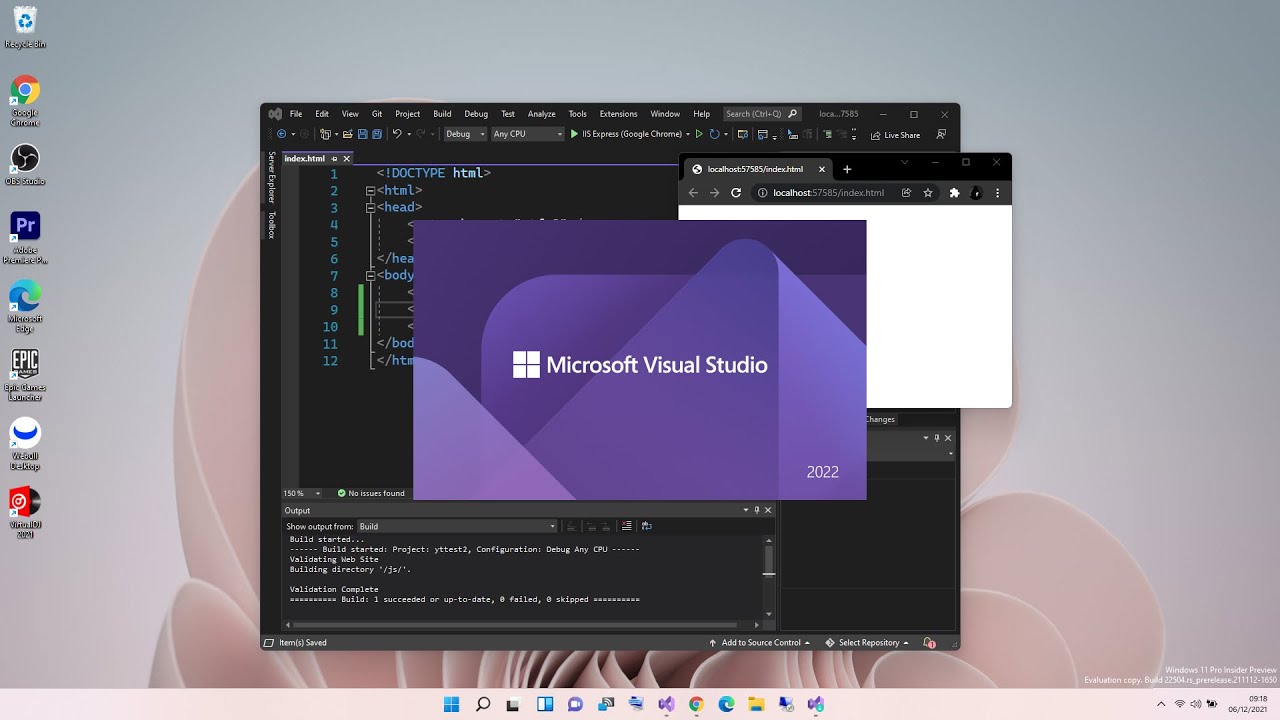
Looking to install and activate Visual Studio quickly and correctly? This step-by-step guide will walk you through downloading, installing, activating, and updating Visual Studio so you can start developing desktop, web, or mobile applications without issues.
Whether you’re using Visual Studio Professional or Enterprise, this complete installation tutorial covers everything you need.
What Is Visual Studio?
Microsoft Visual Studio is a powerful Integrated Development Environment (IDE) developed by Microsoft. It supports multiple programming languages including C#, C++, .NET, Python, and more — making it ideal for building:
- Windows desktop applications
- Web applications and APIs
- Mobile apps (Android & iOS)
- Cloud-based solutions
- Game development projects
Step 1: Download and Install Visual Studio
1️⃣ Download the Installer
- Visit the official website: visualstudio.microsoft.com
- Choose your preferred edition:
- Visual Studio Community (free)
- Visual Studio Professional
- Visual Studio Enterprise
- Click Download
2️⃣ Run the Installer
- Open the downloaded installer file.
- The Visual Studio Installer will launch automatically.
3️⃣ Select Workloads
During installation, you’ll choose development workloads based on your needs, such as:
- .NET Desktop Development
- ASP.NET and Web Development
- Desktop Development with C++
- Mobile Development with .NET
- Game Development with Unity
Select the workloads you need and click Install.
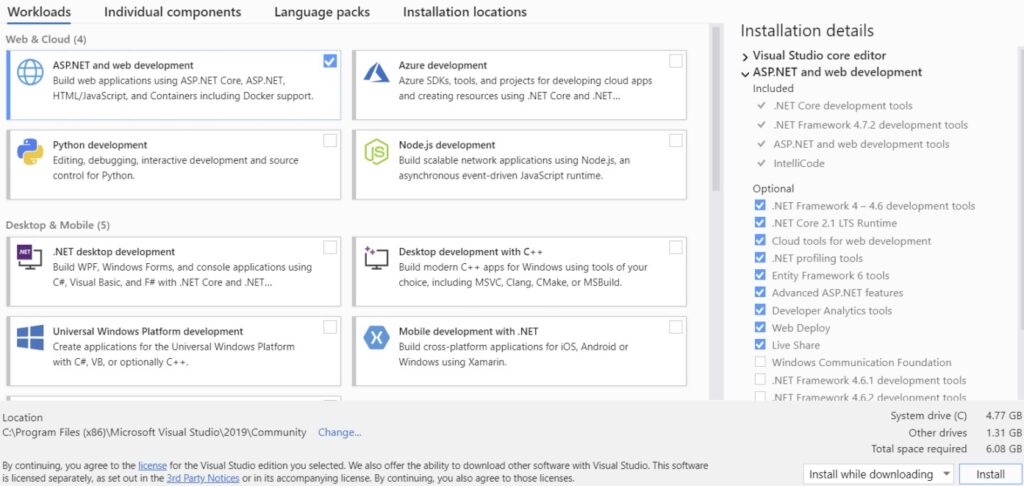
⚠ Installation time depends on your selected components and internet speed.
Step 2: Activate Visual Studio
After installation:
- Launch Visual Studio.
- When prompted, sign in using your Microsoft account.
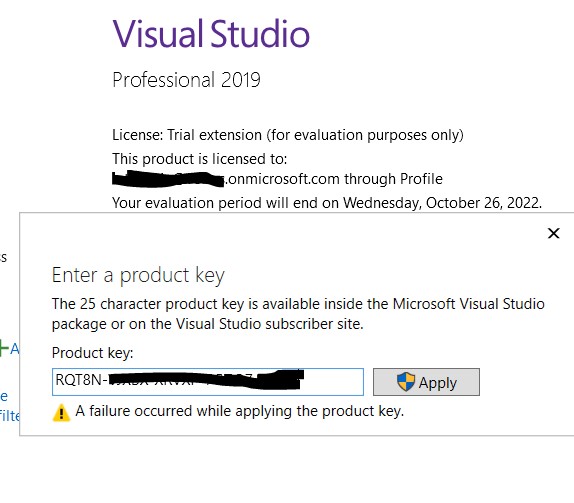
Activate With Product Key (If Required)
If you purchased a license:
- Go to Help → Register Product
- Enter your product key
- Click Activate
Your Visual Studio license will now be validated.
Step 3: Update Visual Studio
Keeping Visual Studio updated ensures:
- Latest security patches
- Performance improvements
- New features
- Bug fixes
How to Update:
- Go to Tools → Get Tools and Features
- The Visual Studio Installer will open
- Click Update (if available)
Wait for the update to complete before restarting the IDE.
Step 4: Start Your First Project
Once activated and updated:
- Click Create a New Project
- Choose a project template (Console App, Web App, etc.)
- Configure project settings
- Click Create
- Start coding