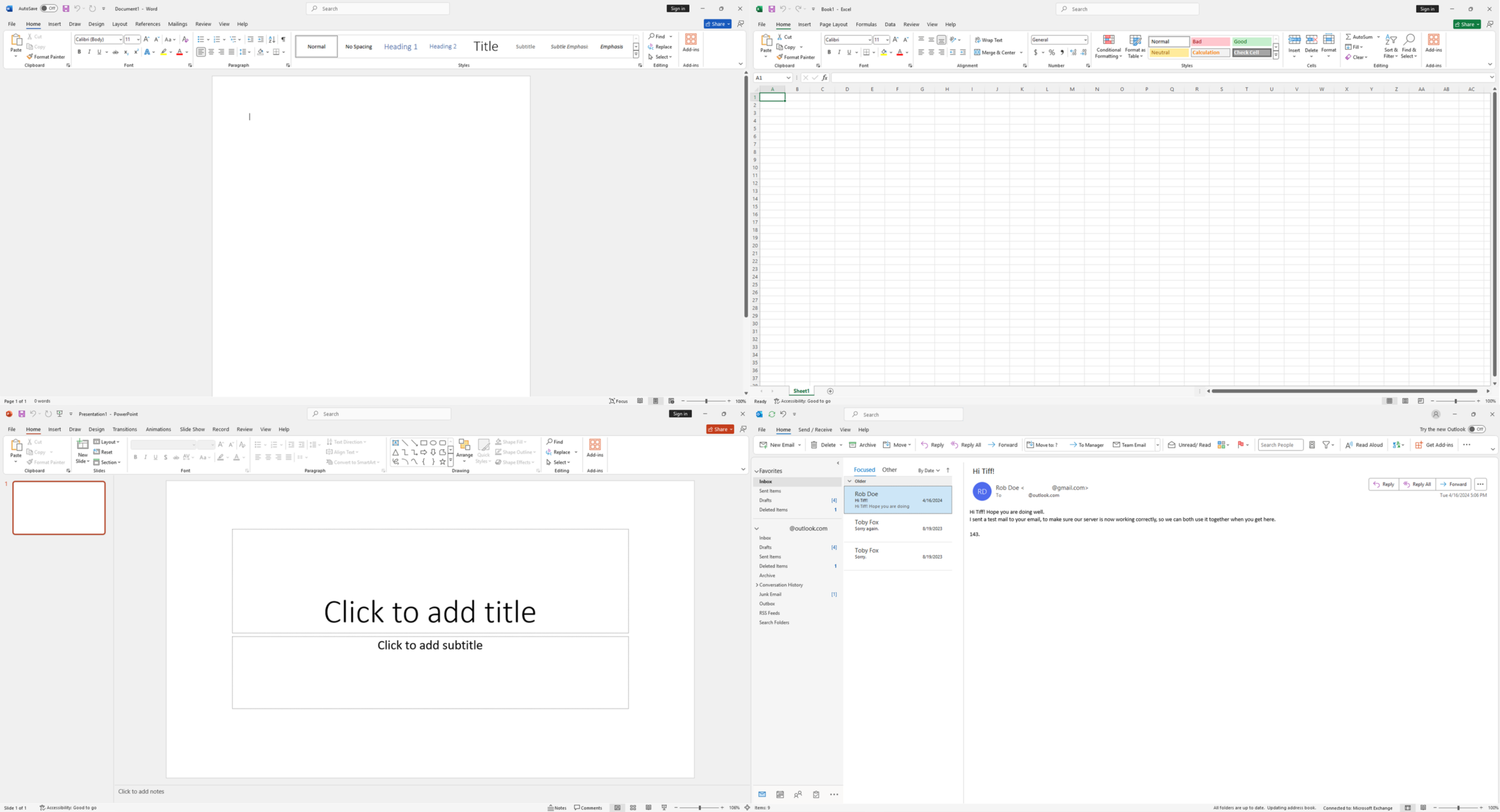
Looking to install and activate Office 2021 Professional Plus quickly and correctly? This complete guide will walk you through the official setup process, including product key redemption, software download, ISO installation, and activation.
Follow the simple steps below to get full access to Microsoft Word, Excel, PowerPoint, Outlook, and all included Office applications.
Download and Install Office 2021 Professional Plus
To begin the installation process, follow these official steps:
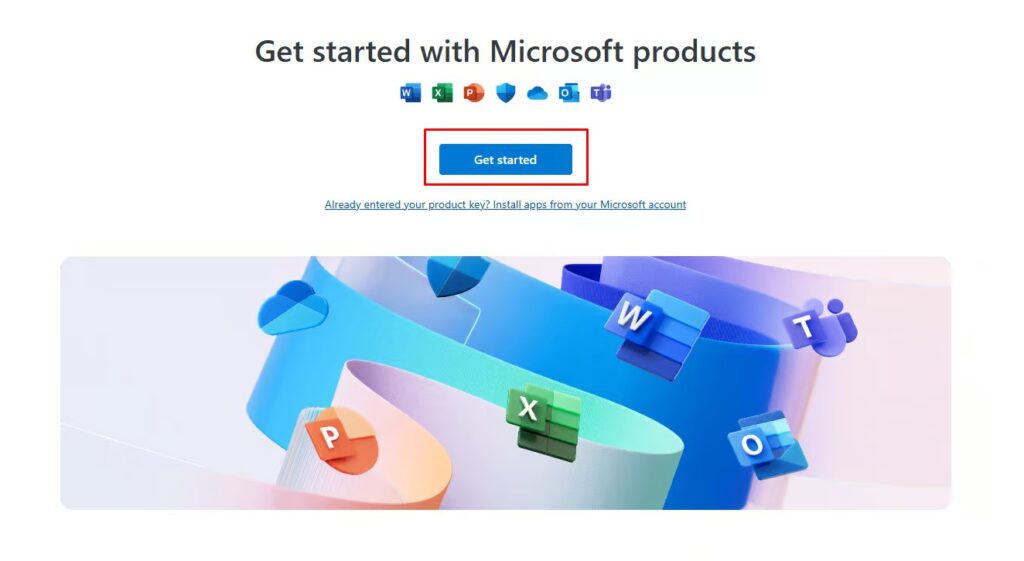
Step 1: Visit Setup Office Website
Go to setup.office.com and click the “Get Started” button.
Step 2: Sign In to Your Microsoft Account
- Sign in using your existing Microsoft account.
- If you do not have one, create a new Microsoft account.
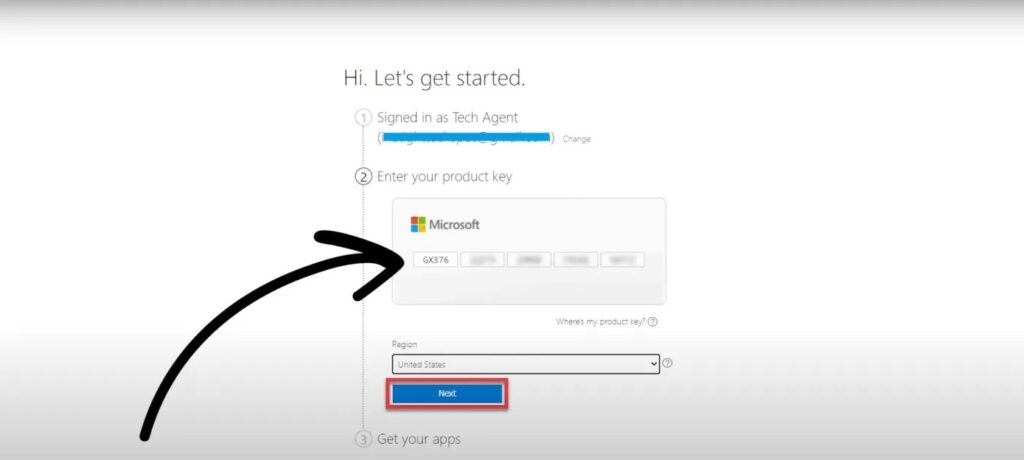
Step 3: Redeem Your Office Product Key
- Enter your Office 2021 Professional Plus product key.
- Click “Next”.
- Select your preferred language.
- Click “Redeem” to confirm.
Once redeemed, the Office download will begin automatically.
Step 4: Install Office 2021
- Open the downloaded file.
- Follow the on-screen installation instructions.
- Wait for the setup process to complete.
How to Download Office 2021 ISO File (Optional)
If you prefer a direct ISO installation:
- Click the “Download ISO” button bellow.
- Download the ISO file to your computer.
- Mount the ISO file.
- Run the setup file to install Office manually.
⚠️ If you installed using the ISO file, skip the online download instructions above.
How to Activate Office 2021 Professional Plus
After installation, activate your Office software:
- Open any Office application (for example, Microsoft Word).
- Wait for the Activation Wizard to appear.
- Select “I want to activate the software over the Internet.”
- Click “Next.”
- Follow the prompts to complete activation.
Once activation is successful, you will have full access to all Office 2021 Professional Plus applications.
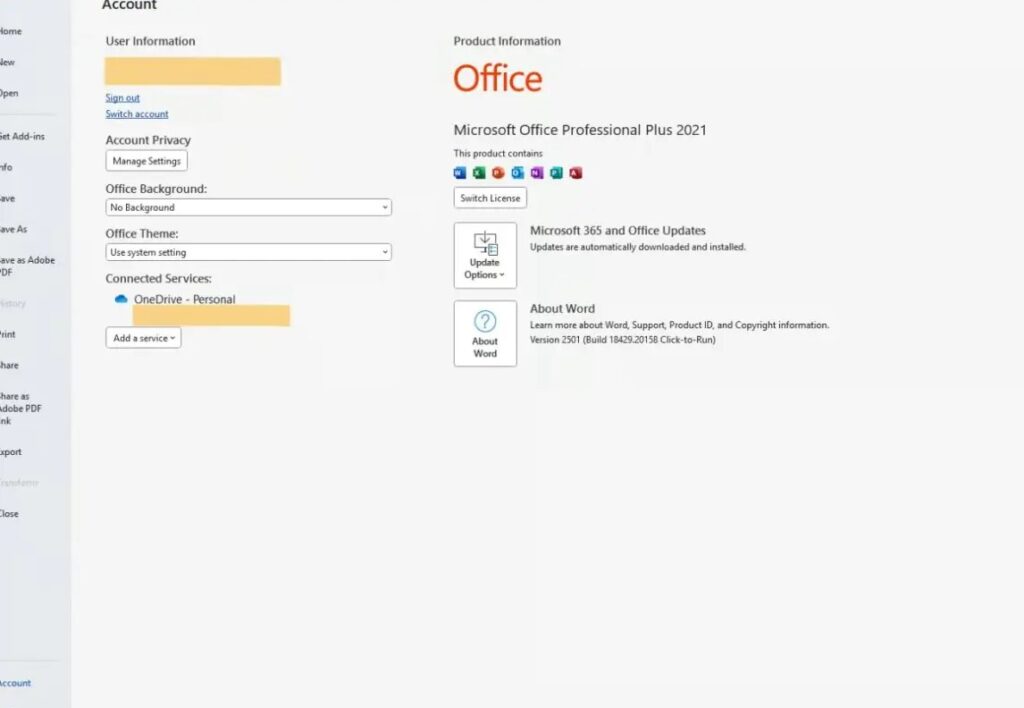
Office 2021 Professional Plus Includes:
- Microsoft Word
- Microsoft Excel
- Microsoft PowerPoint
- Microsoft Outlook
- Microsoft Access
- Microsoft Publisher