

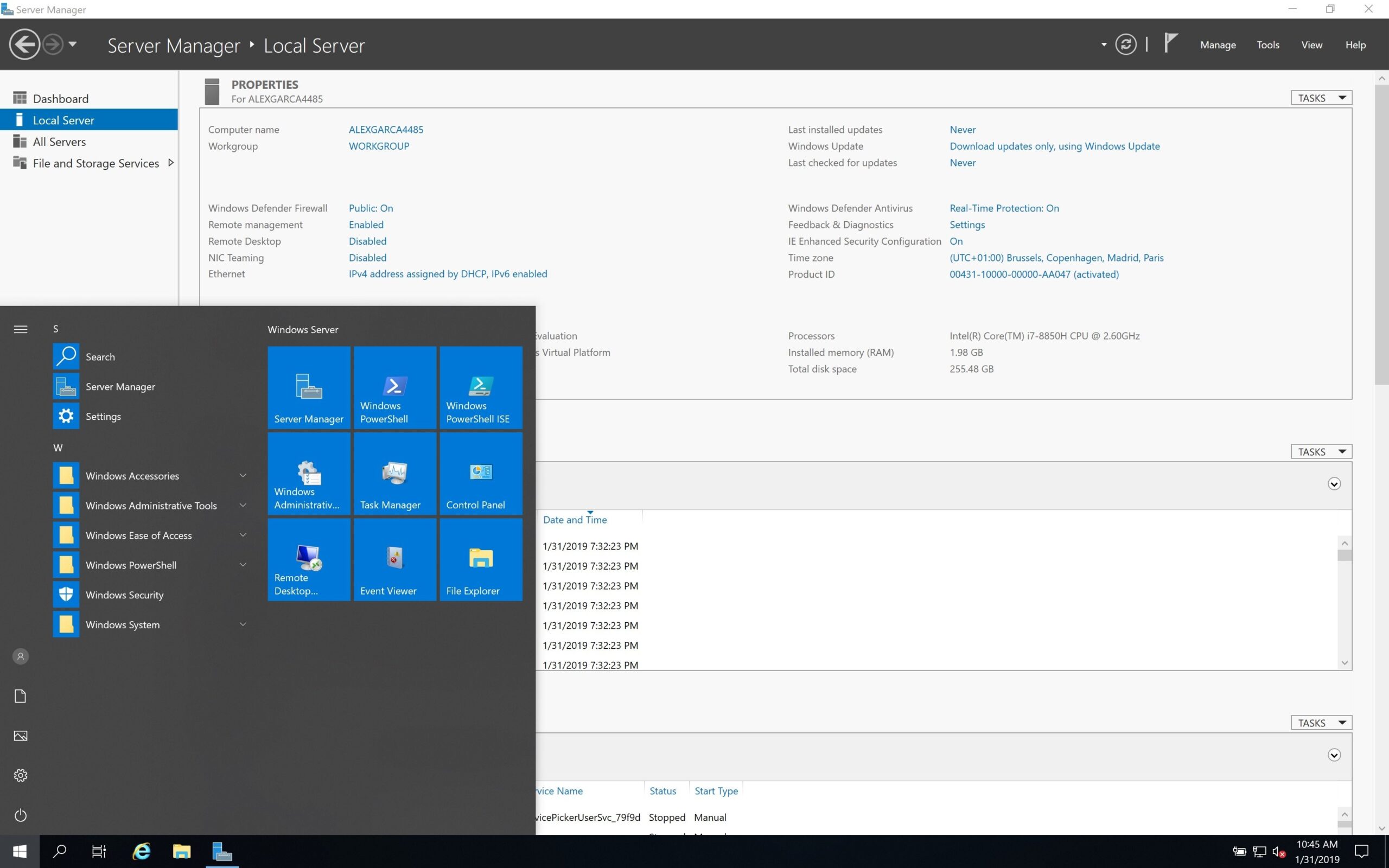
Check System Requirements
Before you begin, make sure your hardware meets the minimum requirements.
Otherwise, the installation may fail.
In addition, using higher specs will improve performance.
Download the ISO File
Next, download the official ISO file.
After downloading, save it in a safe location.
If possible, verify the file before continuing.
Create Bootable Installation Media
Once you have the ISO file, create a bootable USB drive.
For example, you can use Rufus.
After selecting the ISO, choose GPT or MBR.
Then click Start.
Finally, wait until the process finishes.
Install Windows Server
First, restart your computer and boot from the USB drive.
Then choose your language and keyboard settings.
After that, click Install Now to continue.
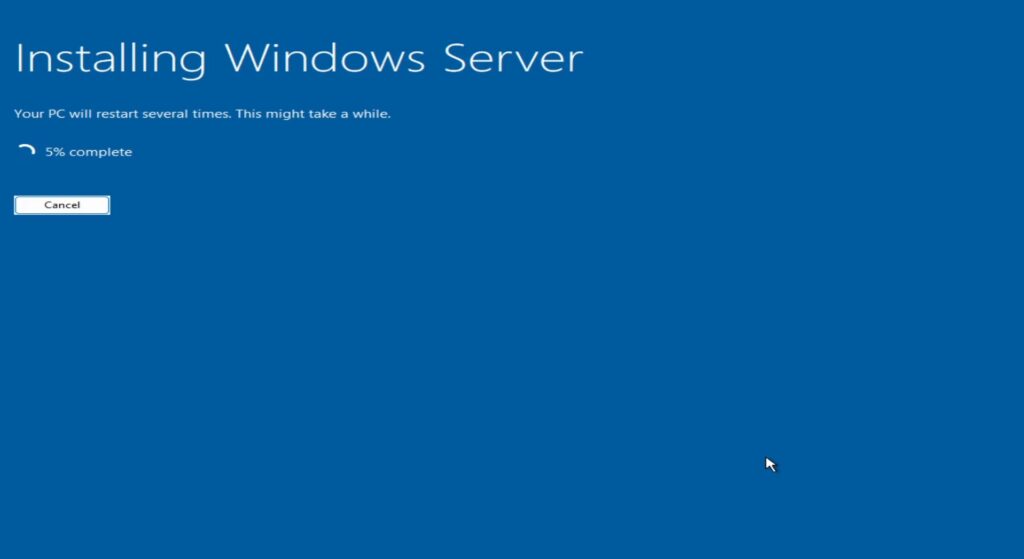
Language Settings
First, boot from the USB drive.
Then choose your language and keyboard layout.
After that, click Install Now.
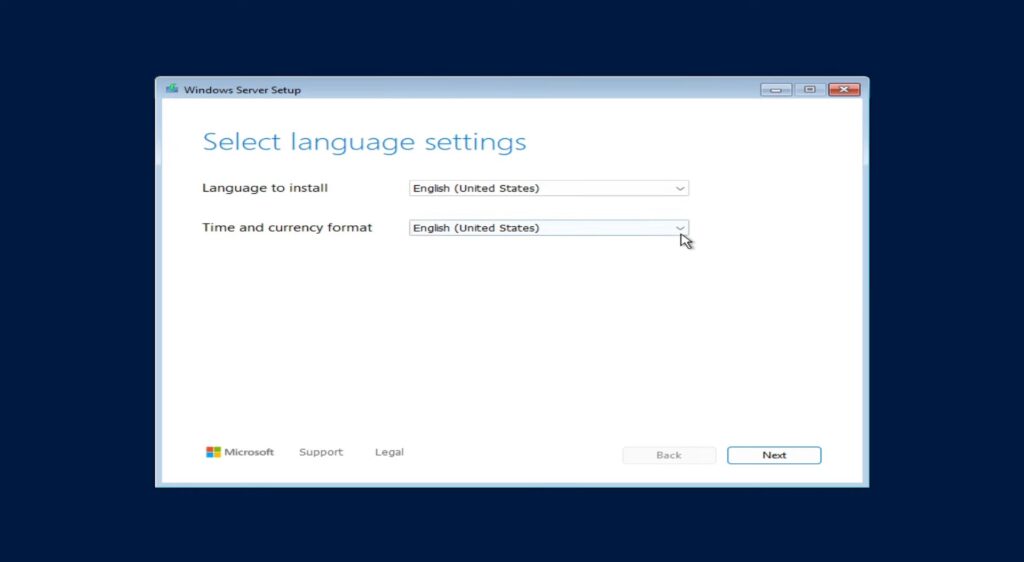
Version Selection
Next, select the edition you want.
If you prefer a graphical interface, choose Desktop Experience.
Otherwise, select Core.
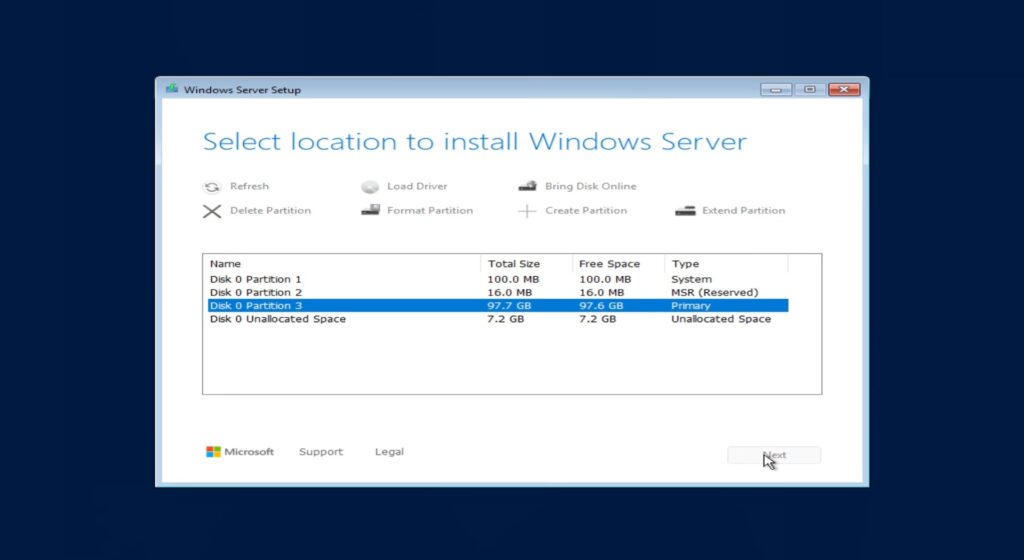
Select Partition
Next, choose the disk where you want to install Windows Server.
If needed, create a new partition or format an existing one.
Then click Next to continue.
Initial Configuration
After installation completes, set the Administrator password.
Then log in to the system.
From there, configure:
- Computer name
- Network settings
- Windows Updates
- Remote Desktop
Finally, Server Manager will open automatically.
Activate Windows Server
Activation unlocks all features.
In addition, it confirms your copy is genuine.
Activate Windows Server
Activation ensures compliance and unlocks full functionality.
Method 1: Activate via GUI
- Open Settings
- Navigate to System → Activation
- Click Change product key
- Enter valid product key
- Click Activate
Method 2: Activate via Command Line
Open Command Prompt as Administrator:
slmgr /ipk YOUR-PRODUCT-KEY
slmgr /ato
Check activation status:
slmgr /dlv
Method 3: KMS Activation (Enterprise Environments)
For corporate networks using KMS:
slmgr /skms kms.yourdomain.com
slmgr /ato
Install on a Virtual Machine
If you install on a virtual machine, the steps are the same.
However, you must adjust the resources.
For example, assign at least 4 GB RAM.
Also, use 2 or more CPU cores.
Common Installation Problems
Sometimes problems may occur.
However, most issues are easy to fix.
No Drives Found
If this error appears, load the correct drivers.
Alternatively, switch BIOS from RAID to AHCI.
Activation Error
First, check your KMS connection.
Then make sure the system time is correct.







