


Microsoft Office 2024 offers powerful tools designed to increase productivity and reduce repetitive work. As a result, you can save valuable time while completing everyday tasks more efficiently.
In this guide, you will learn how to make the most of Office 2024 features, add-ins, and keyboard shortcuts. By using these tools effectively, you can work faster and more efficiently in Excel, Word, Outlook, and PowerPoint.
Excel Macros 2024: Automate Tasks Faster
To begin with, Excel 2024 provides improved support for VBA (Visual Basic for Applications). Because of this, users can automate calculations, reports, and other data-related tasks. Furthermore, you can explore more about Excel VBA macros on Microsoft’s official VBA documentation.
Macros are particularly useful because they allow you to repeat complex tasks automatically. Therefore, they not only save time but also help reduce the risk of human error. In addition, macros make it easier to maintain consistency across large datasets.
Examples of Macro Use
For instance, macros can help you:
- Run multi-step calculations in seconds
- Automatically generate reports
- Quickly format spreadsheets
- Clean and organize large sets of data
Office 2024 Add-Ins
Boost productivity with these top add-ins for Office applications.
Excel
Power Query
Advanced data import & transformation for faster analysis.
Word
Grammarly
Grammar and clarity suggestions for polished writing.
Outlook
Boomerang
Email scheduling and reminders to stay organized.
PowerPoint
Pickit
Access to royalty-free images and assets for better presentations.
Teams
Polly
Create polls and surveys during meetings to collect feedback instantly.
OneNote
Evernote
Sync notes and organize ideas across devices seamlessly.
Why Macros Matter for Productivity
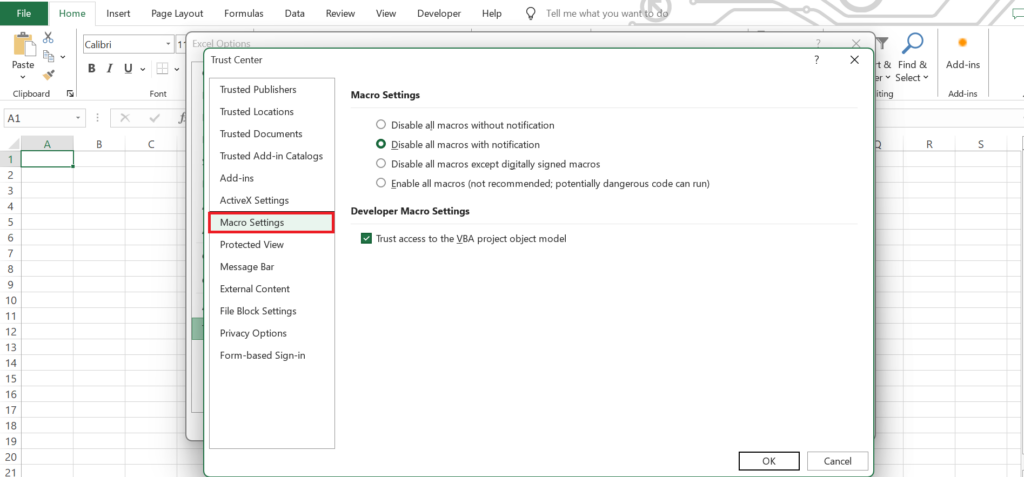
Macros play a crucial role in boosting productivity. By automating routine spreadsheet tasks, they can save hours of manual work. Consequently, many businesses rely on macros to streamline daily operations and reduce errors.
For example, companies often use macros to:
- Automatically generate financial reports
- Organize and structure imported data
- Apply consistent formatting across multiple sheets
- Process large datasets quickly and efficiently
Moreover, advanced users can customize macros using the VBA Editor. In fact, you can open this editor easily by pressing Alt + F11, which enables you to edit or create macros for more complex automation tasks. As a result, repetitive tasks become faster and more reliable.
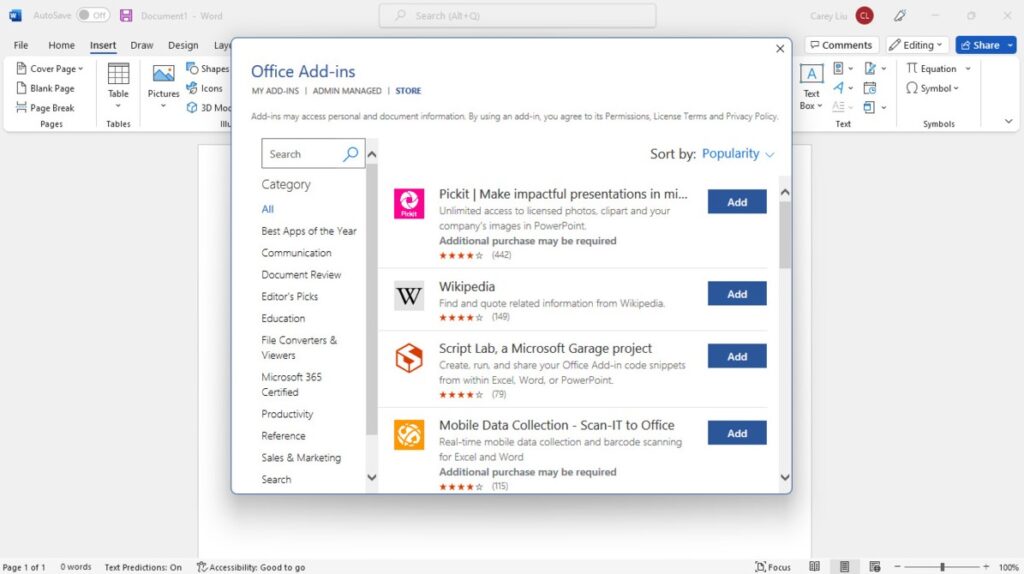
How to Install Add-Ins in Office 2024
To get started, installing add-ins in Office 2024 is both simple and quick. First, open the Insert tab in any Office application. Then, click Get Add-ins to access the store. Next, search for the add-in you want to install, and finally, select Add to complete the installation.
Moreover, organizations can take advantage of centralized administrative controls. As a result, they can deploy add-ins across teams efficiently, ensuring that everyone uses the same tools and workflows. In addition, centralized deployment reduces setup time and simplifies management for IT departments.
Essential Office 2024 Keyboard Shortcuts
In addition to add-ins, learning keyboard shortcuts can dramatically boost productivity. By using these shortcuts, you can complete common tasks faster and reduce the need for repetitive mouse clicks.
Here are some essential shortcuts to keep in mind:
| Shortcut | Function |
|---|---|
| Alt + Q | Open the Office search box |
| Ctrl + Alt + V | Open Paste Special |
| Ctrl + Shift + L | Toggle filters in Excel |
| Ctrl + Space | Select the entire column |
| F2 | Edit the active cell in Excel |
| Ctrl + M | Insert a new slide in PowerPoint |
| F5 | Start slideshow |
Overall, mastering these shortcuts can significantly speed up your daily workflow. Furthermore, combining shortcuts with add-ins allows you to work more efficiently, automate repetitive tasks, and focus on the most important parts of your projects.







