


Passwords are still the standard way to sign in to Windows, but they are not always the easiest option. Strong passwords are better for security, yet they can also be annoying to remember and type every day. That is where Windows Hello comes in.
Available in Windows 11 and Windows 10, Windows Hello lets you sign in with a face scan, fingerprint, or PIN. It is faster, easier, and often more convenient than using a traditional password. Before you begin, though, your PC must support biometric sign-in through a compatible fingerprint reader or Windows Hello camera.
Set Up a Windows Hello PIN
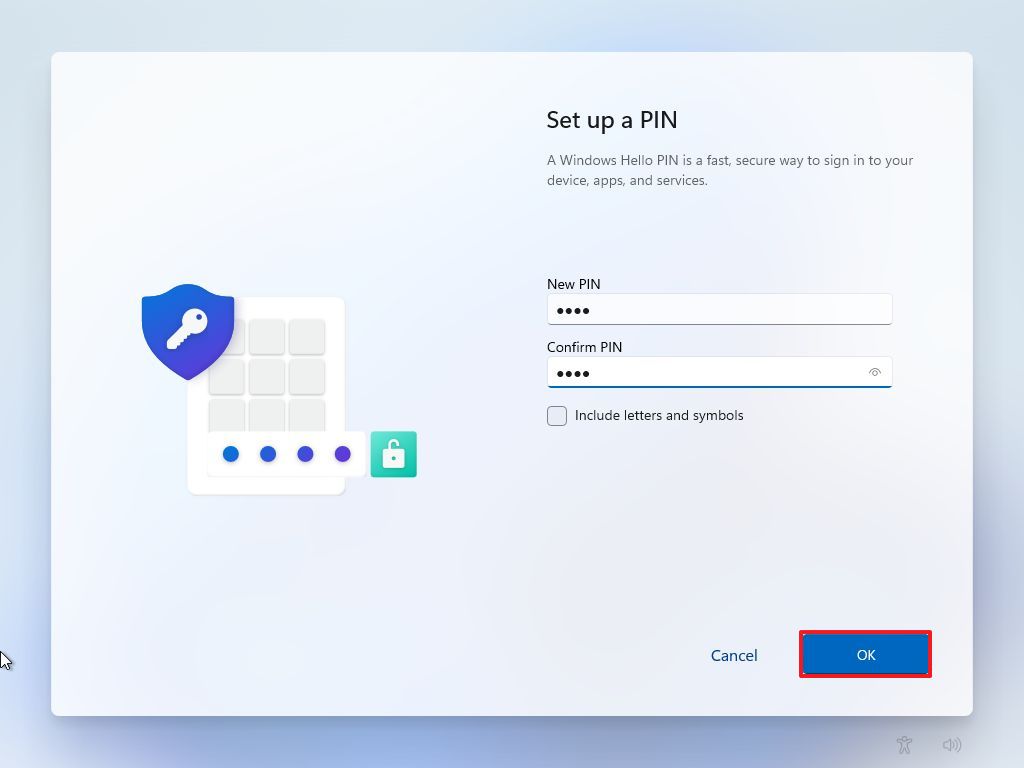
Before you can use facial recognition or fingerprint sign-in, Windows requires you to create a PIN first.
On Windows 11, go to:
Settings > Accounts > Sign-in options > PIN (Windows Hello)
Click Set up.
On Windows 10, go to:
Settings > Accounts > Sign-in options > Windows Hello PIN
Click Add.
After that, select Next and verify your account. You can also choose to include letters and symbols if you want a more complex PIN. Enter your new PIN, confirm it, and click OK. Once this is done, your PIN will be ready for signing in to Windows, apps, and services.
How to Set Up Fingerprint Sign-In on Windows

Many laptops already include a built-in fingerprint reader that works with Windows Hello. If you are buying a new laptop, check the product details to see whether it supports Windows Hello fingerprint login. If your current desktop or laptop does not have one, you can also buy an external fingerprint reader that connects through USB.
If your device has an internal fingerprint scanner, it may need to be enabled in the BIOS first. External fingerprint readers are usually plug-and-play, so Windows should detect them automatically.
To set up fingerprint recognition in Windows 11, go to:
Settings > Accounts > Sign-in options > Fingerprint recognition (Windows Hello)
Click Set up, select Get started, and enter your PIN.
In Windows 10, go to:
Settings > Accounts > Sign-in options > Windows Hello Fingerprint
Click Set up and follow the on-screen steps. You will need to lift and place your finger on the sensor a few times until the scan is complete. After setup, you can also add another fingerprint if you want a backup finger saved.
Once finished, you will be able to unlock your device with your fingerprint the next time you sign in.
How to Set Up Face Recognition on Windows
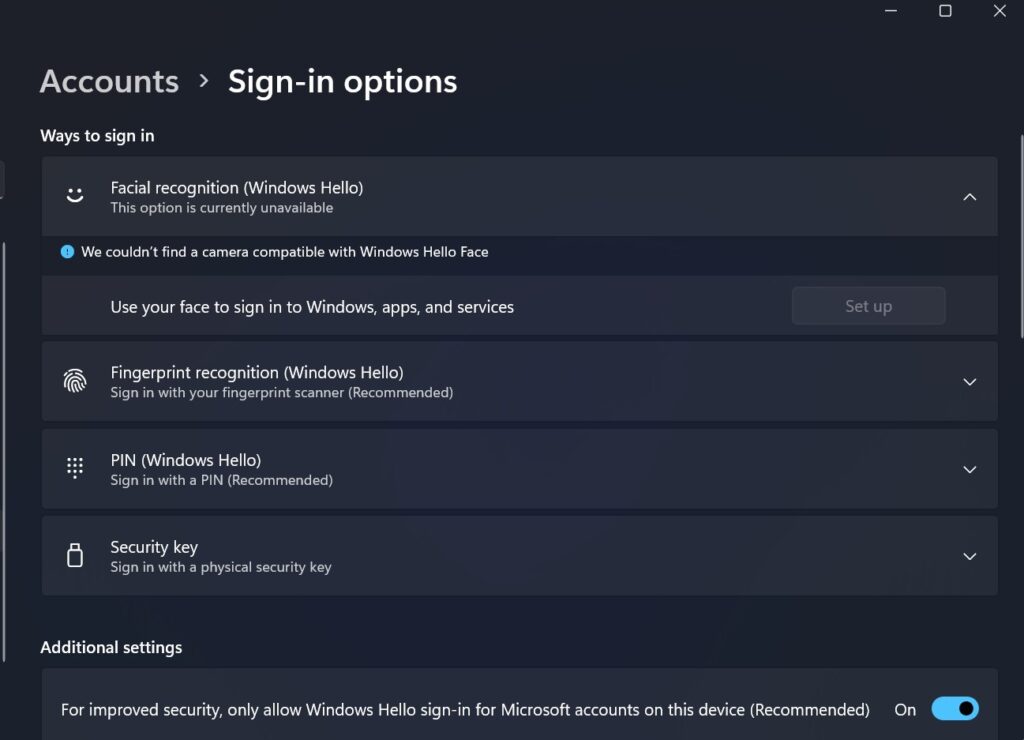
Not every webcam works with Windows Hello. While many laptops have built-in cameras, only some support Windows Hello facial recognition. If you are shopping for a new laptop or webcam, make sure the camera is listed as compatible with Windows Hello.
You can also add an external webcam that supports this feature. A popular option is the Logitech Brio 4K, though there are more affordable Windows Hello webcams available as well.
To enable face recognition in Windows 11, go to:
Settings > Accounts > Sign-in options > Facial recognition (Windows Hello)
Click Set up, then choose Get started and enter your PIN. Position your face in front of the camera and let Windows scan it. If you wear glasses, you can improve accuracy by running a second scan with and without them.
Remove the Password Sign-In Option in Windows
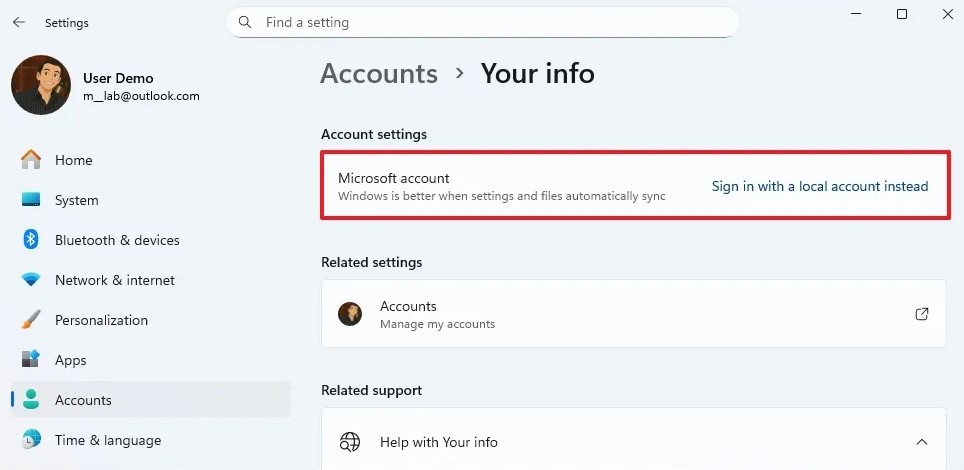
After enabling Windows Hello, you can make your PC more secure by removing password sign-in from the login screen.
Go to:
Settings > Accounts > Sign-in options
Under Additional settings, turn on:
For improved security, only allow Windows Hello sign-in for Microsoft accounts on this device
Once this setting is enabled, the password option will disappear from the Windows sign-in screen. You will only be able to log in using your face, fingerprint, or PIN.
This can improve security because even if someone knows your password, they still cannot access your PC without your approved sign-in method. The only downside is that if biometric sign-in stops working, you will not be able to fall back to your password. Your PIN, however, will still work.
Sign In to Windows With Windows Hello
The next time you reach the Windows login screen, click Sign-in options. From there, choose whether you want to use facial recognition, fingerprint recognition, or your PIN. Once Windows verifies your identity, you will be signed in right away.
Why Windows Hello Is Worth Using
If you want a faster and more secure way to unlock your PC, Windows Hello is one of the best built-in features in Windows 10 and Windows 11. It replaces the hassle of typing a password with a quick biometric login, making everyday sign-ins smoother while adding an extra layer of protection.







