


Conditional formatting in Microsoft Excel is one of the most powerful tools for highlighting trends, spotting errors, and making data easier to read. But when it suddenly stops working—or behaves inconsistently—it can quickly become frustrating. The good news is that most issues with broken conditional formatting can be fixed with a few targeted checks.
1. Check Rule Priority and Order
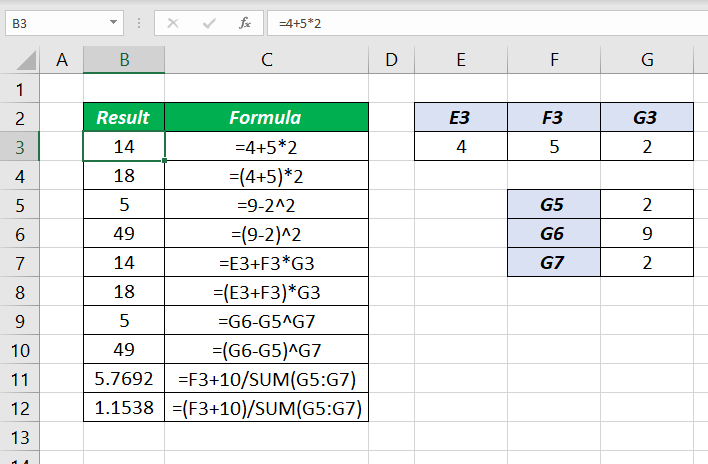
One of the most common causes is rule conflict. Excel applies conditional formatting rules in order, from top to bottom. If multiple rules apply to the same cells, a higher-priority rule can override others.
Go to Conditional Formatting → Manage Rules and review the order. Move the most important rule to the top and use the “Stop If True” option where necessary.
2. Verify the Applied Range
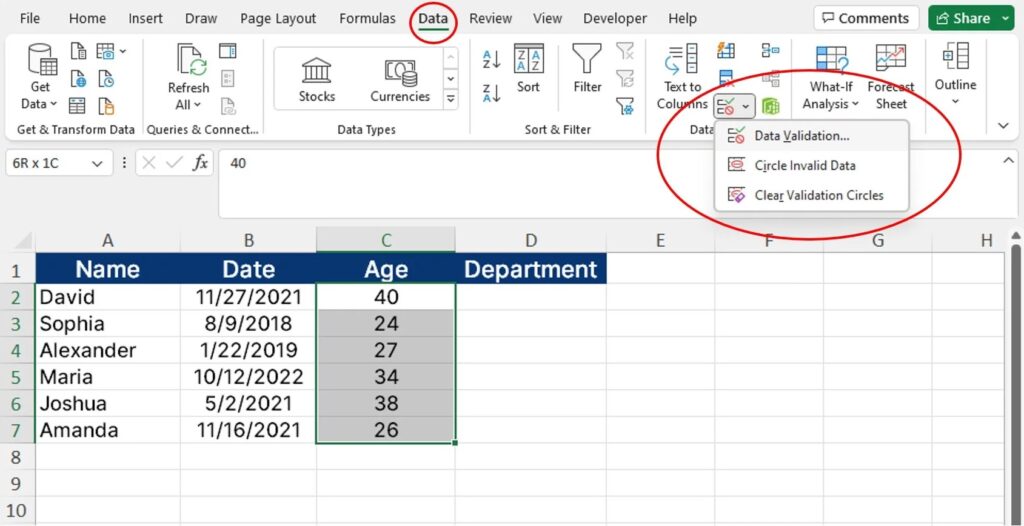
Formatting may appear broken simply because the rule is not applied to the correct cells. This often happens after copying data or inserting new rows.
In the rules manager, double-check the “Applies to” range and update it to include all intended cells.
3. Fix Incorrect Formulas
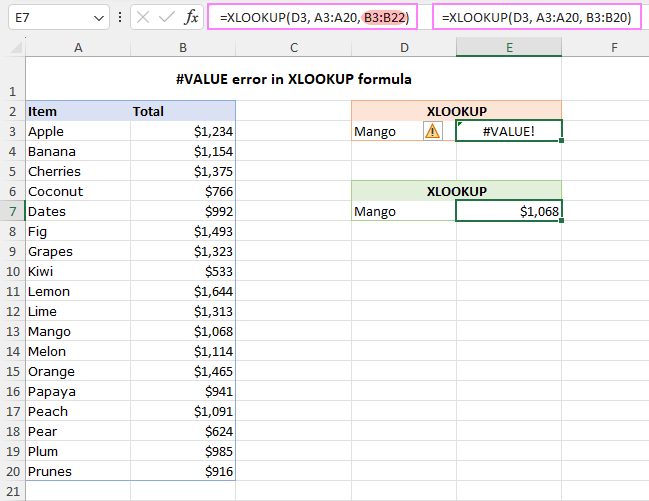
If your conditional formatting relies on formulas, even a small mistake can break everything.
- Ensure references are correct (absolute vs. relative)
- Avoid missing symbols like
$where needed - Test the formula directly in a cell to confirm it returns TRUE/FALSE
4. Remove Duplicate or Conflicting Rules
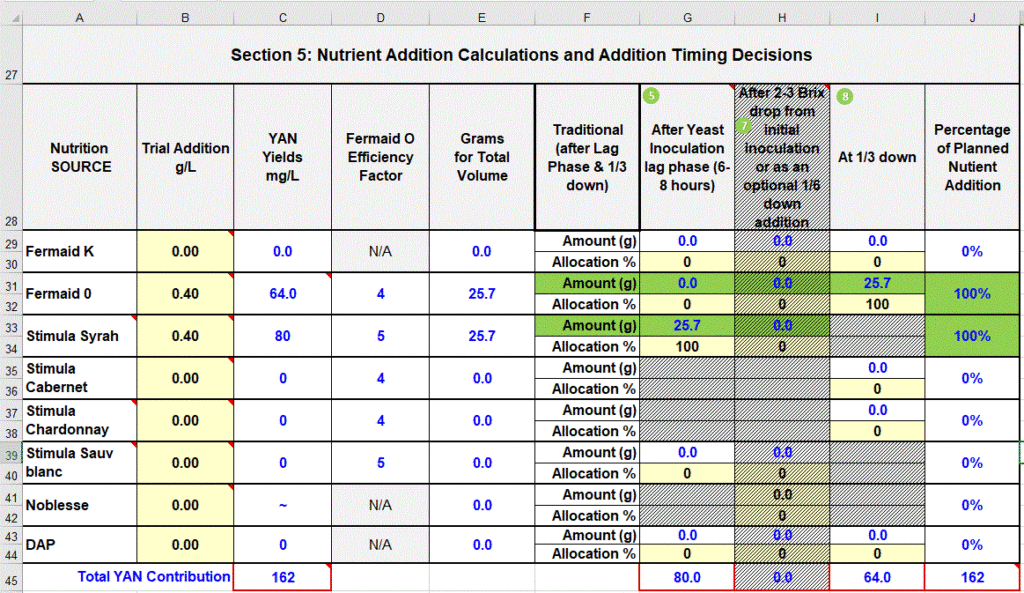
Over time, especially in large spreadsheets, duplicate rules can pile up. These can conflict and produce unexpected results.
Clean up your rules list by deleting duplicates and simplifying logic wherever possible.
5. Check for Data Type Issues
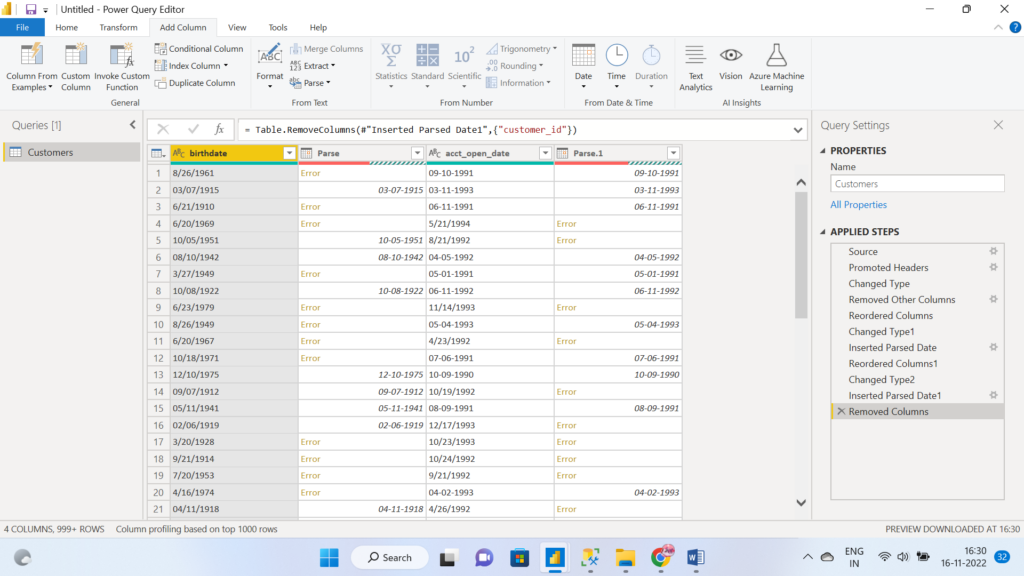
Sometimes Excel doesn’t recognize your data correctly. Numbers stored as text, extra spaces, or inconsistent formats can cause rules to fail.
Use functions like VALUE(), TRIM(), or CLEAN() to standardize your data before applying formatting.
6. Clear and Reapply Formatting
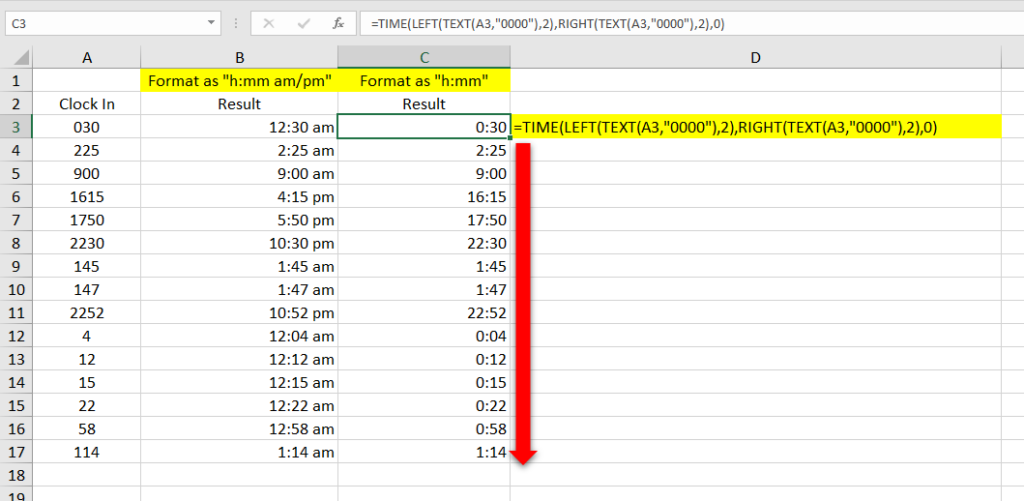
If nothing else works, the formatting itself may be corrupted.
Select the affected cells, go to Conditional Formatting → Clear Rules, and then reapply the rules from scratch. This often resolves stubborn issues.
7. Watch for Hidden Cells and Filters
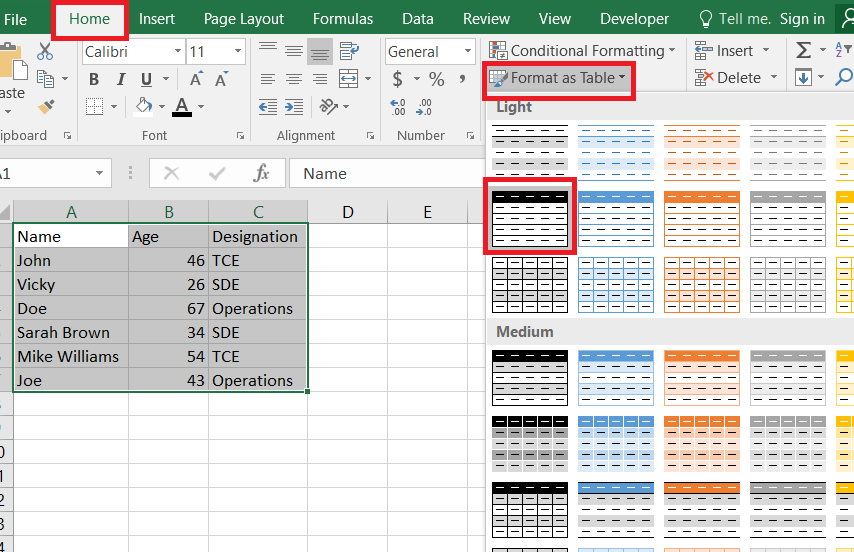
Filtered or hidden rows can sometimes make it look like conditional formatting is broken. Make sure your filters aren’t hiding expected results.







