

Microsoft Word is one of the most popular tools for creating professional documents, reports, and newsletters. Often, you may want to improve the layout of your document by using columns, especially when creating brochures, flyers, or multi-column text sections. Knowing how to add columns to a section in Word can enhance readability and give your document a polished look.
Why Use Columns in Word
Columns break up long blocks of text, making documents easier to read and visually appealing. Many magazines, newsletters, and academic papers use columns to guide the reader’s eye naturally across the page. By adding columns to a specific section, you can maintain a mix of single-column and multi-column layouts within the same document, allowing for more flexibility in design.
Step 1: Select the Section
Before adding columns, decide which part of your document needs the multi-column layout. Click and drag to highlight the text you want to format. If you want to add columns to a new section, you can insert a section break by going to Layout > Breaks > Next Page or Continuous. This ensures the column formatting does not affect the rest of your document.
Step 2: Apply Columns
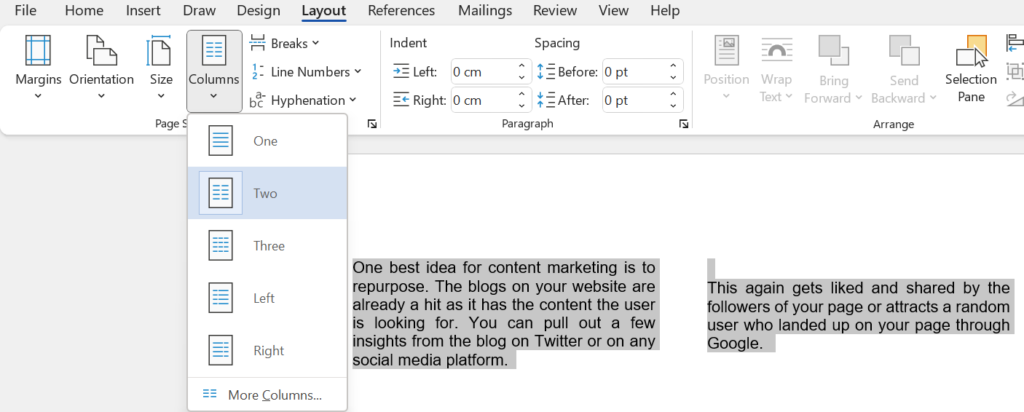
Once the section is selected, go to Layout > Columns. Word provides several preset options, such as One, Two, Three, and More Columns for custom setups. Click on your preferred layout, and the text in your selected section will automatically adjust to the column format.
Step 3: Customize Your Columns
For more control, click More Columns. Here you can set the number of columns, adjust the spacing between them, and even add a vertical line between columns for better separation. Preview your changes before applying them to ensure the layout fits your design goals.
Step 4: Adjust and Review
After applying columns, review your section carefully. Make sure headings, images, and other content fit well within the new layout. Adjust spacing or column width if necessary to ensure a clean, professional appearance.







