


Installing and activating Microsoft Office 2016, 2019, or 2021 is a straightforward process when you use the official Microsoft method. The steps are nearly identical for all three versions, so once you understand the process, you can apply it easily to any version.
Step 1: Download Office Setup
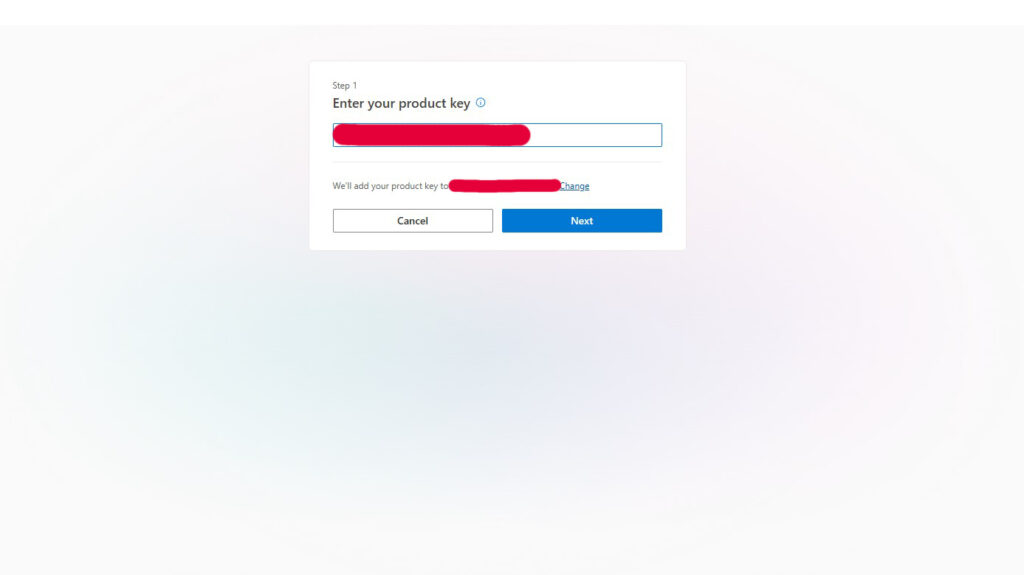
For Office 2016, 2019, and 2021, the main installation method is through Microsoft’s official portal:
- Go to setup.office.com
- Sign in with your Microsoft account
- Enter your 25-character product key
- Select your Office version
- Download the official installer
This ensures you get a clean, safe, and fully compatible version directly from Microsoft.
Note: Office 2021 is also available as an official ISO file for offline or manual installation. You can download it using the button below.
Step 2: Install Office
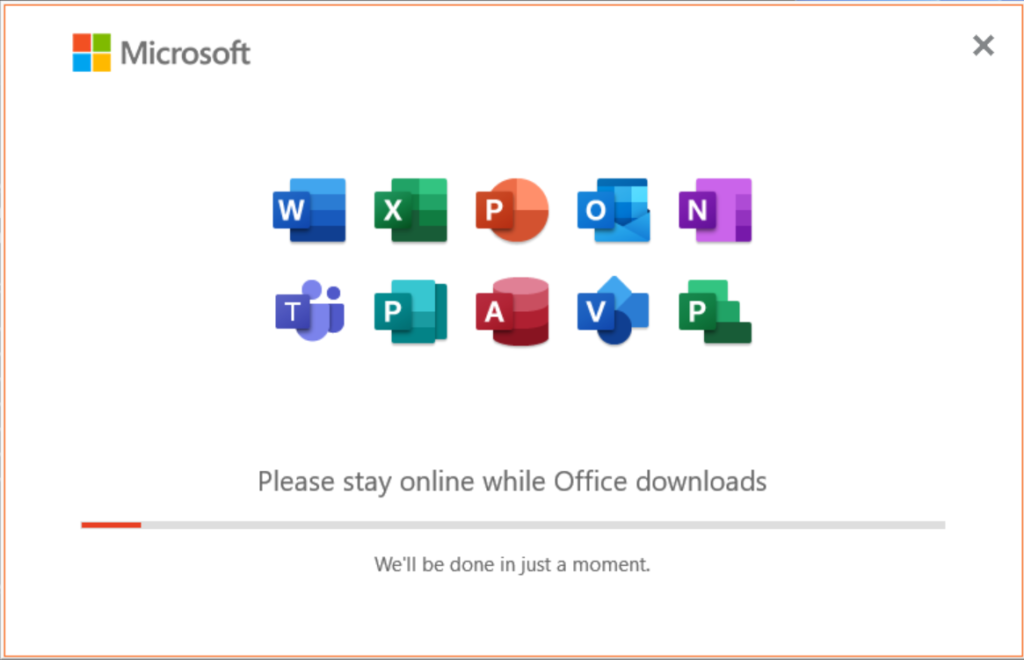
- Open the downloaded setup file (or mount the ISO if using Office 2021)
- Run setup.exe
- Wait for the installation to complete
The installation process is automatic and typically takes a few minutes depending on your system performance.
Step 3: Activate Office
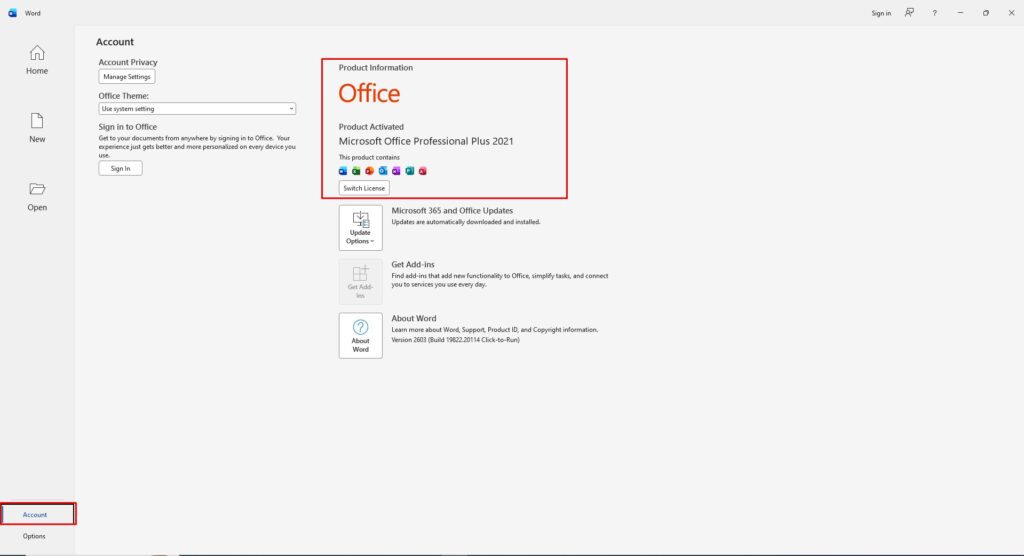
- Open any Office app such as Word or Excel
- Click Activate Office if prompted
- Sign in with your Microsoft account
- Enter your product key if required
Once activation is complete, all features will be unlocked and ready to use.
Common Issues and Fixes
- Invalid Product Key: Double-check for typing errors and ensure it matches your version
- Activation Failed: Verify your internet connection and account login
- Installation Problems: Run the installer as Administrator







