

Windows hides a surprising amount of useful information from everyday users, system configurations, advanced settings, and even certain files that don’t appear in File Explorer by default. If you want full visibility and control, PowerShell is one of the most powerful tools you can use.
PowerShell comes pre-installed on modern Windows systems and provides direct access to system-level data. Unlike the standard graphical interface, it allows you to dig deeper and uncover files and folders that are intentionally hidden. This is especially valuable for troubleshooting, system maintenance, and advanced customization.
Why Windows Hides Data
Microsoft hides certain files and folders to protect the operating system from accidental changes. Many of these files are critical for system stability, and modifying or deleting them without proper knowledge can cause serious issues.
Hidden data often includes:
- Protected system files
- Application data folders (such as AppData)
- Cache and temporary files
- System logs and diagnostic reports
- Configuration files used by installed programs
While these are hidden for safety, advanced users often need access to them for deeper control and analysis.
The PowerShell Command
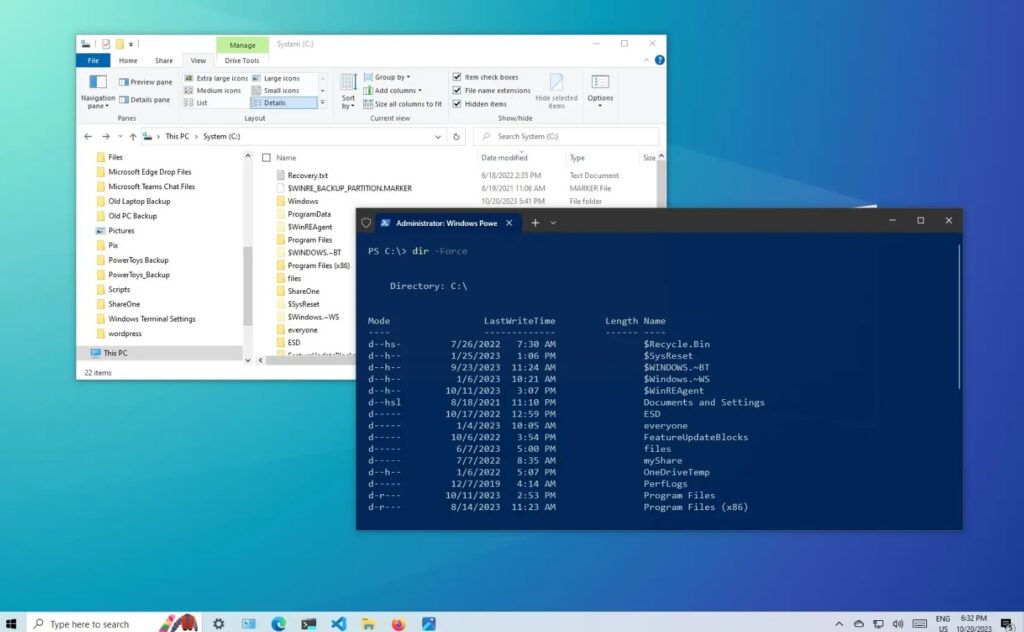
To display hidden files and folders, open PowerShell as Administrator and run the following command:
Get-ChildItem -Path C:\ -Force -Recurse
This command scans your main drive and lists all files, including hidden and protected ones. The -Force parameter is key it tells PowerShell to include items that are normally excluded from view.
If you want a more targeted search, you can limit the scan to a specific folder. For example:
Get-ChildItem -Path C:\Users\YourUsername\AppData -Force
This will quickly reveal hidden application data without scanning the entire system.
Improve Readability of Results
The output from PowerShell can be overwhelming, especially when scanning large directories. To make it easier to read, you can format the results:
Get-ChildItem -Path C:\ -Force | Format-Table Name, FullName, Length
You can also filter results to find exactly what you need. For example, to search only for hidden files:
Get-ChildItem -Path C:\ -Force -Recurse | Where-Object { $_.Attributes -match "Hidden" }
This helps narrow down the output and makes your search more efficient.
When to Use This Method
Using PowerShell to reveal hidden data is useful in many situations:
- Troubleshooting software issues
- Finding leftover files after uninstalling programs
- Cleaning up unnecessary system data
- Investigating disk space usage
- Advanced system auditing
It’s a faster and more powerful alternative to manually enabling “Show hidden files” in File Explorer.
Important Safety Tips
Accessing hidden and system files comes with risk. Avoid deleting or modifying anything unless you fully understand its purpose. If you’re unsure, it’s best to leave the file untouched or create a backup before making changes.
Also, running recursive commands on the entire drive can take time and may slow down your system temporarily. For better performance, focus on specific directories whenever possible.







