

When working with Microsoft Excel, you may sometimes encounter numbers that are stored as text rather than actual numeric values. This often happens when importing data from websites, copying information from other programs, or even entering numbers with extra spaces or special characters. If Excel treats numbers as text, you may notice that formulas like SUM, AVERAGE, or other calculations do not work correctly. The VALUE function in Excel is designed to solve this problem by converting text into a numeric value that Excel can recognize and use in calculations.
What is the VALUE Function?
The VALUE function is a simple Excel function that converts text in a recognized number format into a numeric value. This ensures that any numbers stored as text can be used in calculations, charts, pivot tables, or other formulas without errors.
The syntax for the VALUE function is:
=VALUE(text)
- text – This is the text string you want to convert to a number. You can reference a cell containing the text or type the number directly as a text string in quotes. For example,
"123"or"45.67".
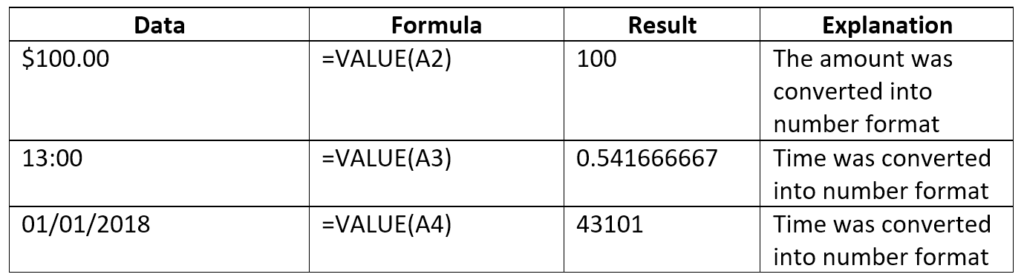
How to Use the VALUE Function: Example
Suppose you have the following dataset:
| A | B |
|---|---|
| “100” | |
| “250” | |
| “75.5” |
If you try to sum column A with =SUM(A1:A3), Excel may return 0 or ignore the text values. To fix this, you can use the VALUE function:
=VALUE(A1)
This converts "100" into 100. Drag the formula down to convert all entries. Once converted, summing column B with =SUM(B1:B3) will work as expected, giving the correct result.
When to Use the VALUE Function
- When importing data from external sources such as websites or CSV files.
- When numbers are stored as text due to copy-pasting from other programs.
- When preparing numeric data for charts, reports, or dashboards to avoid calculation errors.
- To clean up datasets before using formulas like
SUM,AVERAGE,IF, or pivot tables.
Tips and Best Practices
- Check cell formatting – VALUE works even if the cell is formatted as text, but removing extra spaces with the
TRIMfunction before using VALUE can prevent errors. - Combine with other functions – Use
VALUEinside other formulas for calculations. For example:=SUM(VALUE(A1), VALUE(A2)). - Avoid unnecessary conversions – Only use VALUE when you need numbers for calculations. For purely visual purposes, text may be acceptable.
By mastering the VALUE function, you can easily convert text-based numbers into usable numeric data, ensuring your Excel formulas and calculations work correctly every time.







