


Working with numbers in Microsoft Excel can quickly become confusing when values grow large. Numbers like 1000000 or 25000000 are hard to read at a glance, especially in financial reports, sales data, or inventory sheets. That’s where the thousands separator comes in.
A thousands separator adds commas (or spaces, depending on your regional settings) to break numbers into readable groups, like 1,000,000 instead of 1000000. It doesn’t change the actual value, it simply improves clarity and professionalism.
This guide will show you exactly how to apply it, customize it, and use it efficiently.
What Is a Thousands Separator in Excel
A thousands separator is a formatting feature that divides large numbers into groups of three digits. In most regions, Excel uses commas:
- 1000 → 1,000
- 100000 → 100,000
- 1000000 → 1,000,000
In some countries, Excel may use a space or a dot instead, depending on system settings.
The important thing to understand is that this is formatting only. Your calculations, formulas, and results remain unchanged.
Method 1: Use the Ribbon (Quickest Way)
This is the fastest method for most users.
- Select the cells containing numbers
- Go to the Home tab
- In the Number section, click the Comma Style ( , ) button
Excel will instantly apply the thousands separator to your selected cells.
This method is ideal for quick formatting when working with reports or tables.
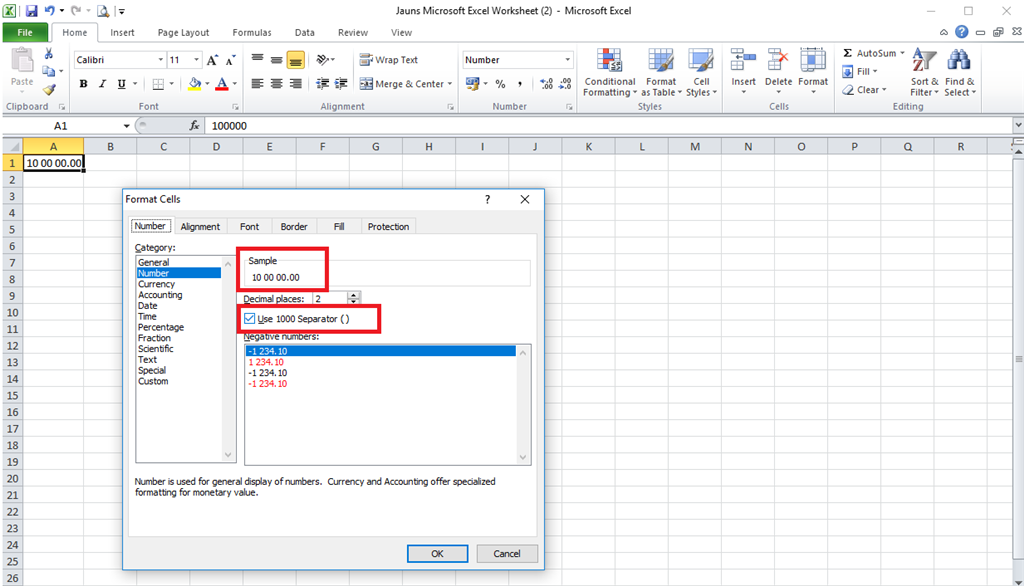
Method 2: Format Cells Option (More Control)
If you need more customization, use the Format Cells window.
- Select your cells
- Right-click and choose Format Cells
- Go to the Number tab
- Select Number from the list
- Check the box for Use 1000 Separator (,)
- Choose how many decimal places you want
- Click OK
This method allows you to control decimals and formatting in one place.
Method 3: Keyboard Shortcut (Fast Workflow)
For users who want speed and efficiency, Excel offers a shortcut:
Select your cells → Press:
👉 Ctrl + Shift + 1
This automatically applies the number format with a thousands separator and two decimal places.
Method 4: Custom Number Formatting
If you want full control over how numbers appear, you can create a custom format.
- Select your cells
- Press Ctrl + 1 to open Format Cells
- Go to Custom
- Enter one of the following formats:
- #,##0 → No decimals, with separator
- #,##0.00 → With two decimal places
- #,##0;(#,##0) → Negative numbers in parentheses
Click OK to apply.
This is especially useful for financial spreadsheets and professional reports.
How to Remove Thousands Separator
If you want to remove the separator:
- Select the formatted cells
- Go to the Home tab
- Click General or choose another format
Or use Format Cells and uncheck the separator option.
Important Notes
- The thousands separator does not affect formulas or calculations
- It only changes how numbers are displayed
- Excel may use different separators depending on your region
- Large datasets become much easier to read and analyze with this formatting
Why You Should Always Use It
Using a thousands separator is not just about looks. It improves accuracy and reduces mistakes when reading large numbers.
Benefits include:
- Better readability
- Cleaner reports
- Professional appearance
- Reduced risk of misreading values
Whether you are working with sales data, budgets, or analytics, this simple formatting step can make a huge difference.







