


Tables in Microsoft Word help organize information clearly, but poorly aligned text can make documents look unprofessional. Centering text inside table cells improves readability and creates a cleaner layout for reports, forms, schedules, invoices, and business documents.
Microsoft Word allows text to be centered both horizontally and vertically inside table cells using built-in alignment tools. The process only takes a few clicks and works in modern versions of Word, including Microsoft 365, Word 2021, Word 2019, and Word 2016.
Why Center Text in Word Tables?
Center alignment is commonly used for:
- Titles inside tables
- Headers and labels
- Schedules and calendars
- Pricing tables
- Forms and templates
- Professional reports
Proper alignment makes tables easier to read and improves the overall appearance of the document.
How to Center Text Horizontally in a Word Table
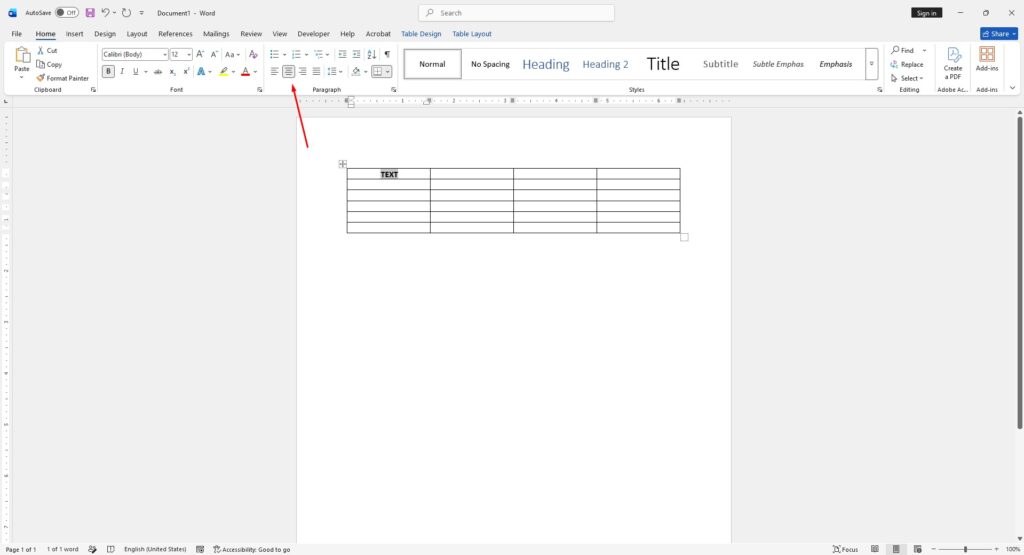
To center text from left to right inside a table cell:
- Open the Microsoft Word document.
- Click inside the table cell.
- Select the text that needs alignment.
- Go to the Home tab.
- In the Paragraph section, click the Center Alignment button.
The text immediately moves to the horizontal center of the cell.
Keyboard shortcut:
Ctrl + EThis shortcut quickly centers selected text in Word.
How to Center Text Vertically in a Word Table
Vertical alignment places text in the middle between the top and bottom of the cell.
Follow these steps:
- Select the table cells.
- Open the Table Layout tab.
- Locate the Alignment section.
- Click Align Center.
This option centers the text both vertically and horizontally at the same time.
Different Table Alignment Options in Word
Microsoft Word includes several alignment positions for table text:
Align Top Left
Align Top Center
Align Top Right

Align Center Left
Align Center
Align Center Right

Align Bottom Left
Align Bottom Center
Align Bottom Right
These options help customize the appearance of tables depending on the document design.
How to Center Text in Multiple Table Cells
To align several cells at once:
- Highlight the cells using the mouse.
- Open the Table Layout tab.
- Choose the preferred alignment option.
Word applies the alignment settings to all selected cells instantly.
This is useful for:
- Large tables
- Product comparison charts
- Financial reports
- Data tables
Fix Text That Will Not Center Properly
Sometimes text may appear uneven even after applying center alignment.
Common causes include:
- Extra paragraph spacing
- Hidden paragraph marks
- Cell margins
- Additional blank lines inside cells
To fix this:
- Click the Home tab.
- Enable Show/Hide Paragraph Marks.
- Remove extra spaces or blank paragraphs.
- Reapply center alignment.
You can also adjust cell margins manually through:
Table Properties > Cell > OptionsHow to Adjust Table Cell Alignment Settings
For additional alignment controls:
- Right-click the table.
- Select Table Properties.
- Open the Cell tab.
- Click Options.
Here you can customize:
- Cell margins
- Text position
- Vertical alignment
- Preferred cell size
This helps create cleaner and more professional table formatting.
Best Tips for Formatting Word Tables
For better-looking tables in Microsoft Word:
- Keep alignment consistent across the table
- Use center alignment mainly for headings and labels
- Avoid excessive text inside narrow cells
- Use equal row heights for cleaner layouts
- Remove unnecessary spacing between paragraphs
Professional formatting improves readability and document presentation.







