


Adding a border around text in Microsoft Word is a simple way to highlight important information, separate a note from the rest of a document, create a callout box, or make a section stand out. Borders can be used around a single word, a full sentence, a paragraph, or even a larger block of text. They are useful in business documents, school assignments, reports, flyers, forms, resumes, guides, and templates.
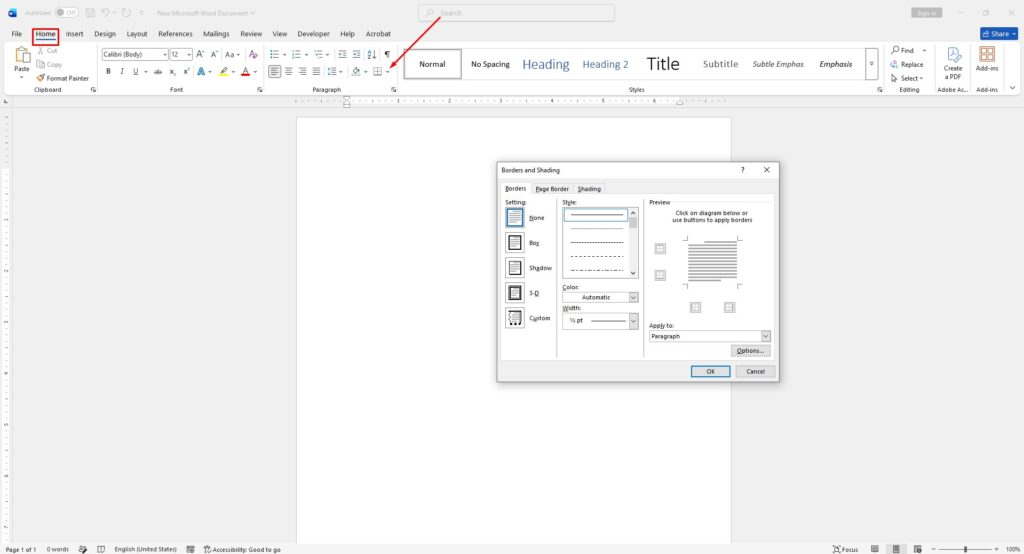
Microsoft Word includes several ways to place a border around text. The fastest method is the Borders menu on the Home tab. For more design control, the Borders and Shading dialog box allows users to change the border style, color, width, spacing, and shading. Text boxes can also be used when the bordered text needs to be moved freely around the page. Microsoft explains that users can select text, go to Home > Borders, and choose a border style to add a border around selected text.
Why Add a Border Around Text in Word?
A text border helps draw attention to specific information. Instead of using bold text or highlighting alone, a border creates a clear visual box around the content. This makes the information easier to notice and separates it from the rest of the page.
Text borders are commonly used for:
- Important notes
- Warnings
- Instructions
- Quotes
- Definitions
- Contact information
- Resume sections
- Form fields
- Product details
- Report summaries
- Classroom worksheets
- Business document callouts
A border can make a document look more organized, especially when used carefully. Too many borders can make a page look crowded, but one or two well-placed borders can improve readability and design.
How to Put a Border Around Selected Text
The easiest way to add a border around text is to select the text and use the Borders menu. This works well for short phrases, single words, or small blocks of text.
To add a border around selected text in Word:
- Open the Microsoft Word document.
- Select the text that needs a border.
- Go to the Home tab.
- Find the Paragraph group.
- Click the arrow next to Borders.
- Choose Outside Borders or Borders and Shading.
- Select the border style.
- Click OK if using the full settings window.
After the border is applied, Word places a box around the selected text. This is useful when the border should stay close to the words instead of surrounding the full paragraph width.
How to Add a Border Around a Paragraph
If the goal is to border a full paragraph or block of text, select the entire paragraph before applying the border. Word can place the border around the paragraph area, which is useful for notes, reminders, and callout sections.
To add a paragraph border:
- Click inside the paragraph or select the full paragraph.
- Open the Home tab.
- Click the Borders menu.
- Choose Outside Borders.
- To customize it, choose Borders and Shading.
- Select a line style, color, and width.
- Click OK.
This method is best for longer text because it keeps the border aligned with the paragraph. If the paragraph grows or changes, the border adjusts with it.
How to Customize the Border Style
A basic border may be enough, but Word also allows the border to be customized. The Borders and Shading window includes options for line style, color, width, and preview. Microsoft support notes that users can choose different border types from the Borders menu, and the full border settings allow more control over how the border looks.
To customize a text border:
- Select the bordered text or paragraph.
- Go to Home.
- Open the Borders menu.
- Select Borders and Shading.
- Choose Box, Shadow, 3-D, or Custom.
- Pick a line style.
- Choose a color.
- Select the border width.
- Use the preview area to check the result.
- Click OK.
For professional documents, a simple thin border usually looks better than a thick or decorative border. A clean black, gray, or brand-colored line is often enough.
How to Add Shading Inside the Border
Shading can make bordered text stand out even more. It adds a background color behind the selected text or paragraph. This is useful for warnings, tips, examples, or highlighted notes.
To add shading:
- Select the bordered text.
- Go to Home.
- Open the Borders menu.
- Choose Borders and Shading.
- Open the Shading tab.
- Choose a fill color.
- Click OK.
Use light shading for readability. Dark backgrounds can make text harder to read unless the text color is changed as well.
How to Put a Border Around Text With a Text Box
A text box is a better option when the bordered text needs to be moved anywhere on the page. Unlike a normal paragraph border, a text box can be dragged, resized, positioned beside other content, or placed over a specific area.
To create a bordered text box:
- Go to the Insert tab.
- Click Text Box.
- Choose Draw Text Box.
- Draw the box on the page.
- Type or paste the text inside.
- Select the text box border.
- Open Shape Format.
- Use Shape Outline to change the border color, weight, or style.
Microsoft explains that text box and shape borders can be changed from Shape Format > Shape Outline, where users can adjust the color, thickness, dash style, or remove the outline completely.
Text boxes are useful for flyers, resumes, brochures, cover pages, and layouts where normal paragraph formatting is not flexible enough.
How to Remove a Border Around Text
If the border is no longer needed, it can be removed from the same Borders menu.
To remove a border:
- Select the text or paragraph with the border.
- Go to the Home tab.
- Open the Borders menu.
- Choose No Border.
For a text box, select the text box, go to Shape Format > Shape Outline, and choose No Outline. Microsoft lists No Outline as the option for removing borders from text boxes and shapes.
Text Border vs. Page Border
A text border is different from a page border. A text border surrounds selected words, sentences, or paragraphs. A page border surrounds the whole page or section of the document. Microsoft says page borders are added from Design > Page Borders, where users can choose the border style and adjust its distance from the edge of the page.
Use a text border when only specific content needs attention. Use a page border when the entire document page needs a decorative or formal frame.
Best Practices for Text Borders in Word
Borders can improve a document, but they should be used with care. Too many borders can make the page look messy and reduce readability. The best approach is to use borders only for important information.
For better results:
- Use simple border styles.
- Keep border colors professional.
- Add enough spacing around the text.
- Avoid thick borders on long paragraphs.
- Use shading only when it improves readability.
- Use text boxes for movable callout sections.
- Use paragraph borders for notes that should stay in the document flow.
- Preview the document before printing or exporting to PDF.
A clean border can make a document look more polished without making it feel crowded.





