Text boxes in Microsoft Word are useful when a document needs flexible text placement. They allow text to be positioned anywhere on the page, moved like an object, resized, formatted, and styled separately from the main document text. But text boxes become even more useful when they are linked together. By linking text boxes, Word can make text flow automatically from one box into another, which is helpful for newsletters, flyers, brochures, forms, reports, and custom page layouts.
A linked text box works like a continuation area. When the first text box becomes full, extra text moves into the next linked text box instead of disappearing or forcing manual copying and pasting. Microsoft explains that multiple text boxes can be linked so text flows from one box to another, and the command is found on the Shape Format tab under Create Link.
What Does Linking Text Boxes Mean in Word?
Linking text boxes means connecting two or more text boxes so they behave like one flowing text area. The text starts in the first box, then continues into the next linked box when there is not enough space. If the first box is resized, the text automatically adjusts and may move forward or backward between the connected boxes.
This is useful when a page layout needs text in different areas without using standard columns. For example, a newsletter may start a story in one text box and continue it in another box on the same page. A flyer may use one text box for the beginning of a message and another for the continuation. A brochure may use linked boxes to control how text flows across sections.
Linked text boxes are useful for:
- Newsletters
- Flyers
- Brochures
- Forms
- Reports
- Resume layouts
- Product sheets
- School projects
- Business documents
- Magazine-style layouts
- Custom Word templates
The biggest benefit is that the text stays connected. There is no need to manually cut and paste overflow text into another box.
How to Insert Text Boxes in Microsoft Word
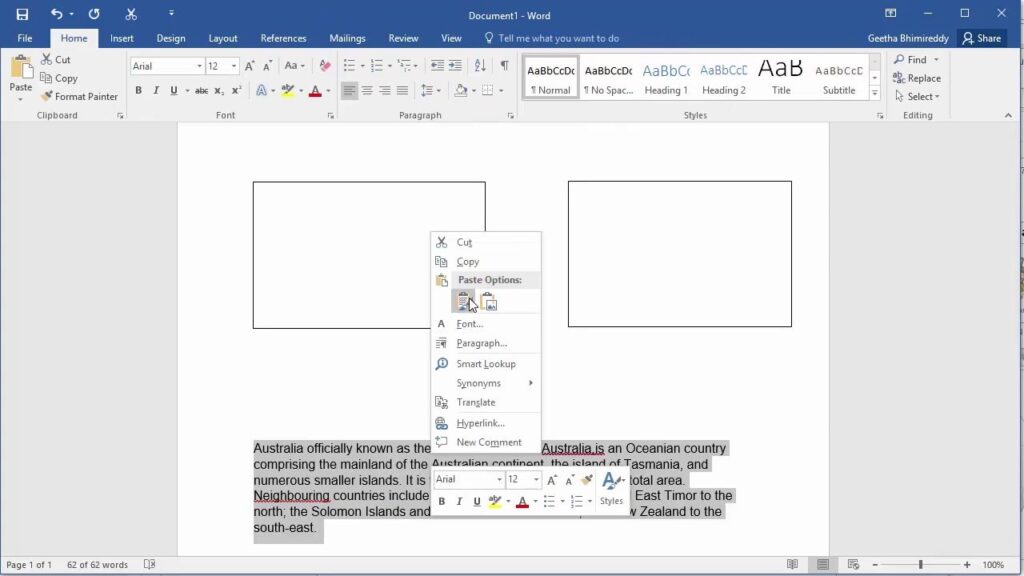
Before text boxes can be linked, at least two text boxes must be added to the document. Microsoft Word allows users to insert built-in text boxes or draw custom text boxes manually. Microsoft notes that users can go to Insert > Text Box and either choose a preformatted text box or select Draw Text Box to create one manually.
To insert text boxes in Word:
- Open the Word document.
- Go to the Insert tab.
- Click Text Box.
- Choose a built-in text box or select Draw Text Box.
- Click and drag on the page to draw the first text box.
- Repeat the process to create a second text box.
- Resize and position both text boxes as needed.
For best results, create the first text box, format it, then copy and paste it to create matching boxes. This keeps the size, border, font, and style consistent across the layout.
How to Link Text Boxes in Microsoft Word
Once the text boxes are created, they can be linked through the Shape Format tab. The second text box should be empty before linking. Microsoft explains that when multiple text boxes are used, users can select one text box and choose Create Link so text can flow into another box. On Mac, Microsoft also notes that only an empty text box can be linked to the selected text box.
To link text boxes in Word:
- Click the border of the first text box.
- Go to the Shape Format tab.
- In the Text group, click Create Link.
- The pointer will change to a linking icon.
- Click inside the second empty text box.
- Type or paste text into the first text box.
- When the first box fills up, the extra text will continue in the second box.
If the second text box is not empty, Word may not allow the link. Delete any placeholder text or existing content from the second box before trying again.
How to Link More Than Two Text Boxes
Word can link more than two text boxes, creating a chain of connected boxes. This is useful for longer content that needs to continue across different parts of a page or multiple pages.
To link more text boxes:
- Link the first text box to the second text box.
- Click the border of the second text box.
- Go to Shape Format.
- Click Create Link.
- Click inside the third empty text box.
- Repeat the process for more boxes.
Each new text box must be linked from the last box in the chain. The text will flow from the first box to the second, then to the third, and so on. Office Watch also notes that multiple text boxes can be linked into a chain, but they must be linked one at a time.
How to Format Linked Text Boxes
Linked text boxes do not automatically share all formatting. The text flows between them, but the boxes themselves remain separate objects. This means changing the border, fill color, size, or position of one text box will not automatically update the others.
To keep the layout consistent:
- Format the first text box before copying it.
- Use the same font and paragraph styles.
- Keep matching border and fill settings.
- Align boxes carefully.
- Use the same width for connected boxes when possible.
- Preview the document before printing or exporting.
Microsoft explains that text boxes can be moved, resized, and formatted like objects, including changing fill and outline settings from the Shape Format tab.
How to Break a Text Box Link
If the text boxes should no longer be connected, the link can be removed. This stops text from flowing from one box to the next. The exact command may appear as Break Link after selecting a linked text box.
To break a link:
- Click the first text box in the linked chain.
- Go to the Shape Format tab.
- Look for the text box linking options.
- Select Break Link.
- Check the text flow after unlinking.
Before breaking the link, make sure no important text is hidden or overflowing. If the second box contains continued text, unlinking may change how the content appears.
Common Problems When Linking Text Boxes
Text box linking is useful, but it can be confusing if Word does not behave as expected. The most common issue is trying to link to a text box that already contains text. Word usually requires the target text box to be empty before it can be linked. Microsoft’s Mac instructions specifically mention that only an empty text box can be linked to the selected text box.
Other common problems include:
- The Create Link button is not visible.
- The second text box contains placeholder text.
- The wrong object is selected.
- The text box border was not selected.
- Text does not flow because the first box is not full.
- Formatting looks different between boxes.
- Text boxes move after editing the page layout.
If the Create Link option is missing, click the border of the text box first. The Shape Format tab usually appears only when the text box object is selected.
Best Uses for Linked Text Boxes
Linked text boxes are best for designed documents where normal paragraphs and columns are not flexible enough. They are useful when text needs to continue in a specific area of the page while still keeping a custom layout.
Good uses include:
- A newsletter story continued in another box
- A flyer with separate text areas
- A brochure with custom sections
- A form with controlled text placement
- A report sidebar with overflow text
- A magazine-style document layout
For simple documents, normal paragraphs or columns may be easier. For more designed pages, linked text boxes give more control.