


If you’re writing a research paper, technical report, thesis, engineering document, or scientific publication, you’ll often need to number or label equations. Equation numbering helps readers locate formulas quickly and makes it easier to reference specific equations throughout a document.
Microsoft Word includes built-in equation tools that allow users to insert mathematical expressions and create equation references. Word can also use captions and automatic numbering systems to keep equation numbers organized as the document grows. Microsoft provides equation tools through the Insert tab and supports automatic captions for objects and equations.
Why Number Equations?
Equation numbering is important in academic and technical writing because it allows you to reference formulas without repeating them.
Common uses include:
- Research papers
- Scientific reports
- Engineering documents
- Mathematics assignments
- Laboratory reports
- Technical manuals
- University theses
- Academic journals
Instead of writing “the equation above,” you can refer to Equation (1), Equation (2), and so on.
Insert an Equation in Word
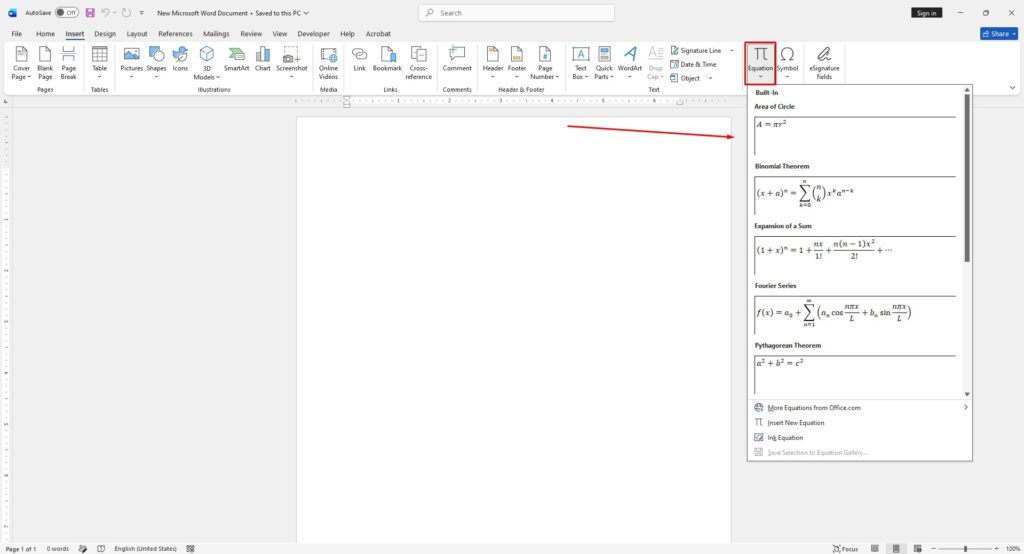
Before adding numbers, create the equation itself.
To insert an equation:
- Open Microsoft Word.
- Click where you want the equation.
- Select Insert > Equation.
- Choose a built-in equation or create a new one.
- Enter your mathematical expression.
Word also supports the keyboard shortcut Alt + = to start a new equation instantly.
Number an Equation Using Captions
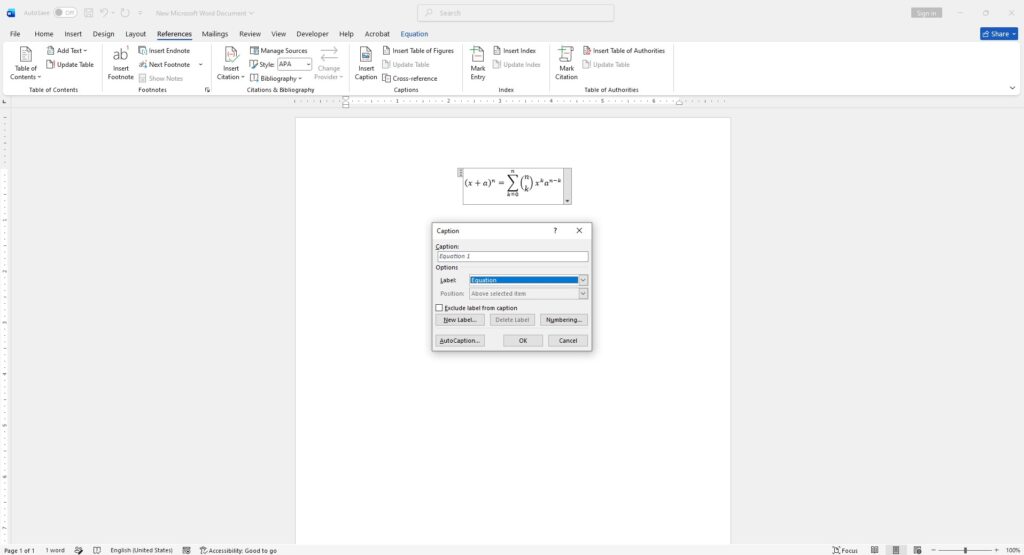
One of the easiest ways to create equation numbers is by using Word’s caption feature.
To add a numbered equation:
- Select the equation.
- Open the References tab.
- Click Insert Caption.
- Click New Label if “Equation” is not available.
- Enter Equation as the label.
- Choose the numbering format.
- Click OK.
Word will automatically create labels such as:
- Equation (1)
- Equation (2)
- Equation (3)
As new equations are added, the numbering updates automatically.
Create Custom Equation Labels
Some documents require different naming formats.
Examples include:
- Eq. (1)
- Formula (1)
- Theorem (1)
- Expression (1)
Word allows users to create custom labels through the New Label option in the Caption dialog box.
Reference Equations in Your Document
After numbering equations, you can create references that update automatically.
To cross-reference an equation:
- Place the cursor where the reference should appear.
- Open References > Cross-reference.
- Select the equation label.
- Choose the reference type.
- Click Insert.
This ensures references stay accurate even if equations are added or moved later.
Automatic Numbering for Large Documents
For theses and research papers with dozens of equations, automatic numbering is strongly recommended. Word can update all captions and references when document structure changes.
If numbering becomes incorrect:
- Press Ctrl + A.
- Press F9.
Word will update all captions, references, and numbering fields throughout the document.
Best Practices for Equation Numbering
For professional documents:
- Place equation numbers on the right side of the page.
- Use consistent numbering throughout the document.
- Use automatic captions instead of manual numbers.
- Cross-reference equations instead of typing numbers manually.
- Update fields before exporting to PDF.
- Follow your institution’s formatting guidelines.
Many academic writing standards use right-aligned equation numbers enclosed in parentheses, such as (1), (2), and (3).







