


Many people think calculations are limited to Microsoft Excel, but Microsoft Word also includes formula tools that can perform calculations directly inside tables. If you’re creating invoices, reports, budgets, schedules, pricing sheets, or other documents containing numbers, Word can automatically calculate totals, averages, products, and more.
Word formulas are not as advanced as Excel, but they are perfect for simple calculations without leaving your document.
Why Use Formulas in Word Tables?
Adding formulas directly to Word tables can save time and reduce errors. Instead of manually calculating totals and typing results, Word can perform the calculations automatically.
Common uses include:
- Invoices
- Expense reports
- Price lists
- School assignments
- Budget documents
- Sales reports
- Project summaries
- Inventory sheets
Word supports functions such as SUM, AVERAGE, PRODUCT, MAX, and MIN.
How to Add a Formula to a Table Cell
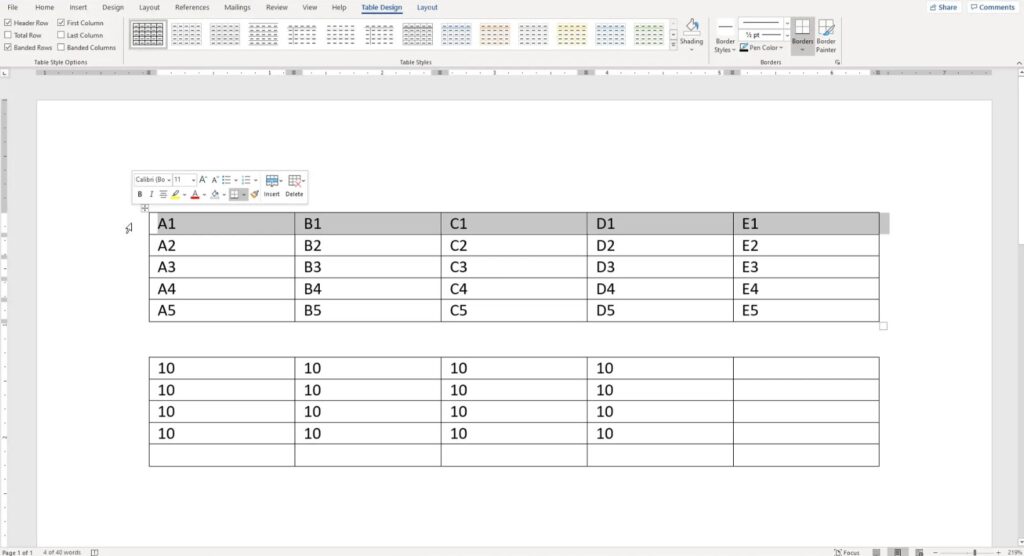
After creating a table and entering your data, select the cell where the result should appear.
To add a formula:
- Click inside the result cell.
- Open the Table Layout tab.
- Click Formula in the Data section.
- The Formula dialog box will appear.
- Word usually suggests a formula automatically.
- Click OK to accept it or edit the formula.
- The result will appear in the selected cell.
For example, if your result cell is below a column of numbers, Word will often suggest:
=SUM(ABOVE)
This adds all numbers located above the selected cell.
Common Word Table Formulas
Word includes several useful functions.
Sum a Column
Use:
=SUM(ABOVE)
This adds all values above the current cell.
Sum a Row
Use:
=SUM(LEFT)
This adds all values to the left of the current cell.
Calculate an Average
Use:
=AVERAGE(ABOVE)
or
=AVERAGE(LEFT)
This calculates the average value from the selected range.
Multiply Values
Use:
=PRODUCT(ABOVE)
or specify exact cells:
=PRODUCT(B2:C2)
Find the Highest Value
Use:
=MAX(ABOVE)
Find the Lowest Value
Use:
=MIN(ABOVE)
These functions help identify maximum and minimum values within a table.
Use Cell References Like Excel
Word tables use spreadsheet-style references.
Examples:
- A1
- B2
- C3
- D4
You can perform calculations using specific cells:
=A1+A2
=SUM(A1:A5)
=PRODUCT(B2:C2)
Word treats table rows and columns similarly to Excel, making formulas easier to understand.
Update Formula Results
Unlike Excel, Word formulas do not always update automatically when data changes.
To refresh calculations:
- Click the formula result.
- Press F9.
Or:
- Press Ctrl + A.
- Press F9.
This updates all fields and formulas in the document. Microsoft recommends using F9 whenever table values change.
Number Formatting Options
The Formula dialog box also includes number formatting options.
Examples:
#,##0$#,##0.000.00%
These formats help display currency, percentages, and decimals correctly.
Common Formula Mistakes
If a formula returns an incorrect result:
- Check for empty cells.
- Make sure numbers are stored as numbers.
- Verify cell references.
- Update formulas with F9.
- Avoid using text values inside calculations.
Microsoft notes that empty cells included in calculations can sometimes cause issues, and entering a zero may help avoid errors.
Best Practices for Word Formulas
For better results:
- Use formulas for simple calculations.
- Use Excel for complex spreadsheets.
- Update formulas before printing.
- Apply number formatting for readability.
- Keep tables organized.
- Double-check references after editing rows or columns.
Word formulas work best when used for straightforward calculations inside reports and documents.







