By default, Microsoft Word treats pictures as part of the document text. When you insert an image, it is usually placed “In Line with Text,” meaning it behaves like a large text character. This can make it difficult to move the picture exactly where you want it. Fortunately, Word includes several layout and text-wrapping options that allow pictures to be positioned freely anywhere on the page.
Whether you’re creating a flyer, brochure, report, newsletter, resume, or school project, learning how to freely move pictures can help you create cleaner and more professional layouts.
Why Pictures Don’t Move Freely
When a picture is inserted into Word, the default layout is usually In Line with Text. In this mode, the image is attached to a paragraph and can only move along with the surrounding text. Microsoft explains that images using inline formatting are treated like text characters rather than floating objects.
To move a picture anywhere on the page, you must first change its text wrapping setting.
How to Freely Move a Picture in Word
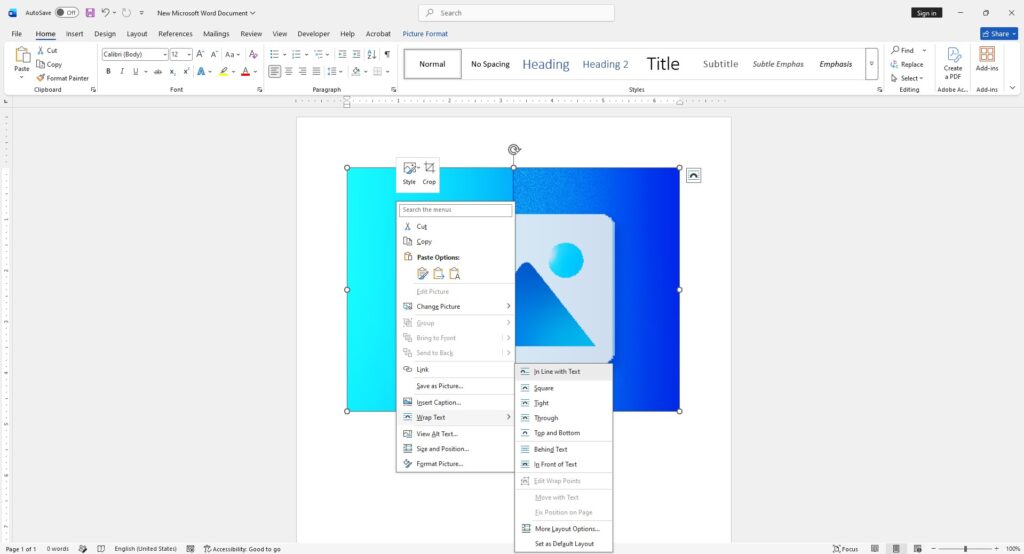
The easiest method is to switch the picture from In Line with Text to a floating layout option.
To freely move a picture:
- Insert the image into your document.
- Click the picture to select it.
- Right-click the image.
- Choose Wrap Text.
- Select In Front of Text.
- Drag the image anywhere on the page.
How-To Geek notes that choosing In Front of Text allows the picture to become freely movable.
Once selected, the image can be dragged and dropped into almost any position.
Other Text Wrapping Options
Word provides several wrapping styles that affect how text interacts with pictures.
Common options include:
- Square – Text wraps around the image in a box shape.
- Tight – Text follows the image more closely.
- Through – Text wraps through transparent areas.
- Top and Bottom – Text appears only above and below the image.
- Behind Text – Places the image behind document text.
- In Front of Text – Places the image above document text.
For complete positioning freedom, In Front of Text and Behind Text are usually the best choices.
Use Layout Options for More Control
Newer versions of Word include a Layout Options button that appears beside selected images.
To access it:
- Select the picture.
- Click the Layout Options icon.
- Choose a wrapping style.
- Select Fix Position on Page if desired.
Microsoft explains that Fix Position on Page keeps the image at a specific location even when surrounding text changes.
Move Pictures Precisely
If you need very accurate positioning:
- Select the image.
- Hold Ctrl.
- Press the arrow keys.
Microsoft states this method moves pictures in small increments for precise placement.
This is useful for aligning logos, graphics, icons, and document elements.
Position Pictures Anywhere on the Page
For advanced control:
- Select the picture.
- Click Layout Options.
- Choose See More.
- Open the Position tab.
- Set horizontal and vertical positioning.
- Choose alignment relative to the page, margins, or columns.
Microsoft notes that these settings allow exact positioning using measurements or percentages.
Common Problems When Moving Pictures
If an image refuses to move:
- Make sure it is not set to In Line with Text.
- Change text wrapping to another option.
- Check that the document is saved as a modern DOCX file.
- Verify the image is not locked to a watermark or header section.
- Use the Selection Pane if the picture is hidden behind other objects.
Many Word users find that simply changing the wrapping option solves the issue immediately.
Best Practices for Picture Placement
For professional-looking documents:
- Use Square wrapping for reports and articles.
- Use Behind Text for watermarks and backgrounds.
- Use In Front of Text for complete freedom.
- Align multiple images consistently.
- Use guides and margins to maintain balance.
- Preview before printing or exporting to PDF.
A well-positioned image can greatly improve document readability and design.