Google Fonts offers hundreds of free typefaces that can make Microsoft Word documents look more modern, professional, and unique. Whether you’re creating a resume, business proposal, flyer, newsletter, school project, or marketing document, Google Fonts can help improve the appearance of your work.
Unlike Google Docs, Microsoft Word does not connect directly to the Google Fonts library. Instead, you must download the font and install it on your computer. Once installed, the font becomes available in Word and other Microsoft Office applications automatically. Microsoft confirms that custom fonts must be installed through the operating system before they can be used in Word, Excel, or PowerPoint.
Why Use Google Fonts?
Google Fonts are popular because they are:
- Free to download
- Easy to install
- Available for personal and commercial use
- Compatible with Windows and Mac
- Available in hundreds of styles
Popular Google Fonts include:
- Roboto
- Open Sans
- Montserrat
- Poppins
- Lato
- Nunito
- Merriweather
- Playfair Display
These fonts are commonly used in websites, branding materials, presentations, and professional documents.
How to Download Google Fonts
To get started:
- Visit the Google Fonts website.
- Browse or search for a font.
- Open the font page.
- Click Get Font or Download Family.
- Save the ZIP file to your computer.
Downloaded fonts usually include TrueType (.ttf) or OpenType (.otf) files, both of which work with Microsoft Word.
Install Google Fonts on Windows
After downloading the font:
- Extract the ZIP file.
- Open the extracted folder.
- Locate the .ttf or .otf font file.
- Right-click the file.
- Select Install.
- Wait for Windows to finish installing the font.
Microsoft explains that installed fonts automatically become available to Office applications, including Word.
You can also drag font files into the Windows Fonts folder if preferred.
Install Google Fonts on Mac
Mac users can install Google Fonts through Font Book:
- Download and extract the font.
- Double-click the font file.
- Font Book will open.
- Click Install Font.
- Wait for the installation to finish.
Once installed, Word will detect the font automatically.
How to Use Google Fonts in Microsoft Word
After installation:
- Open Microsoft Word.
- Create a new document or open an existing one.
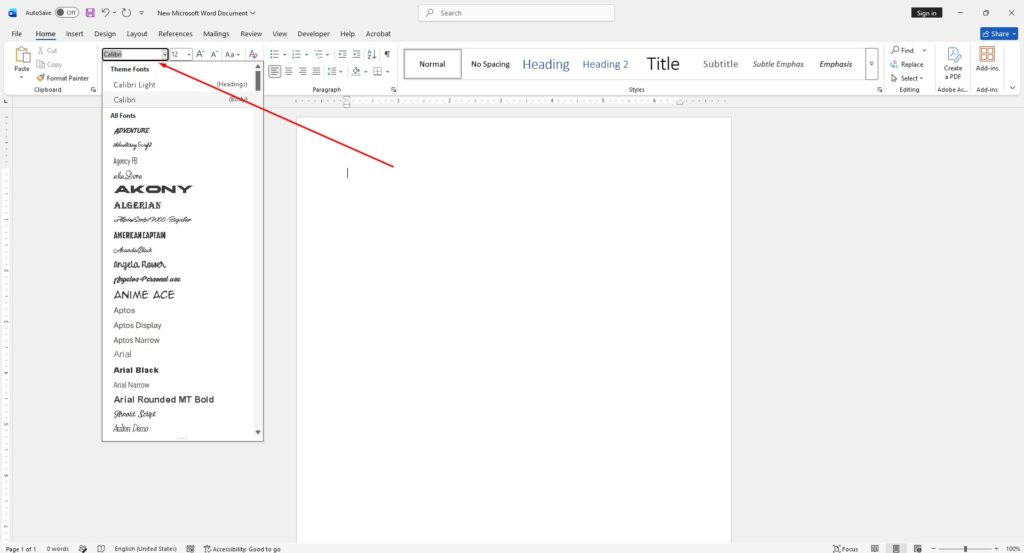
- Open the font dropdown menu.
- Search for the installed font name.
- Select the font.
- Start typing.
How-To Geek notes that Google Fonts appear in Word exactly like any other installed font.
If Word was open during installation, restart Word first so the new font appears in the list.
What About Word Online?
Word Online has limitations when it comes to custom fonts. Microsoft support discussions indicate that users generally cannot add new fonts directly to Word Online. Custom fonts must be installed locally, and compatibility may vary depending on how the document is shared.
If you plan to share a document that uses Google Fonts:
- Save it as a PDF.
- Or embed fonts when supported.
- Verify the recipient has access to the same fonts.
Best Practices for Google Fonts
For professional documents:
- Use one font for headings and one for body text.
- Avoid using too many different fonts.
- Choose highly readable fonts for long documents.
- Use decorative fonts only for titles.
- Test print layouts before publishing.
Popular combinations include:
- Montserrat + Open Sans
- Playfair Display + Roboto
- Poppins + Lato
- Merriweather + Open Sans