Creating a PowerPoint presentation from scratch can take a lot of time, especially if you already have all your content written in Microsoft Word. Fortunately, Microsoft makes it possible to convert a Word document directly into a PowerPoint presentation, helping you turn reports, meeting notes, project outlines, business plans, and school assignments into slides much faster.
This feature is especially useful for students, teachers, business professionals, marketers, and anyone who regularly creates presentations. Instead of copying and pasting text into individual slides, Word can automatically generate a PowerPoint presentation based on your document’s headings and structure. Microsoft explains that Word can export documents to PowerPoint presentations when heading styles are properly applied throughout the document.
Why Convert a Word Document to PowerPoint?
Many users write their content in Word before creating a presentation. Word is often easier for brainstorming, drafting, editing, and organizing information.
Converting a document directly to PowerPoint can help:
- Save time creating presentations
- Reduce manual copy-and-paste work
- Automatically create slide titles
- Keep document structure organized
- Speed up business and school projects
- Generate presentation drafts quickly
- Improve workflow efficiency
Instead of starting with a blank PowerPoint file, users can transform existing content into slides within minutes.
Requirements Before Converting
Before exporting a Word document to PowerPoint, the document should be properly formatted.
Microsoft’s export tool uses Word heading styles to determine how slides are created.
For best results:
- Use Heading 1 for slide titles.
- Use Heading 2 for slide content.
- Keep sections organized.
- Avoid large blocks of unformatted text.
- Use clear headings throughout the document.
The more organized the Word document is, the better the PowerPoint presentation will look after conversion.
How to Convert a Word Document to PowerPoint
Microsoft 365 includes a built-in export feature that creates PowerPoint presentations directly from Word.
To convert a Word document:
- Open the document in Microsoft Word.
- Click File.
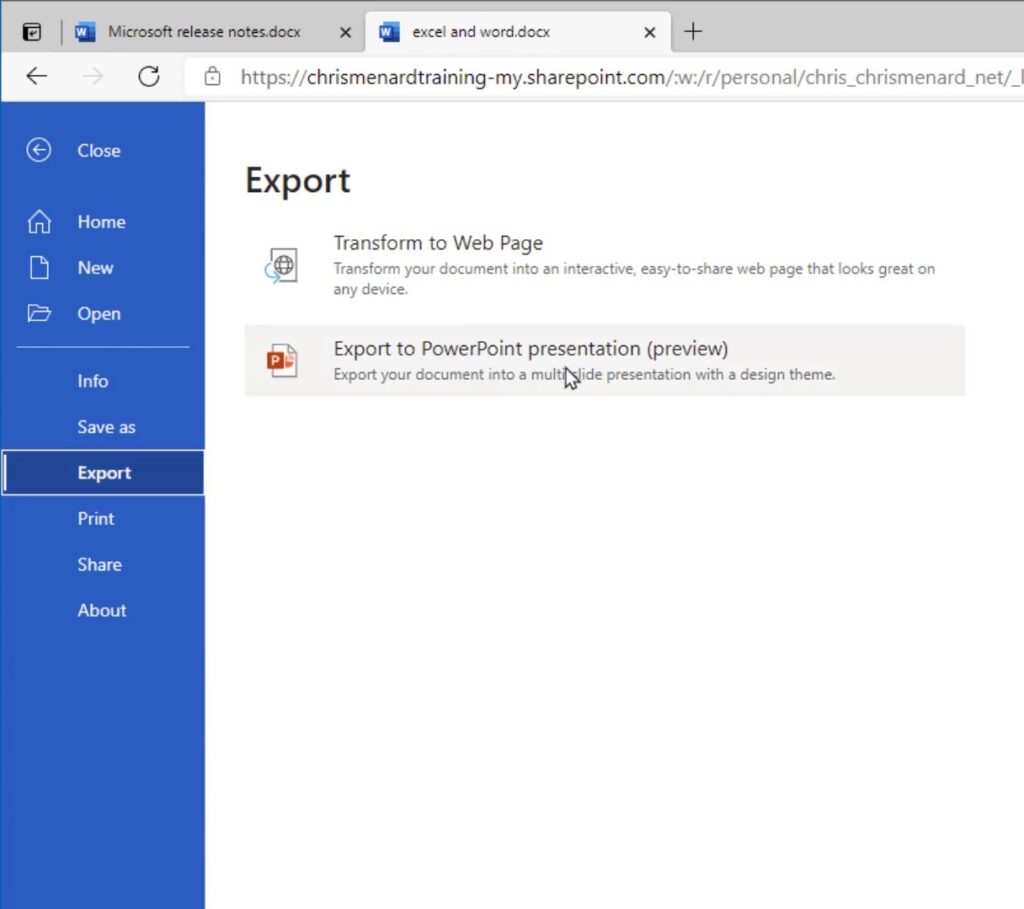
- Select Export.
- Choose Export to PowerPoint Presentation.
- Click Export.
- Select a presentation theme.
- Wait for PowerPoint to generate the presentation.
After the conversion is complete, PowerPoint will automatically open with the newly created slides.
Each Heading 1 section becomes a slide title, while additional content is placed inside the slide.
How Slide Creation Works
The conversion tool analyzes the document structure and creates slides automatically.
For example:
Word Document
Heading 1:
- Introduction
Heading 2:
- Company Overview
- Products
- Services
PowerPoint Result
Slide 1:
- Introduction
Slide Content:
- Company Overview
- Products
- Services
Each major heading becomes a separate slide, helping maintain the structure of the original document.
What Happens to Images?
Images included in the Word document may also appear in the PowerPoint presentation depending on the document layout and export process.
However, results can vary depending on:
- Image placement
- File size
- Document formatting
- Microsoft 365 version
For best results, review all slides after conversion and adjust image placement if necessary.
What If You Don’t See the Export Option?
Some users may not see the PowerPoint export feature.
Common reasons include:
- Using an older Office version
- Not using Microsoft 365
- Missing updates
- Unsupported account type
- Offline Word installation
The export feature is primarily available in Microsoft 365 versions of Word.
If the option is unavailable, users can still manually create a presentation by copying content into PowerPoint.
Alternative Method: Use Word Outline View
If the export feature is unavailable, another method involves using Word’s outline structure.
Steps:
- Format the document using heading styles.
- Save the document.
- Open PowerPoint.
- Select New Slide.
- Choose Slides from Outline.
- Import the Word document.
PowerPoint will use the heading structure to create slides automatically.
This method has existed for years and remains useful for older versions of Office.
Benefits of Automatic Conversion
Converting a Word document to PowerPoint offers several advantages:
Faster Presentation Creation
Instead of building every slide manually, PowerPoint creates the initial structure automatically.
Better Organization
Heading styles help ensure slides remain organized and easy to follow.
Consistent Formatting
Presentation themes can be applied immediately after conversion.
Improved Productivity
Large reports and documents can become presentations in just a few clicks.
For business meetings, training materials, and school projects, this can significantly reduce preparation time.
Tips for Better Results
To improve your converted presentation:
- Use clear Heading 1 titles.
- Keep paragraphs short.
- Use bullet points whenever possible.
- Remove unnecessary text.
- Add images after conversion if needed.
- Review slide layouts before presenting.
- Apply a professional PowerPoint theme.
A well-structured Word document almost always produces a better presentation.
Common Problems
Slides Contain Too Much Text
Long paragraphs often create crowded slides.
Solution:
- Break text into bullet points.
- Use shorter sentences.
- Split content into additional slides.
Missing Images
Some images may not transfer correctly.
Solution:
- Insert images directly into PowerPoint after conversion.
- Check image placement inside Word before exporting.
Incorrect Slide Structure
This usually happens when heading styles are not used correctly.
Solution:
- Apply Heading 1 to major topics.
- Use Heading 2 for supporting content.
- Avoid manually changing font sizes instead of using styles.
Best Uses for Word-to-PowerPoint Conversion
This feature works especially well for:
- School presentations
- Research projects
- Business reports
- Training materials
- Marketing plans
- Project proposals
- Meeting summaries
- Company presentations
- Educational content
- Client reports
If the content already exists in Word, there is often no reason to rebuild everything manually in PowerPoint.