If you have dozens or even hundreds of Microsoft Word documents, converting them one at a time can be frustrating and time-consuming. Whether you’re moving files to Google Workspace, switching from Microsoft Office, collaborating with a team, or backing up documents in the cloud, Google Drive makes it possible to convert multiple Word files into Google Docs quickly.
Google Docs supports Microsoft Word formats such as DOC and DOCX, allowing users to upload files directly to Google Drive and convert them into editable Google documents. This makes it easier to collaborate online, share files, and access documents from any device.
Why Convert Word Documents to Google Docs?
Google Docs offers several advantages over traditional desktop documents.
Benefits include:
- Cloud storage access
- Real-time collaboration
- Automatic saving
- Version history
- Easy sharing
- Access from any device
- Integration with Google Workspace
For businesses, students, teachers, and remote teams, Google Docs can simplify document management while reducing dependency on local storage.
Supported Word File Formats
Google Docs supports:
- DOC
- DOCX
- DOT
- DOTX
- RTF
Most modern Microsoft Word files can be converted without major issues.
However, highly complex formatting, advanced macros, embedded objects, or custom fonts may require manual adjustments after conversion.
How to Convert Multiple Word Documents Using Google Drive
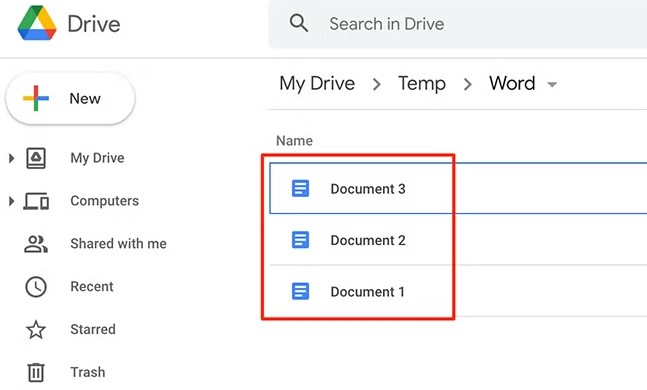
The easiest method is to upload all Word files to Google Drive at once.
Step 1: Open Google Drive
- Sign in to your Google account.
- Open Google Drive.
- Navigate to the folder where you want to store the documents.
Step 2: Upload Multiple Files
- Click New.
- Select File Upload.
- Select multiple Word documents.
- Click Open.
You can also drag and drop multiple files directly into Google Drive.
Google Drive will upload all selected Word documents simultaneously.
Enable Automatic Conversion
To automatically convert uploaded Word documents:
- Open Google Drive.
- Click the gear icon.
- Select Settings.
- Enable:
Convert uploaded files to Google Docs editor format
Once enabled, future Word uploads can be converted automatically into Google Docs files.
This is particularly useful when importing large collections of Word documents.
Convert Existing Word Files
If files were uploaded before enabling conversion:
- Open Google Drive.
- Right-click a Word document.
- Select Open With > Google Docs.
- Google creates a Google Docs version.
Repeat this process for important files that require editing in Google Docs format.
Organize Documents Before Converting
When working with many files, organization becomes important.
Consider creating folders such as:
- Reports
- School Projects
- Contracts
- Client Documents
- Presentations
- Archives
Proper folder organization makes large migrations easier to manage.
What Happens During Conversion?
Google attempts to preserve:
- Headings
- Paragraphs
- Tables
- Images
- Lists
- Basic formatting
- Hyperlinks
Most documents convert very well, especially standard business and educational documents.
Simple DOCX files usually require little or no editing after conversion.
Formatting Issues You May Encounter
Some Word features may not transfer perfectly.
Examples include:
- Macros
- SmartArt graphics
- Advanced page layouts
- Certain fonts
- Text effects
- Complex charts
- Embedded objects
After conversion, review documents carefully to ensure everything appears correctly.
How to Convert Entire Folders
If you have many Word documents stored in a folder:
- Upload the folder to Google Drive.
- Allow Google Drive to process the files.
- Open important documents using Google Docs.
- Save converted versions.
For very large collections, folder uploads can save significant time compared to uploading files individually.
Benefits of Google Docs After Conversion
Once documents become Google Docs files, you gain access to:
Real-Time Collaboration
Multiple users can edit the same document simultaneously.
Automatic Saving
Changes are saved automatically.
Version History
Previous document versions can be restored if needed.
Cloud Accessibility
Access documents from:
- Windows PCs
- Macs
- Chromebooks
- Android devices
- iPhones
- Tablets
This flexibility is one reason many organizations are moving to Google Workspace.
Common Problems During Conversion
Missing Fonts
Google Docs may replace unavailable fonts with similar alternatives.
Layout Changes
Complex page designs sometimes shift slightly after conversion.
Image Positioning Issues
Images may require manual adjustment.
Table Formatting Changes
Large or heavily formatted tables may need review.
Most issues can be fixed quickly inside Google Docs.
Tips for Better Conversion Results
To improve conversion quality:
- Use modern DOCX files whenever possible.
- Remove unnecessary formatting before uploading.
- Use common fonts.
- Avoid unsupported Word features.
- Organize files before uploading.
- Review important documents after conversion.
- Keep original Word backups.
These steps can significantly reduce formatting problems.
Best Use Cases for Bulk Conversion
Bulk Word-to-Google Docs conversion is ideal for:
- Business migrations
- School projects
- Team collaboration
- Document archives
- Cloud backups
- Google Workspace adoption
- Remote work environments
- Shared document libraries
Organizations with large numbers of Word files often benefit the most from automatic conversion tools.