

Microsoft OneNote is a powerful note-taking application that allows users to store text, images, documents, web content, and files in one organized workspace. One useful feature is the ability to insert Microsoft Word documents directly into OneNote pages. This makes it easier to keep project files, reports, meeting notes, assignments, and research documents together in a single notebook.
Instead of switching between multiple applications, users can view, organize, and manage Word documents directly from OneNote. Whether you’re a student, teacher, business professional, or project manager, inserting Word files into OneNote can improve productivity and document organization.
Why Insert a Word Document Into OneNote?
Adding Word documents to OneNote helps centralize information and makes important files easier to find.
Common uses include:
- Meeting notes
- School assignments
- Research projects
- Business reports
- Client documentation
- Training materials
- Project management
- Study guides
- Team collaboration
- Personal organization
Rather than storing files separately, OneNote allows users to keep related notes and documents together.
Ways to Add a Word Document to OneNote
OneNote provides several options for inserting Word files.
You can:
- Attach the file
- Insert a file printout
- Insert both an attachment and printout
- Create links to documents
Each method works differently depending on how you want to access the document later.
Method 1: Insert a Word Document as an Attachment
The simplest method is attaching the Word document.
To attach a file:
- Open OneNote.
- Navigate to the desired page.
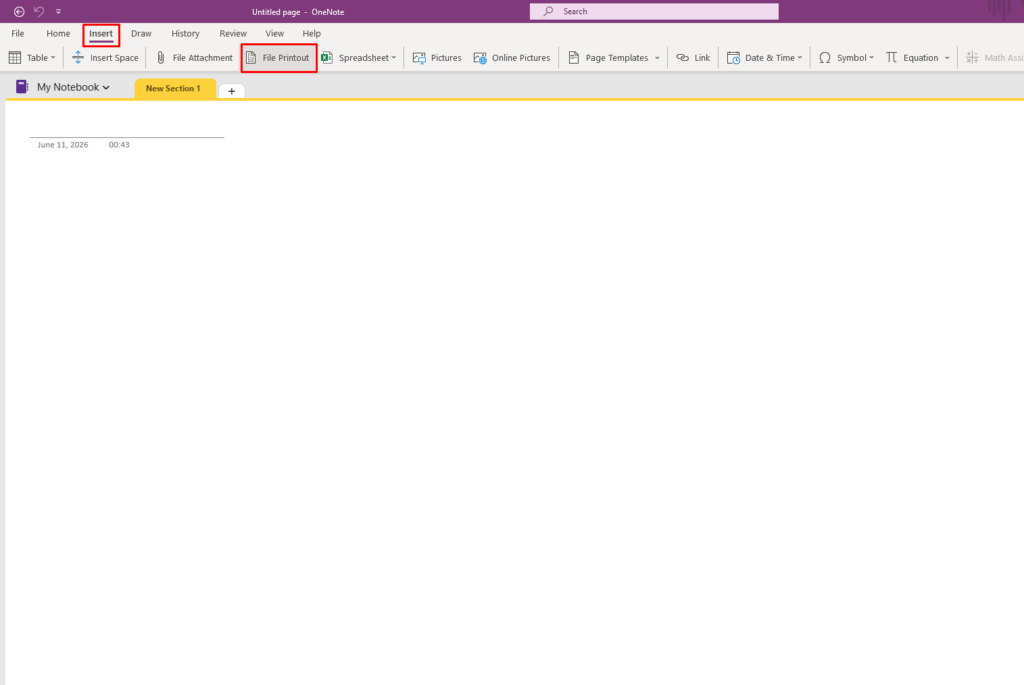
- Click the Insert tab.
- Select File Attachment.
- Browse for the Word document.
- Click Insert.
OneNote adds an attachment icon to the page.
Users can double-click the file to open it in Microsoft Word whenever needed.
This method is ideal when you want to keep the original file intact without displaying its contents.
Method 2: Insert a Word Document as a Printout
A printout displays the contents of the Word document directly on the OneNote page.
To insert a printout:
- Open OneNote.
- Select the target page.
- Click Insert.
- Choose File Printout.
- Select the Word document.
- Wait for OneNote to process the file.
OneNote converts each page of the Word document into images and places them inside the note.
This method allows users to read document contents without opening Microsoft Word.
Method 3: Insert Both Attachment and Printout
Many users prefer having both options.
To do this:
- Select Insert > File Printout.
- Choose the Word document.
- Enable the option to include the file attachment if available.
This provides:
- The original Word document
- A readable version directly inside OneNote
This approach works well for project files, reports, and collaborative work.
Benefits of Using File Printouts
File printouts offer several advantages.
Benefits include:
- Quick document previews
- Easier note-taking beside content
- Better organization
- Searchable content in many cases
- No need to open Word repeatedly
Students often use printouts to annotate lecture notes or study materials directly within OneNote.
Search Within Inserted Documents
OneNote includes powerful search features.
When Word documents are inserted as printouts, OneNote can often recognize text through OCR (Optical Character Recognition).
This allows users to:
- Search document content
- Find keywords quickly
- Locate information across notebooks
For large collections of notes and documents, this feature can save significant time.
How to Open the Original Word File
If a Word document was attached:
- Locate the attachment icon.
- Double-click the file.
- Microsoft Word opens automatically.
Any edits made in Word can then be saved normally.
This keeps the original file available whenever updates are required.
Common Problems When Inserting Word Documents
Large Documents Take Time to Process
Large Word files may take longer to insert as printouts.
Solution:
- Wait for processing to complete.
- Split very large documents into smaller sections if necessary.
Formatting Looks Different
Some complex Word formatting may appear differently after conversion to a printout.
Solution:
- Keep the original attachment available.
- Review printouts after insertion.
File Doesn’t Open
This usually happens if Microsoft Word is not installed or associated correctly.
Solution:
- Verify Word is installed.
- Check default file associations.
Best Practices for OneNote Document Management
For better organization:
- Create dedicated notebook sections.
- Use meaningful page titles.
- Group related documents together.
- Add notes beside inserted printouts.
- Use tags for important files.
- Keep backup copies of original documents.
- Organize notebooks by project or topic.
A well-structured OneNote notebook becomes much easier to navigate over time.
OneNote vs Traditional File Storage
Traditional folders store documents separately from notes.
OneNote combines:
- Notes
- Documents
- Images
- Checklists
- Research
- Links
- Attachments
This makes it easier to manage information in a single workspace instead of searching through multiple folders.





