

Brochures are one of the most effective ways to present products, services, events, or business information in a professional format. While many people use advanced graphic design software, Microsoft Word provides everything needed to design an attractive brochure without installing additional applications.
Whether you’re creating a business flyer, travel brochure, restaurant menu, or promotional handout, Microsoft Word offers templates and design tools that make the process simple. This guide explains how to create a brochure in Word from start to finish.
Why Use Microsoft Word to Design a Brochure?
Microsoft Word is included with Microsoft Office and Microsoft 365, making it accessible to millions of users. It combines familiar editing tools with page layout features, allowing anyone to create professional-looking brochures.
Some advantages include:
- Easy to learn
- Built-in brochure templates
- Customizable layouts
- Image and shape tools
- Professional fonts
- Ready for printing or PDF export
For small businesses, schools, and personal projects, Word is often more than enough.
Choose the Right Brochure Layout
Before adding content, decide which brochure style best fits your project.
Common layouts include:
- Bi-fold brochure
- Tri-fold brochure
- Product brochure
- Event brochure
- Service brochure
- Travel brochure
Tri-fold brochures are among the most popular because they organize information into easy-to-read panels.
Create a New Document
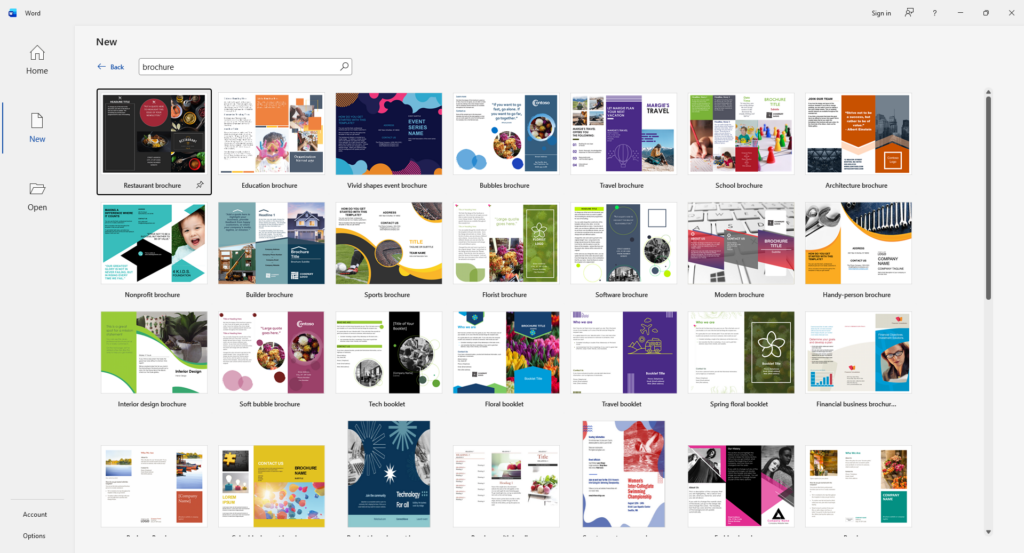
Open Microsoft Word and start with either a blank document or one of Word’s built-in brochure templates.
Templates provide a fast starting point with pre-designed sections, colors, and formatting that can easily be customized to match your branding.
If you prefer complete creative control, begin with a blank page and design everything yourself.
Configure the Page Layout
A well-designed brochure starts with the correct page settings.
Adjust the page orientation to Landscape, then choose an appropriate paper size based on your printing needs. Set narrow margins to maximize available space while maintaining a clean appearance.
If you’re designing a tri-fold brochure, divide the page into three equal columns to create the folding sections.
Add Your Content
Start filling each panel with useful information.
A typical brochure may include:
- Company name
- Logo
- Headline
- Product or service descriptions
- Benefits
- Images
- Contact information
- Website
- Social media links
- Call-to-action
Keep paragraphs short so readers can quickly scan the content.
Insert High-Quality Images
Visuals make brochures more engaging.
Use clear, high-resolution images that relate to your business or message. Avoid blurry or stretched graphics, especially if the brochure will be professionally printed.
Microsoft Word lets you resize, crop, rotate, and position images with just a few clicks.
Customize Fonts and Colors
Choose fonts that are easy to read.
Using one font for headings and another for body text creates a clean, organized appearance. Consistent colors also strengthen your branding and improve readability.
Avoid using too many font styles or bright colors that distract from the content.
Enhance the Design with Shapes and Icons
Microsoft Word includes several design elements that help brochures look more polished.
Consider adding:
- Icons
- Shapes
- SmartArt
- Text boxes
- Borders
- Color blocks
These elements help organize information and draw attention to important sections.
Organize Information Clearly
Readers should understand your brochure within a few seconds.
Arrange information logically by placing the most important message on the front panel, supporting details inside, and contact information near the end.
White space is equally important. Leaving room between sections prevents the page from feeling overcrowded.
Review Before Printing
Before printing or sharing your brochure, carefully review the document.
Check for:
- Spelling mistakes
- Grammar errors
- Image quality
- Correct alignment
- Consistent fonts
- Accurate contact information
- Proper spacing
A final review helps ensure your brochure looks professional.
Save as a PDF
Once you’re satisfied with the design, save the brochure as a PDF.
PDF files preserve formatting across different devices and are the preferred format for commercial printing and digital sharing.
You can also keep the original Word document for future edits.
Tips for Creating Better Brochures
To achieve the best results:
- Use high-quality images.
- Write concise, informative text.
- Maintain consistent branding.
- Leave enough white space.
- Use headings to separate sections.
- Highlight important information with bold text.
- Include a clear call-to-action.
- Proofread before printing.
Small design improvements can make a significant difference in the final result.