

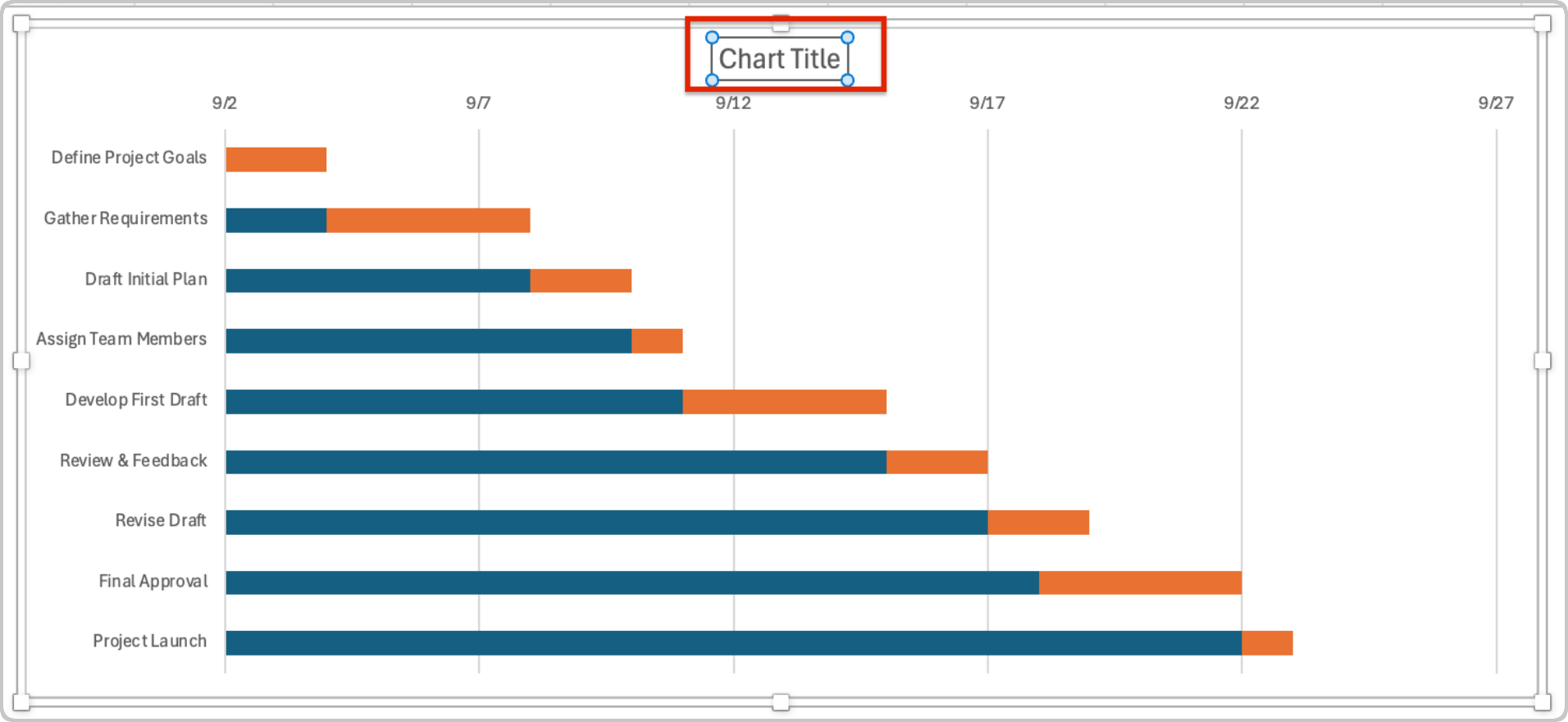
A Gantt chart is one of the most practical tools for organizing tasks, managing deadlines, and tracking the progress of a project. While many specialized project management tools exist, Microsoft Excel remains one of the most accessible and flexible options for creating a clear project timeline. With a few simple steps, you can build a professional-looking Gantt chart that helps visualize tasks, durations, and dependencies.
What Is a Gantt Chart?
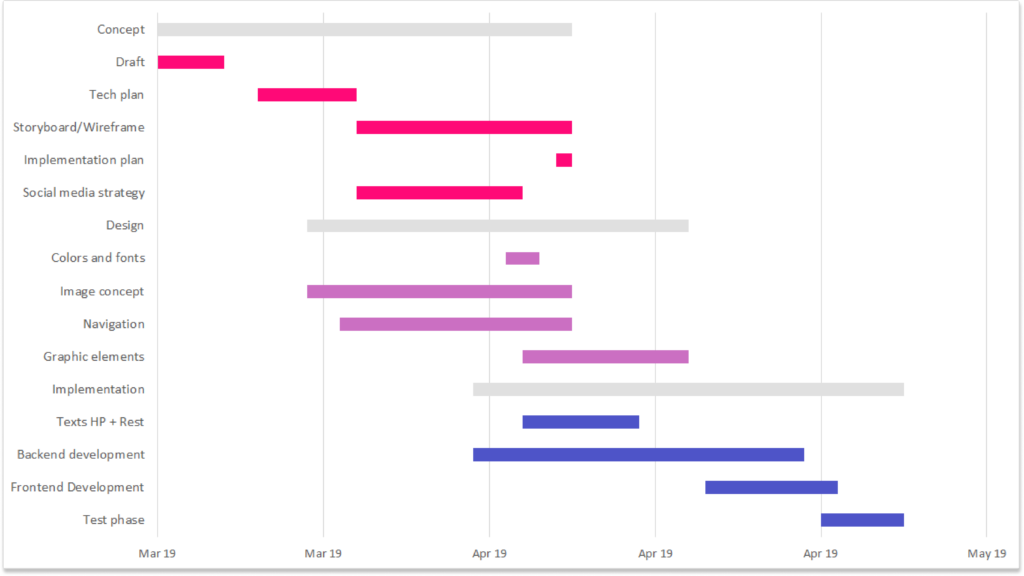
A Gantt chart is a visual project timeline that displays tasks along a horizontal time scale. Each task is represented by a bar that shows its start date, duration, and progress. This format allows project managers and team members to quickly see which tasks are running, which ones overlap, and how the project timeline unfolds.
Using Excel for this purpose is especially useful for small teams, freelancers, or anyone who needs a simple but effective way to plan projects without investing in complex software.
Step 1: Create Your Task Table
Start by opening Excel and creating a simple project table. You will need at least three columns:
Step 2: Insert a Stacked Bar Chart
Once your table is ready, highlight the Start Date and Duration columns. Go to the Insert tab in Excel and select Bar Chart, then choose Stacked Bar Chart. Excel will automatically generate a chart based on your selected data.
At first glance, the chart may not resemble a Gantt chart yet, but it already contains the structure needed to build one.
Step 3: Format the Chart
To transform the stacked bar chart into a Gantt chart, you need to hide the bars representing the start dates. Click on the Start Date bars in the chart, open the Format Data Series options, and set the fill color to No Fill. This step removes the visual offset and leaves only the duration bars visible.
Next, adjust the vertical axis so the task names appear in the correct order. You can also reverse the task order in the axis settings if necessary.
Step 4: Customize Your Gantt Chart
Now that the basic chart is complete, you can customize it to improve clarity and readability. Consider the following enhancements:
These small adjustments can make the chart easier to read and more suitable for presentations or reports.
Step 5: Keep the Chart Updated
One of the biggest advantages of using Excel is that your Gantt chart updates automatically when you change the underlying data. If a task start date shifts or the duration changes, the chart will immediately reflect the update.
For ongoing projects, this makes Excel a reliable and flexible tracking tool that requires minimal maintenance.







