


Cross-references in Microsoft Word help readers move through a document more easily by pointing them to related headings, figures, tables, footnotes, endnotes, equations, bookmarks, or numbered items. This feature is especially useful in long documents such as reports, manuals, research papers, contracts, guides, business documents, and academic work. Instead of manually typing “see page 5” or “refer to Figure 2,” Word can insert a dynamic reference that updates when the document changes.
A cross-reference is different from plain text because it connects to another part of the same document. If a heading number, page number, figure number, or table number changes later, the reference can be updated instead of rewritten manually. Microsoft explains that Word can create cross-references to numbered items, headings, bookmarks, footnotes, endnotes, equations, figures, and tables.
What Is a Cross-Reference in Word?
A cross-reference is a link or reference that points to another location in the same Word document. It can direct readers to a heading, table, chart, image, footnote, equation, or numbered list item. For example, a document might say “See Table 3 for more details” or “Read Section 2.1 for setup instructions.” Instead of typing that reference manually, Word can insert it as a field.
This is useful because long documents often change during editing. Sections may move, headings may be renamed, figures may be renumbered, and page numbers may shift. A manually typed reference can become wrong very quickly. A Word cross-reference reduces that problem because it can be refreshed after edits.
Cross-references are commonly used in:
- Business reports
- User manuals
- Academic papers
- Technical documentation
- Legal documents
- Product guides
- Training materials
- Policy documents
- Books and ebooks
- Long Word templates
For professional documents, cross-references help keep the structure clean and accurate.
Why Use Cross-References?
Cross-references save time and improve document accuracy. When a document has many headings, figures, tables, or numbered sections, it is easy to make mistakes if every reference is typed by hand. Word’s cross-reference tool helps avoid broken numbering and incorrect page references.
Cross-references are useful because they:
- Connect related parts of a document
- Reduce manual editing
- Help readers find information faster
- Keep references more accurate after changes
- Improve long document navigation
- Support professional formatting
- Work with headings, captions, bookmarks, and numbered items
They are especially helpful when combined with Word styles, captions, and automatic numbering.
How to Insert a Cross-Reference in Microsoft Word
Before inserting a cross-reference, make sure the target item already exists in the document. For example, if the reference should point to a heading, the heading should be formatted with a Word heading style. If the reference should point to a figure or table, the item should have a caption.
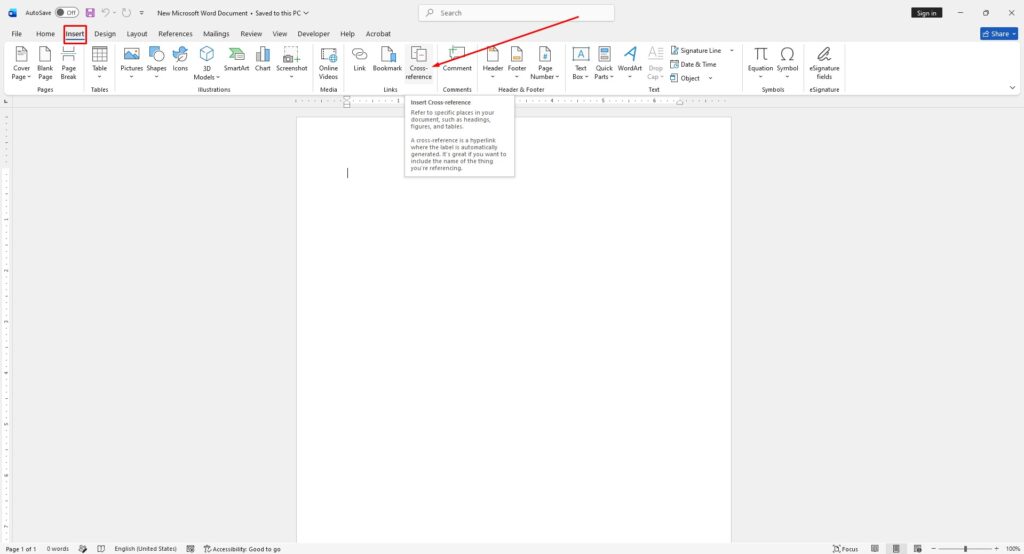
To insert a cross-reference in Word:
- Click where the cross-reference should appear.
- Go to the Insert tab.
- Click Links.
- Select Cross-reference.
- Open the Reference type menu.
- Choose the item type, such as Heading, Figure, Table, Footnote, Endnote, Equation, Bookmark, or Numbered item.
- Open the Insert reference to menu.
- Choose what should appear in the document, such as the heading text, page number, paragraph number, or caption number.
- Select the exact item from the list.
- Click Insert.
- Click Close when finished.
After inserting the cross-reference, Word places the reference into the document. Depending on the selected option, it may show text, a number, a page number, or another reference format.
Choosing the Right Reference Type
The Reference type option controls what kind of item Word will link to. Choosing the correct type is important because Word only shows matching items in the list.
Common reference types include:
- Heading: Links to a document heading.
- Figure: Links to an image or figure caption.
- Table: Links to a table caption.
- Footnote: Links to a footnote.
- Endnote: Links to an endnote.
- Equation: Links to a numbered equation.
- Bookmark: Links to a bookmarked location.
- Numbered item: Links to an item in a numbered list.
For example, if the document says “See Figure 4,” choose Figure as the reference type. If the document says “See Section 3,” choose Heading or Numbered item, depending on how the document is structured.
Choosing What the Cross-Reference Displays
The Insert reference to option controls what appears in the document. This can include the full caption, only the label and number, the page number, the paragraph number, or the heading text.
For example:
- Use Page number when writing “See page 12.”
- Use Heading text when referencing a section name.
- Use Only label and number when referencing “Figure 2” or “Table 1.”
- Use Paragraph number when referencing numbered sections.
This makes cross-references flexible. The same target can be referenced in different ways depending on the sentence.
How to Update Cross-References in Word
Cross-references do not always update instantly after a document is edited. If headings, captions, or page numbers change, the references may need to be refreshed.
To update cross-references:
- Press Ctrl + A to select the whole document.
- Press F9 to update fields.
- If prompted, choose to update the entire table or field.
This refreshes cross-references, tables of contents, captions, and other Word fields. It is a good idea to update fields before saving, printing, exporting to PDF, or sending the document to someone else.
How to Make Cross-References Clickable
Word cross-references can act like links inside the document. In the Cross-reference dialog box, there is an option called Insert as hyperlink. When this option is selected, readers can click the reference and jump to the related section, figure, table, or note.
This is very useful for digital documents, PDFs, manuals, and long reports. It helps readers move through the file faster without searching manually.
Common Problems With Cross-References
Cross-references can break if the target item is deleted. For example, if a referenced heading, figure, table, or bookmark is removed, Word may show an error message instead of the correct reference. This usually means the original item no longer exists or the field needs to be updated.
Another common issue is outdated numbering. If a new figure is added before an existing figure, the numbers may change. Updating fields with Ctrl + A and F9 usually fixes this.
To avoid problems:
- Use Word heading styles for sections.
- Use captions for figures and tables.
- Avoid manually typing figure and table numbers.
- Update fields before finalizing the document.
- Check references after deleting sections.
- Use bookmarks for custom reference points.
Best Uses for Cross-References
Cross-references are most useful in documents where structure matters. They help connect information without repeating full explanations. For example, a technical guide can reference a setup section, a report can point to a chart, and an academic paper can refer to a table or footnote.
Good uses include:
- “See Table 2 for the full results.”
- “Refer to Section 4.1 for installation steps.”
- “More details are shown in Figure 3.”
- “This topic is explained in Appendix A.”
- “See footnote 5 for the source note.”
These references make the document easier to follow and more professional.







