


Adding a vertical line in Microsoft Word is useful when creating professional documents, resumes, newsletters, forms, reports, flyers, business letters, and page layouts. A vertical line can separate text, divide columns, highlight a section, create a clean design, or make a document easier to read. Word does not have only one way to add a vertical line. The best method depends on where the line should appear and how much control is needed over its size, position, and style.
Microsoft Word allows users to draw lines with the Shapes tool, add lines between columns, use borders, or create vertical dividers with tabs. Microsoft explains that lines can be drawn from the Insert > Shapes menu, and holding Shift while drawing helps keep the line perfectly straight. Word also includes a column setting that can place a vertical line between text columns automatically.
Why Add a Vertical Line in Word?
A vertical line can improve the structure and appearance of a document. It can separate two sections of text, create a sidebar, divide contact details from resume content, or add a clean design element to a page. Many users add vertical lines to make documents look more organized without using complicated formatting.
Vertical lines are commonly used in:
- Resumes and CVs
- Newsletters
- Business reports
- Brochures
- Flyers
- Forms
- Cover pages
- School documents
- Comparison layouts
- Professional templates
The easiest method is usually the Shapes tool, but other methods may be better for specific layouts. For example, if the document uses newspaper-style columns, the built-in column line option is the cleanest choice.
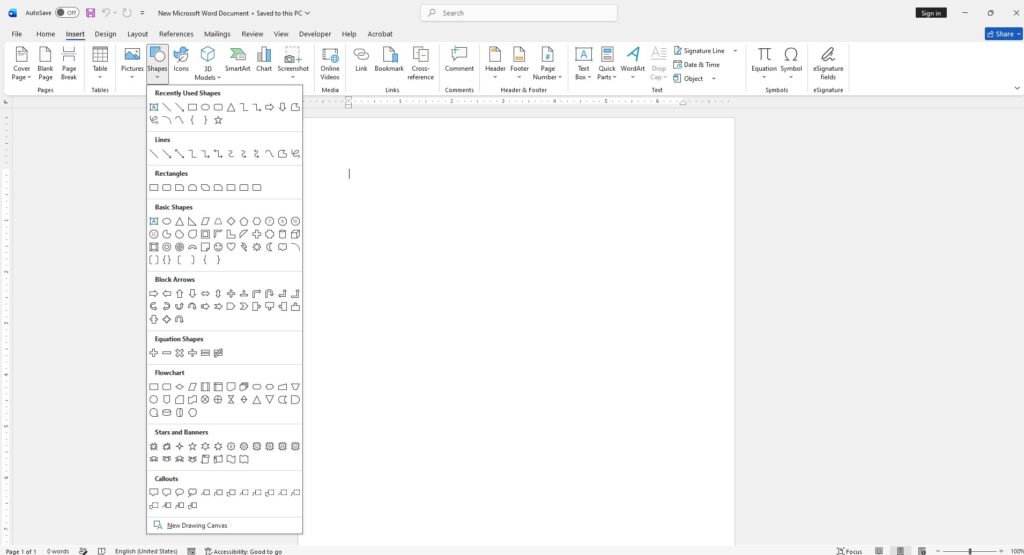
Method 1: Insert a Vertical Line With Shapes
The Shapes tool is the most flexible way to insert a vertical line in Microsoft Word. It allows the line to be placed almost anywhere on the page. The line can also be resized, moved, colored, thickened, or changed to a dashed style.
To insert a vertical line with Shapes:
- Open the Word document.
- Click the Insert tab.
- Select Shapes.
- Under Lines, choose the straight line option.
- Click where the line should begin.
- Hold Shift and drag downward to keep the line straight.
- Release the mouse button when the line reaches the correct length.
After the line is inserted, click it to open the Shape Format tab. From there, the line color, thickness, style, and position can be changed. Microsoft notes that Shape Outline can be used to adjust the color, weight, and style of a selected line.
This method is best when the vertical line needs to be placed in a custom location, such as beside a paragraph, next to a heading, or between two blocks of content.
Method 2: Add a Vertical Line Between Columns
If the document uses columns, Word can automatically insert a vertical line between them. This is useful for newsletters, magazine-style layouts, brochures, and multi-column reports.
To add a line between columns:
- Select the text or section that should use columns.
- Go to the Layout or Page Layout tab.
- Click Columns.
- Select More Columns.
- Choose the number of columns.
- Check Line between.
- Click OK.
Word will place a vertical line between the columns. This method is better than drawing a manual line because the divider automatically follows the column layout. Microsoft’s support page confirms that the Line between option is available inside the Columns dialog box.
Method 3: Use a Left or Right Border
A paragraph border can also create a vertical line. This method works well when the line should appear next to a specific paragraph or block of text. It is useful for quotes, notes, warnings, callout sections, or highlighted information.
To create a vertical line with a border:
- Select the paragraph or text block.
- Go to the Home tab.
- Open the Borders menu in the Paragraph group.
- Choose Left Border or Right Border.
- Open Borders and Shading if more styling options are needed.
- Adjust the color, width, and line style.
This method keeps the line attached to the paragraph. If the text moves, the border moves with it. That makes it better than a manually drawn shape for content that may still be edited later.
Method 4: Use a Bar Tab for a Vertical Line
A bar tab is another way to add a vertical line in Word. It places a vertical line at a specific tab stop position. This method is useful for structured text, forms, simple layouts, and documents where the line should align with text.
To use a bar tab:
- Select the paragraph.
- Open the Home tab.
- Click the small arrow in the Paragraph group.
- Click Tabs.
- Enter the tab stop position.
- Select Bar under Alignment.
- Click Set.
- Click OK.
The vertical line appears at the selected tab position. This method can be more precise than drawing a line manually, especially when working with text alignment.
Method 5: Add a Line Inside a Text Box
A text box can also be used to create a controlled layout with a vertical line. This is helpful for resumes, flyers, and documents that need a sidebar or separated content area. A text box can be moved freely and formatted with borders, spacing, and background options.
To use this method, insert a text box, place the content inside it, and then apply a left or right border. This creates a vertical divider that stays connected to the text box.
Which Method Should Be Used?
The best method depends on the document layout. Use Shapes when the line needs to be placed freely anywhere on the page. Use Columns when the line should separate newspaper-style text columns. Use Borders when the line should stay attached to a paragraph. Use Bar Tabs when the line needs to align with text at a specific position.
For most users, the Shapes method is the fastest and easiest option. For professional documents that will be edited later, paragraph borders or column lines are usually more reliable because they move with the text.







