Windows 11 allows users to manage a wide range of system settings and features. However, many configuration options are scattered throughout the operating system, and some advanced settings are not accessible through the standard interface. This is where the Sophia Script for Windows becomes extremely useful.
The Sophia Script is an open-source PowerShell module designed to debloat and fine-tune Windows 11 (as well as Windows 10). It is widely recognized as one of the most comprehensive tools available for power users who want to automate the process of configuring a fresh Windows installation or adjusting privacy settings that Microsoft enables by default.
Unlike simple optimization tools that rely on a single click, Sophia Script is built as a collection of more than 150 individual functions. These functions interact with Windows using officially supported system methods, helping ensure stability and reliability. With this script, users can improve multiple areas of the operating system, including privacy and telemetry settings, removal of pre-installed apps, interface customization, system optimization, and security adjustments.
Since the tool operates through PowerShell, basic familiarity with Microsoft’s scripting environment can be helpful. If you want to learn more about PowerShell commands and functionality, you can refer to the official Microsoft PowerShell documentation:
https://learn.microsoft.com/powershell/
In this guide, we will walk through the process of debloating and fine-tuning Windows 11 using Sophia Script. It is important to note that the script is not a one-click solution. Instead, users must manually edit the script to choose which optimizations they want to apply.
Downloading the Sophia Script
To download Sophia Script for Windows, follow these steps:
- Open Start.
- Search for PowerShell (or Terminal), right-click the result, and select Run as administrator.
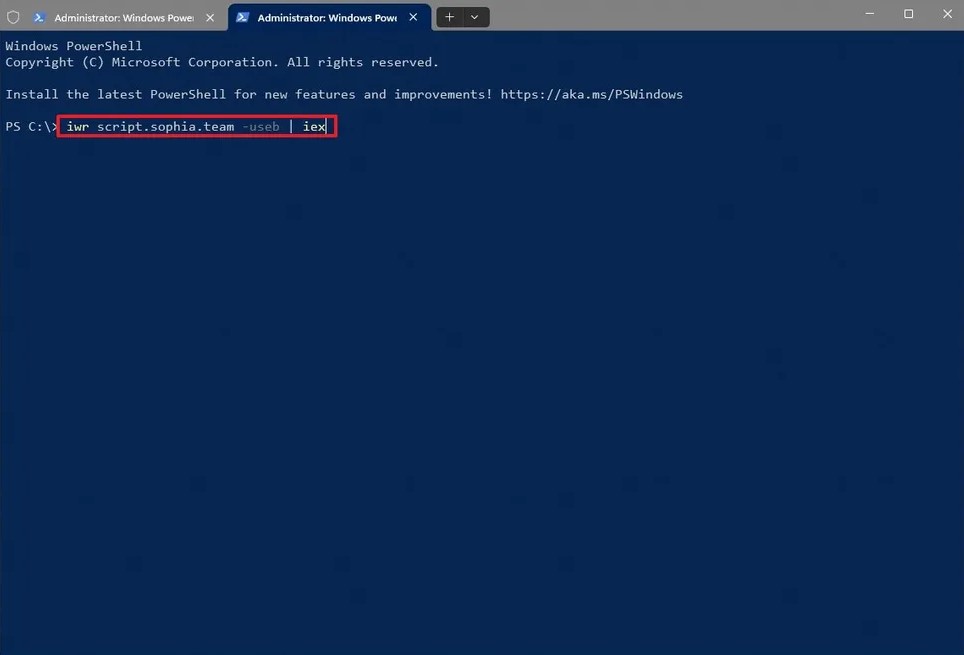
- Run the following command to download the script:
iwr script.sophia.team -useb | iex
Alternatively, you can download the script directly from the official Sophia Script GitHub repository:
https://github.com/farag2/Sophia-Script-for-Windows
After downloading and extracting the archive, open the Sophia folder. Inside, you will find several files and directories.
One of the most important files is Sophia.ps1. This file acts as a preset configuration that lists the commands you want to execute on your system. It does not contain the actual implementation code. Instead, the code is stored in the Functions.ps1 file, which contains the functions that the preset configuration calls.
Editing the Sophia Script
Before running the script, you need to edit it and select which functions should be executed on your system.
You can use any text editor for this step, but a code editor such as Visual Studio Code is recommended because it highlights code syntax and helps reduce errors.
Follow these steps to edit the script:
- Open Visual Studio Code (or another code editor).
- Click File → Open File.
- Select the Sophia.ps1 file and open it.
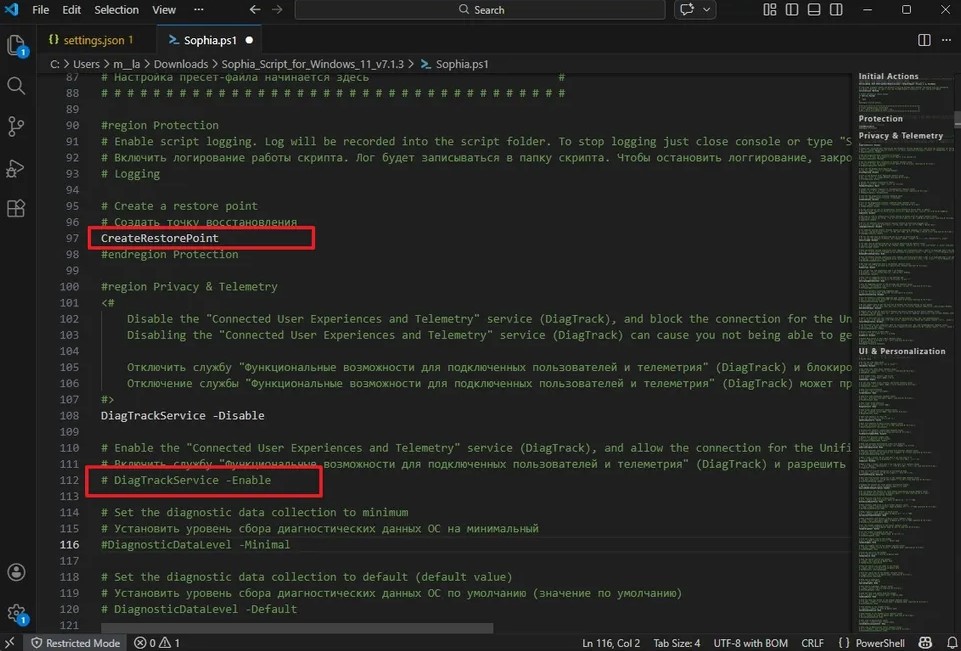
- In the section titled “Preset configuration starts here”, remove the
#symbol from the functions you want to enable. - To prevent a function from running, add the
#symbol in front of the command. - Save the file using Ctrl + S.
Although many lines include comments explaining each function, the command itself is usually located on the third line, which is the line you need to uncomment.
Because the script includes over 150 functions, it is important to understand what each one does before enabling it. You do not need to activate all of them—simply select the ones that match your preferences.
Be cautious when editing the script, as many functions include parameters and configuration options. Additionally, if multiple commands affect the same setting, the last command in the script will take precedence.
After finishing your changes, save the file and close the editor.
Using the Sophia Script Wrapper (Optional)
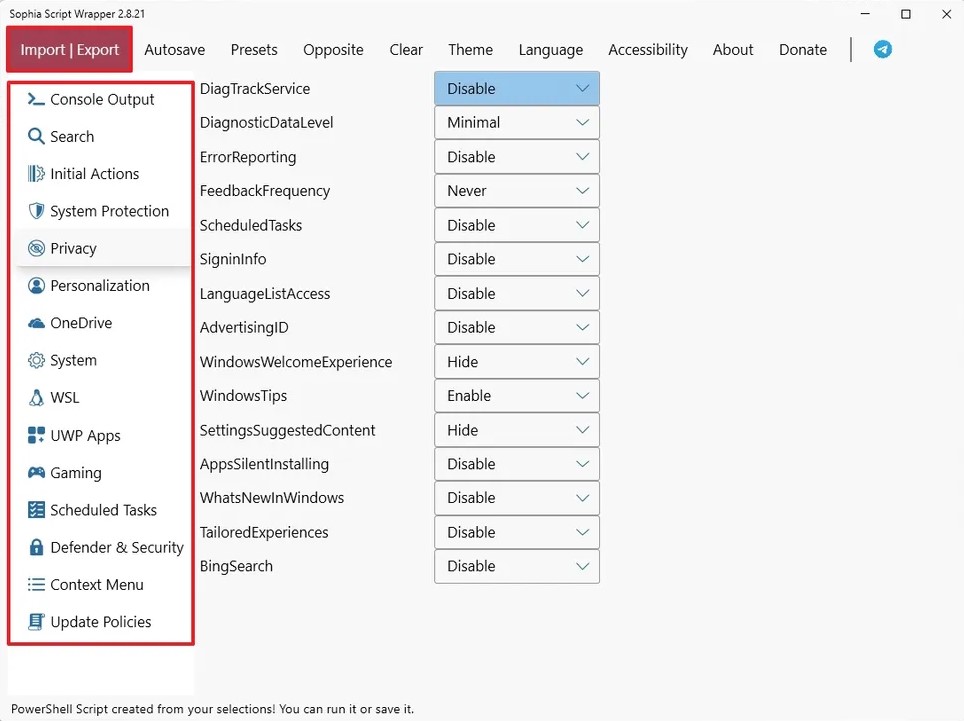
If you prefer a graphical interface instead of manually editing the script, you can use the Sophia Script Wrapper.
Download the latest wrapper file (Sophia.Script.Wrapper.vx.x.xx.zip) from the GitHub repository. After extracting the files:
- Run SophiaScriptWrapper.exe to launch the interface.
- Use the Import/Export option to import the Sophia.ps1 configuration file.
- Navigate through the categories in the left panel to enable or disable specific functions.
- Once finished, export the customized script.
- Save the new file in the same folder where Sophia.ps1 is located.
After exporting the modified configuration, you can proceed to run the script.
Running the Sophia Script
To run Sophia Script on Windows 11:
- Open Start.
- Search for PowerShell (or Terminal), right-click it, and select Run as administrator.
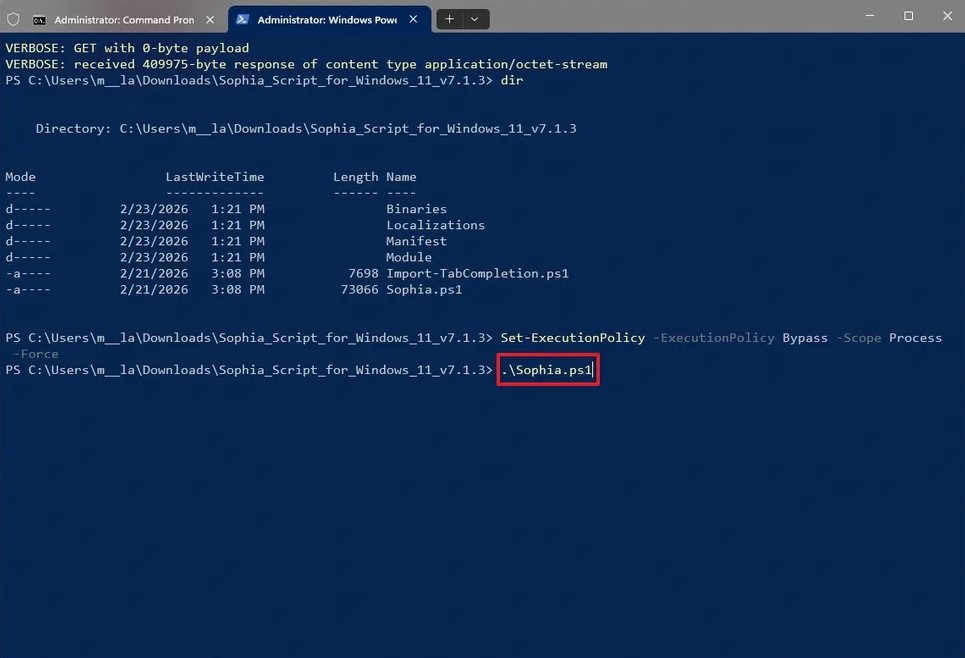
- Navigate to the folder containing the script:
cd path\to\folder
- Allow the script to run without restrictions:
Set-ExecutionPolicy -ExecutionPolicy Bypass -Scope Process -Force
- Run the customized script:
.\Sophia.ps1
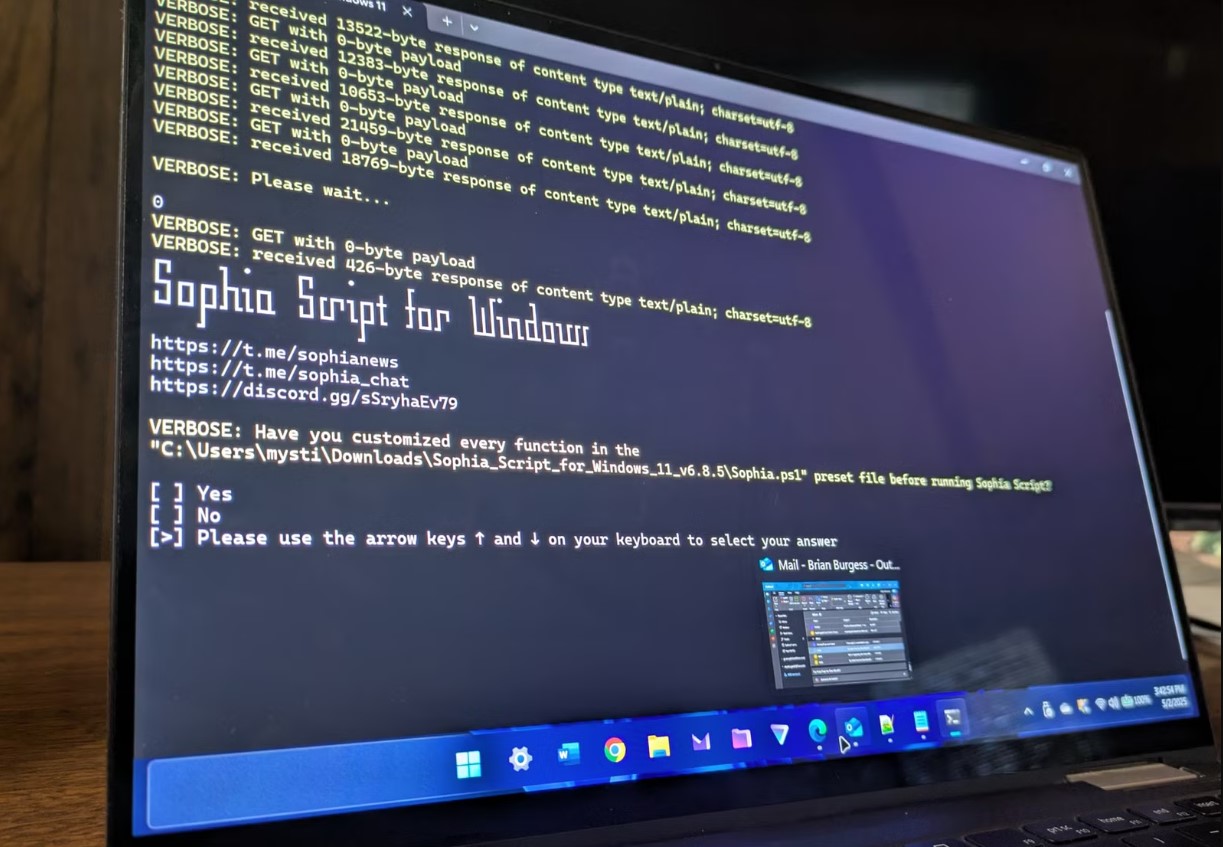
Once executed, the script will begin applying the selected optimizations. Depending on which functions are enabled, some operations may require confirmation through pop-up windows.
If the script appears to pause during execution, do not interrupt it immediately. Wait for the process to continue or press the Spacebar if prompted. Avoid pressing Enter, as this may cause the script to skip a function.
Running Individual Functions
If you prefer not to edit the entire configuration file, you can run individual functions directly from PowerShell.
- Open PowerShell as administrator.
- Navigate to the script directory:
cd path\to\folder
- Allow script execution:
Set-ExecutionPolicy -ExecutionPolicy Bypass -Scope Process -Force
- Load the function definitions:
. .\Import-TabCompletion.ps1
You can then run functions in several ways.
Option 1 — Browse functions
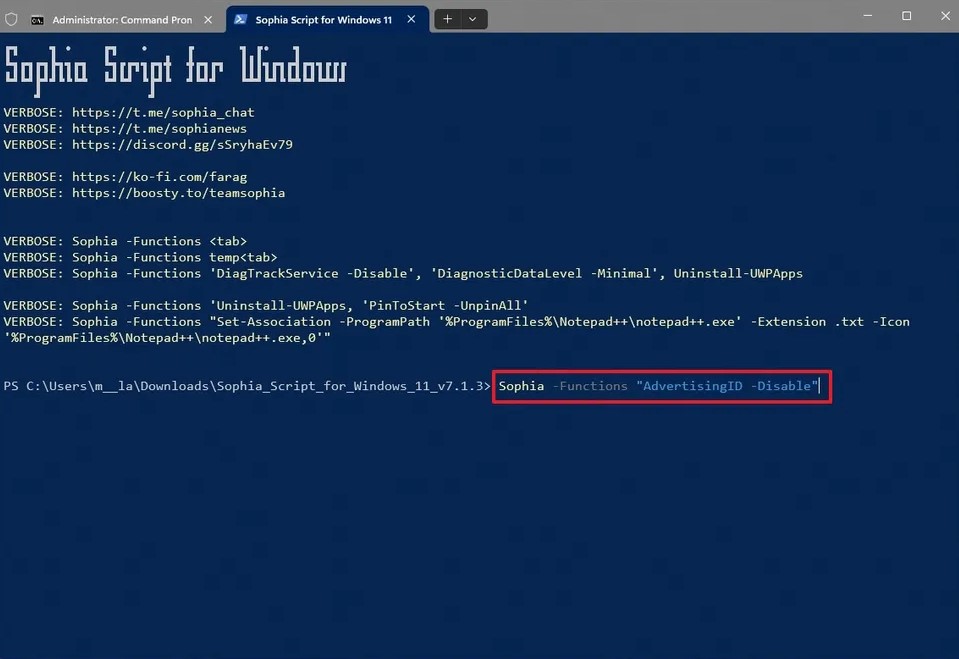
Sophia -Functions
Press the TAB key repeatedly to cycle through available functions and press Enter to run the selected one.
Option 2 — Search for functions
Sophia -Functions temp
Use TAB to cycle through functions containing the word “temp”.
Option 3 — Run specific functions
Sophia -Functions "DiagTrackService -Disable", "DiagnosticDataLevel -Minimal"
This allows you to enable, disable, or configure individual Windows features without modifying the main script.