


Hyperlinks in Microsoft Word are underlined by default to make them easy to recognize. While this formatting helps readers identify clickable links, there are times when you may prefer a cleaner look without the underline. Fortunately, Word allows you to change the appearance of hyperlinks while keeping them fully functional.
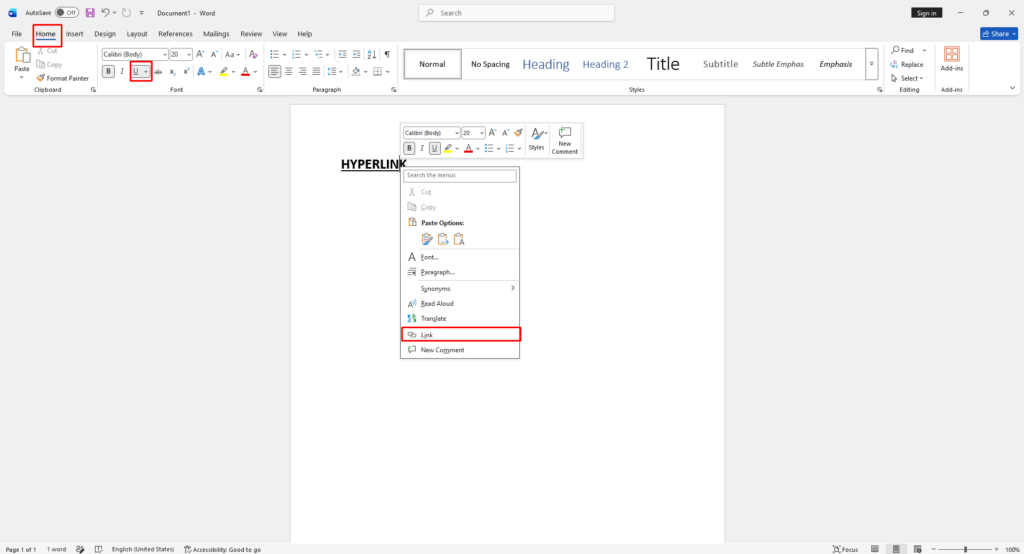
Remove the Underline From a Single Hyperlink
If you only need to remove the underline from one link, follow these steps:
- Open your document in Microsoft Word.
- Select the hyperlinked text.
- Go to the Home tab.
- In the Font section, click the Underline button or press Ctrl + U to turn off underlining.
- The hyperlink will remain clickable, but the underline will be removed.
Keep in mind that manually changing the formatting of a hyperlink only affects the selected text.
Remove Underlines From All Hyperlinks
If you want all hyperlinks in your document to appear without underlines, you can modify the built-in Hyperlink style:
- Open your Word document.
- Navigate to the Home tab.
- In the Styles group, click the small arrow to open the Styles pane.
- Find the Hyperlink style.
- Right-click Hyperlink and select Modify.
- Click the Format button and choose Font.
- Under Underline Style, select None.
- Click OK, then click OK again to save your changes.
All hyperlinks that use the default Hyperlink style will now appear without underlines.
Customize Hyperlink Appearance
Removing the underline doesn’t mean you have to lose visual distinction. You can also customize the font color, size, and other formatting options to make hyperlinks blend better with your document design while remaining easy to identify.







