


Keeping Microsoft Word updated is important for security, stability, performance, and access to the latest Microsoft 365 features. Updates can fix bugs, improve compatibility with newer file formats, patch security issues, and add new tools that make Word easier to use. If Word is outdated, it may crash more often, miss newer features, or have trouble working with documents created in newer versions of Microsoft Office.
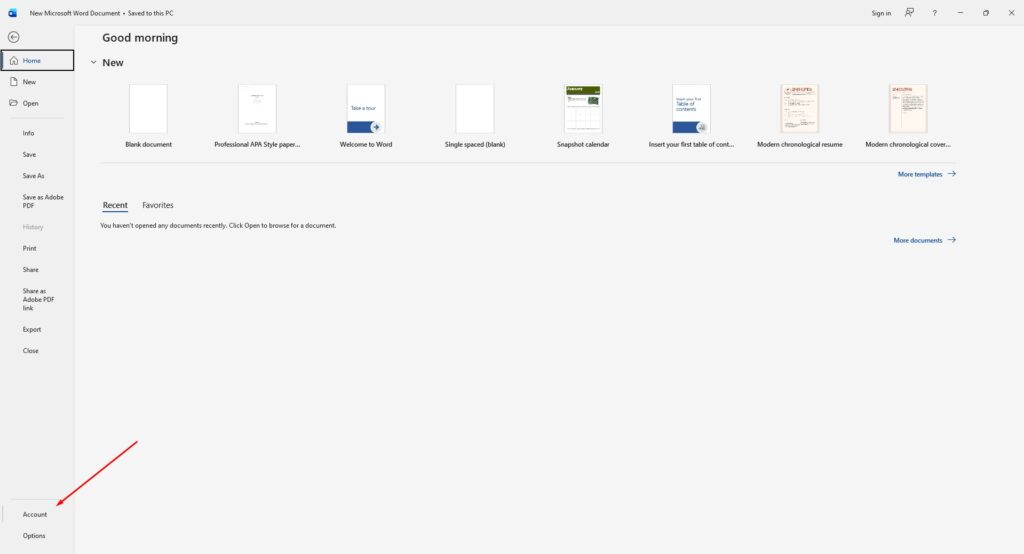
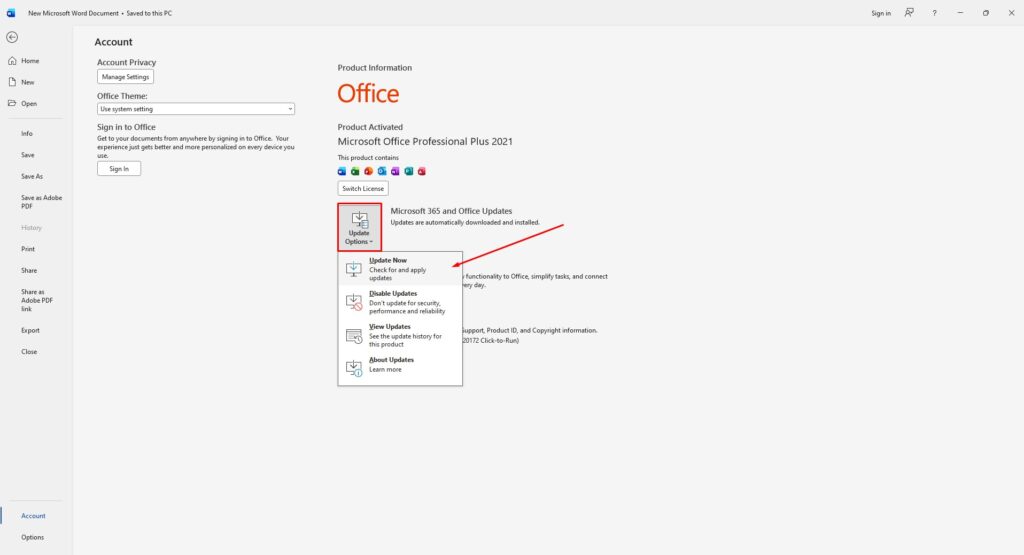
Microsoft Word is usually updated as part of Microsoft 365 or Microsoft Office, not always as a completely separate app. On Windows, updates can be installed from inside any Office app, including Word. On Mac, updates are usually handled through Microsoft AutoUpdate or the Mac App Store, depending on how Word was installed. Microsoft explains that Windows users can check for updates by opening an Office app, going to File > Account, and selecting Update Options > Update Now.
Why Updating Microsoft Word Matters
Microsoft Word is used for school work, business documents, invoices, contracts, resumes, reports, and everyday writing. Because Word files can contain links, macros, embedded objects, and shared content, keeping the program updated helps reduce security risks. Updates can also improve how Word handles cloud files, OneDrive syncing, comments, collaboration, fonts, templates, and document formatting.
Updating Word can help with:
- Security patches
- Bug fixes
- Better document compatibility
- Improved performance
- New Microsoft 365 features
- Fewer crashes and freezes
- Better OneDrive and SharePoint support
- Improved spelling, grammar, and editing tools
If Word is part of a Microsoft 365 subscription, updates may also include newer features that are not available in older one-time purchase versions. Microsoft notes that Microsoft 365 subscribers receive the newest features and tools when apps are kept updated.
How to Update Microsoft Word on Windows
The easiest way to update Word on Windows is from inside the app itself. This works for Microsoft 365 and many modern Office versions.
To update Microsoft Word on Windows:
- Open Microsoft Word.
- Create a new blank document.
- Click File.
- Select Account.
- Look for the Product Information section.
- Click Update Options.
- Select Update Now.
- Wait while Office checks for available updates.
- Restart Word if prompted.
If Update Now is missing, click Enable Updates first. Microsoft says this option may need to be enabled before manual updates appear.
This method updates Word along with other installed Office apps, such as Excel, PowerPoint, Outlook, and OneNote.
How to Update Word Through Windows Update
Windows can also receive Office updates through Microsoft Update. This is useful if the user wants Windows Update to check for Office updates along with normal system updates.
To enable Office updates through Windows Update on Windows 11:
- Open Settings.
- Go to Windows Update.
- Select Advanced options.
- Turn on Receive updates for other Microsoft products.
- Go back and check for updates.
Microsoft explains that this setting allows Windows Update to receive updates for other Microsoft products, including Office.
This does not replace the update option inside Word, but it gives Windows another way to keep Microsoft apps updated.
How to Update Microsoft Word on Mac
On Mac, the update method depends on how Microsoft Word was installed. If Word was downloaded from Microsoft’s website, it usually updates through Microsoft AutoUpdate. If Word was installed from the Mac App Store, it updates through the App Store.
To update Word on Mac with Microsoft AutoUpdate:
- Open Microsoft Word.
- Click Help in the top menu bar.
- Select Check for Updates.
- Wait for Microsoft AutoUpdate to open.
- Select Update or Update All.
- Enable automatic updates if desired.
Microsoft says Mac users can open a Microsoft 365 app such as Word, then choose Help > Check for Updates to update Office apps with Microsoft AutoUpdate.
How to Update Word From the Mac App Store
If Word was installed from the Mac App Store, updates are handled there instead.
To update Word from the Mac App Store:
- Open the Mac App Store.
- Select Updates from the sidebar.
- Find Microsoft Word or Microsoft 365 apps.
- Click Update next to the app.
- Or click Update All to update every available app.
Microsoft confirms that Microsoft 365 apps downloaded from the Mac App Store can be updated from the App Store’s Updates section.
If automatic updates are enabled in macOS, Word may update without needing manual action.
How to Turn On Automatic Updates
Automatic updates are the best option for most users because they keep Word protected without requiring manual checks. On Windows, Office usually updates automatically unless updates were disabled. If updates are off, open Word, go to File > Account > Update Options, and choose Enable Updates.
On Mac, open Word, go to Help > Check for Updates, and select the option to automatically keep Microsoft apps up to date. Microsoft recommends enabling automatic updates so Mac users receive security fixes and feature improvements as soon as they become available.
What to Do If Word Will Not Update
Sometimes Microsoft Word may not update correctly. This can happen if updates are disabled, the internet connection is unstable, the Microsoft AutoUpdate tool is outdated, the app was installed from a different source, or the operating system is too old.
If Word will not update, try these fixes:
- Restart the computer.
- Check the internet connection.
- Open Word as normal and try updating again.
- Enable updates if they are turned off.
- Update Windows or macOS first.
- On Mac, install the latest Microsoft AutoUpdate tool.
- If Word came from the Mac App Store, update it through the App Store.
- Repair Office on Windows if updates continue to fail.
Microsoft notes that Microsoft AutoUpdate problems on Mac may be caused by missing helper files or incorrect permissions, and installing the latest AutoUpdate version can help.
Check the macOS Version Before Updating Word
Mac users should also check whether their version of macOS still supports Microsoft 365 and Office updates. Microsoft states that starting with the September 2025 update, macOS Sonoma or later is required to receive updates for Word, Excel, PowerPoint, Outlook, and OneNote. Older macOS versions may still run Office apps, but they may stop receiving updates, including security updates.
This is important for users who cannot find new Word updates even though Microsoft AutoUpdate appears to be working. In some cases, the Mac operating system must be updated first.
Updating Word vs. Upgrading Word
Updating Word and upgrading Word are not the same thing. An update installs patches, fixes, and improvements for the version already installed. An upgrade means moving to a newer major version, such as switching from an older one-time purchase version of Office to Microsoft 365 or Office 2024.
Microsoft explains that users with a one-time purchase version of Office may need to buy the latest version or subscribe to Microsoft 365 if they want to upgrade to a newer major release.
If Word is still receiving updates and works well, a normal update may be enough. If the installed version is no longer supported or missing important features, an upgrade may be the better choice.







